
If you’re trying to add dark mode in WordPress without a plugin, you’re not alone.
Dark mode is now a popular feature across the web, offering better accessibility, reduced eye strain, and a sleek modern look. While plugins like Darkify make this process easier with advanced features, some developers prefer the manual route—no plugins, just CSS.
In this guide, we’ll explore the top 3 ways to add dark mode in WordPress without using a plugin, discuss their pros and cons, and help you choose the right method for your needs.
Key Takeaways
- WordPress dark mode can be added without a plugin using custom CSS and JavaScript.
- A manual implementation gives developers full control over the design and dark-mode behavior.
- Use a dark-mode class and JavaScript toggle to switch themes and remember user preferences.
- The biggest drawback is ongoing maintenance and compatibility as your WordPress site grows.
- For advanced websites, a dedicated solution can reduce development work while providing automatic switching, customization, and broader compatibility.
Why Add Dark Mode Without a Plugin?
There are a few reasons why users go the manual route:
- Want to reduce plugin bloat
- Need more customization and control
- Building a lightweight or static WordPress site
- Learning how CSS and WordPress themes work under the hood
However, with power comes responsibility—you’ll need to write and maintain your own CSS, possibly across theme updates.
Method 1: Add Dark Mode with Manual CSS in style.css
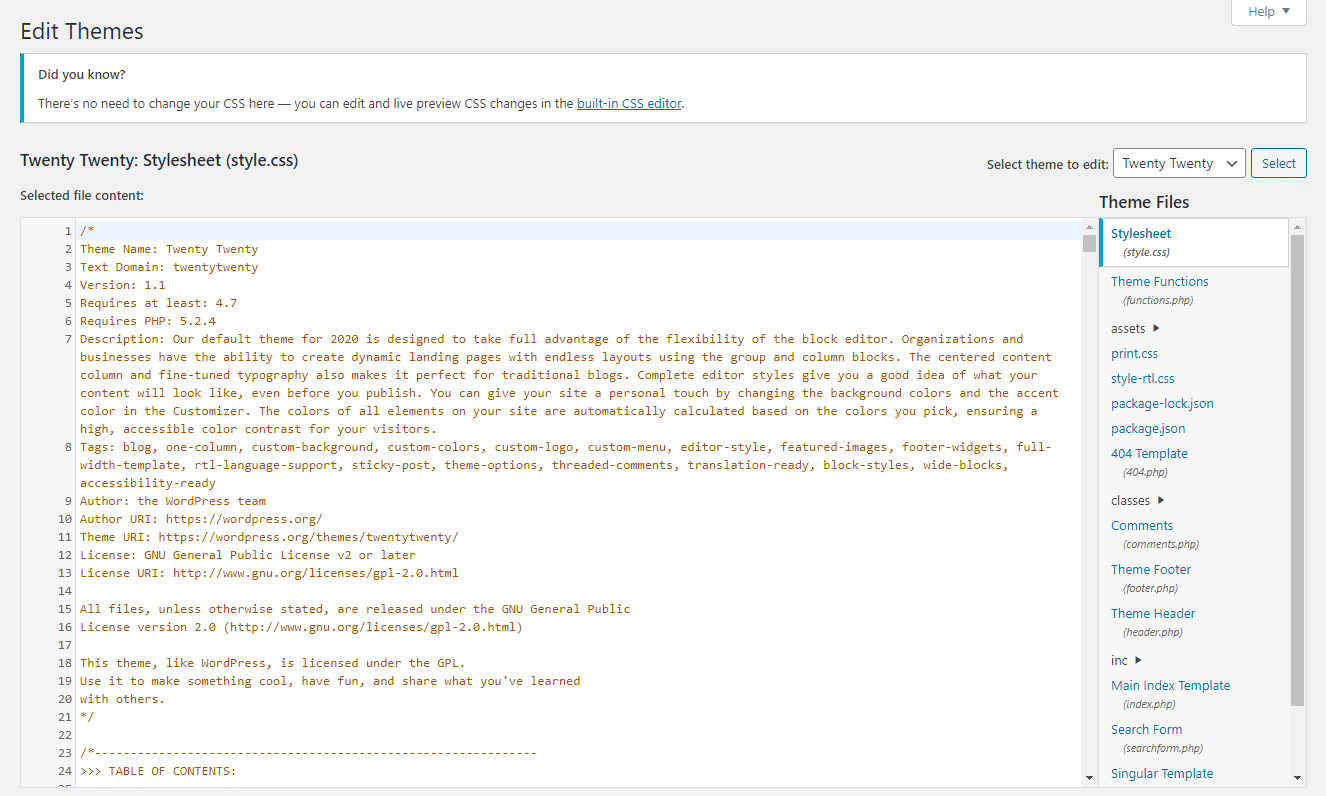
This method is ideal for custom themes or child themes.
✅ Steps:
- Go to your WordPress admin panel.
- Navigate to Appearance > Theme File Editor.
- Open the
style.cssfile (preferably in a child theme). - Add the following CSS at the bottom:
body.dark-mode {
  background-color: #121212;
  color: #e0e0e0;
}

.dark-mode a {
  color: #bb86fc;
}- Use a toggle button (via HTML/JS) to add or remove the
dark-modeclass.
Pros & Cons:
Pros:
- Complete control
- No plugins needed
Cons:
- Requires JavaScript knowledge for toggle
- No admin dashboard support
Method 2: Use CSS Variables for Light/Dark Toggle
This is a modern and scalable approach.
✅ Sample CSS:
:root {
  --bg-color: #ffffff;
  --text-color: #000000;
}

body {
  background-color: var(--bg-color);
  color: var(--text-color);
}

body.dark-mode {
  --bg-color: #121212;
  --text-color: #ffffff;
}
Then you can toggle dark-mode on the <body> via a script or a checkbox toggle.
⚖️ Pros & Cons:
Pros:
- Reusable and clean
- Easily maintainable
Cons:
- Needs basic JS for toggling
Method 3: Auto Dark Mode Based on System Preferences
This method uses @media (prefers-color-scheme) to automatically detect system settings.
✅ Sample CSS:
@media (prefers-color-scheme: dark) {
  body {
    background-color: #121212;
    color: #ffffff;
  }
}
Pros & Cons:
Pros:
- Seamless for users
- No toggle/button needed
Cons:
- No user override
- Can’t preview unless the system theme is changed
Comparing All 3 CSS Methods
| Method | User Toggle | Plugin-Free | Ease of Setup |
|---|---|---|---|
Manual style.css | ✅ | ✅ | ⭐⭐ |
| CSS Variables | ✅ | ✅ | ⭐⭐⭐ |
prefers-color-scheme | ❌ | ✅ | ⭐⭐⭐⭐ |
Why We Still Recommend Plugins Like Darkify
While manual CSS methods are useful, they lack:
- Toggle buttons
- Dashboard integration
- Theme compatibility handling
- WooCommerce or Elementor support
That’s why tools like Darkify Plugin exist—to do it all with a 1-click setup. Try it here
Dark Mode Plugins for WordPress: Pros and Cons
| Feature | CSS Only | Basic Plugins | Advanced Plugins (Darkify) |
|---|---|---|---|
| User Toggle | ❌ | ✅ | ✅ |
| System Preference Sync | ❌ | ⚠️ Limited | ✅ |
| WooCommerce Support | ❌ | ⚠️ Partial | ✅ |
| Page Builder Support | ❌ | ⚠️ Inconsistent | ✅ |
| Custom Styling | ⚠️ Manual | ⚠️ Limited | ✅ |
| Maintenance Required | High | Medium | Low |
Real-World Results: Dark Mode That Actually Works
I had tried several dark mode plugins in the past, but felt they were far too bloated or wanted me to upgrade to access very basic features. I had even began designing my own dark mode plugin myself, but quickly realised that was going to be more difficult than I’d hoped for, so I tested out a few more and was delighted when I came across Darkify!
Darkify was the first dark mode plugin that I’d tried that successfully recoloured 99% of my website and elements added by third-party plugins, and the default set-up almost worked perfectly out-of-the-box. There was a few tricky elements that were being stubborn and refusing to recolour, but the support from the plugin author has been first-class. Within a few minutes of opening a chat ticket on their website, my issue was resolved, and the support team also helped point me in the right direction to identify the correct selectors myself next time.
The plugin has an intuative interface and many advanced options to help perfect your site. The author is also very receptive to suggestions and feedback. I rarely review plugins, but this one definitely deserves it!
External Resources
Final Thoughts
If you’re building a lean site or love tinkering with code, learning how to add dark mode in WordPress without a plugin is a great skill.
But if you want speed, stability, and deep integration, Darkify Plugin saves you hours of development and works with virtually every theme out of the box.