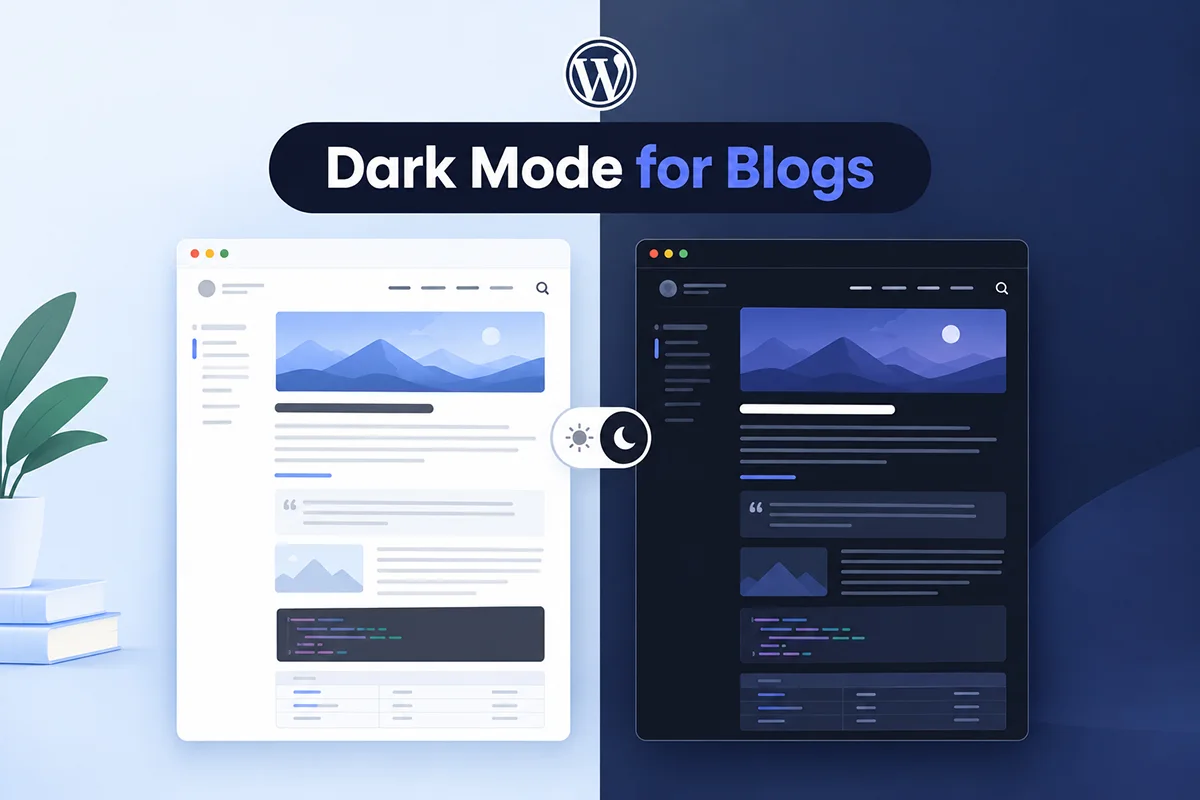
A dark theme can look impressive for five seconds on a homepage. Then you open a 2,500-word article, and body text feels too bright or too dim, links disappear into paragraphs, a blockquote becomes a black box, the code sample stays stubbornly white, and the toggle overlaps a mobile control. Dark mode for WordPress blog content needs more care than a landing page, because visitors spend longer looking at text and repeatedly encounter headings, links, images, tables, and code. That’s the difference between making a site dark and designing a dark reading experience — this guide focuses on the latter.
Key Takeaways
- Dark mode for WordPress blog content should be designed as a complete reading system, not a simple color inversion of the light theme.
- Pure black and pure white aren’t automatically inaccessible, but softer palettes may create a more comfortable visual hierarchy for some designs.
- Typography should be evaluated in the site’s actual font and content, not adjusted using a universal dark-mode formula.
- Images, code blocks, tables, embeds, captions, and forms each need their own dark-mode check — they don’t inherit correctness from the body text.
- Readers should have a clear way to choose light or dark presentation where practical, without either mode being forced.
- The real test is a long, representative article on desktop and mobile — not the homepage hero with dark mode switched on.
Why Dark Mode for WordPress Blog Content Needs a Different Audit
A marketing page reader scans a headline, an image, a CTA, and a few short sections. A long-form reader repeatedly encounters paragraphs, headings, inline links, lists, blockquotes, images, captions, tables, code, callouts, embeds, author boxes, related posts, and comments — often dozens of times per article. The dark theme has to hold up across all of those states, not just look good in a single hero screenshot. That’s the main reason a blog or documentation site needs a more deliberate setup than a five-page brochure site.
Start With the Reading Surface
Think of a long-form page in three layers. A strong setup handles all three, not just the first.
- Primary reading surface — article background, paragraph text, headings, links.
- Embedded content — images, figures, captions, tables, code, blockquotes, videos, embeds.
- Reading interface and site chrome — navigation, table of contents, progress indicator, share buttons, newsletter form, author box, related posts, comments, and the dark-mode toggle itself.
Choose Background and Text Colors Together
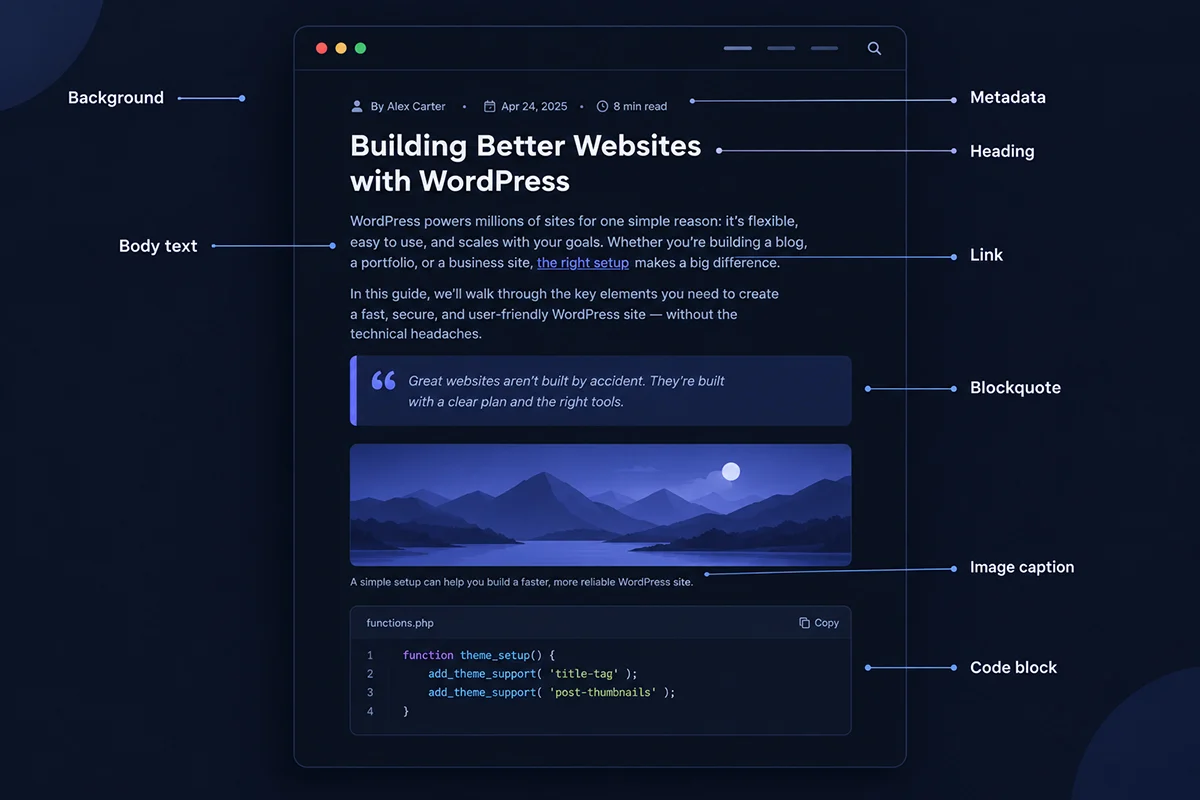
Foreground and background are a pair — don’t pick one and assume the other works. Any dark mode for WordPress blog palette should start with that pairing: choose the main dark surface, select body text that clears the applicable contrast requirement, then verify headings, muted text, links, and secondary backgrounds separately, using an actual contrast checker rather than judging by eye.
These are illustrative examples only, each with a calculated ratio — not a universal palette. Pure white on pure black reaches 21:1. A near-black surface (#121212) with off-white text (#e6e6e6) reaches 15.01:1 — still very high, with a softer visual character. Muted metadata (#9a9a9a) reaches 6.66:1, a link color (#7fb2ff) reaches 8.67:1, and a functional border needs at least 3:1 under SC 1.4.11; #666666 on #121212 reaches 3.26:1.
Should You Use Pure Black?
You can — it isn’t automatically inaccessible, and the math above shows it clears contrast requirements easily. It does create a very strong, absolute visual presentation. A near-black surface instead gives you more room for layered cards and a less stark overall contrast, which is a design consideration, not a health one. Test both against your actual typography before deciding.
Should Body Text Be Pure White?
It can be — again, not a compliance issue either way. Off-white text can help create hierarchy between headings, body text, metadata, and captions, since not everything has to sit at maximum contrast. Don’t lower text contrast simply because a design trend says pure white is “too harsh” — sufficient contrast and clear hierarchy are the actual requirements.
Typography for Long-Form Dark Mode
Evaluate typography as a system in your actual font, not with a universal formula. That holds for any dark mode for WordPress blog setup.
- Body font: keep the site’s existing typeface unless there’s an actual readability problem — dark mode rarely justifies loading another font.
- Font weight: inspect the real rendering before changing it. Perceived weight varies by typeface, OS, and display, so there’s no universal “increase weight for dark mode” rule.
- Font size and line height: use what suits your content and audience; give lines enough space to track comfortably without one universally correct value.
- Paragraph spacing and line length: keep paragraphs distinguishable and avoid an extremely wide column — SC 1.4.8 mentions an 80-character line-width mechanism, but it’s Level AAA and can be supplied by the browser, not a rule your CSS must hard-code.
- Alignment: avoid full justification for ordinary body copy, since it tends to create uneven spacing that hurts readability at typical column widths.
Links Need More Than a Different Shade of Gray
In dark mode for WordPress blog posts, links might appear dozens of times per article. Check the default state, hover, focus, and any styled visited state — not just one screenshot. Don’t make links indistinguishable from body text by relying on a subtle color difference alone; an underline or a clearly different visual treatment holds up better than color alone, especially for readers who don’t perceive that color difference the way you do.
Headings and Visual Hierarchy
Dark mode shouldn’t flatten everything into dark gray plus light gray. Test H2 and H3 styling, section spacing, eyebrow labels, publication date, and author metadata specifically — a reader should be able to skim a long article in dark mode as easily as in light mode. Don’t build that hierarchy by reducing secondary text contrast until it becomes hard to read; use size, weight, and spacing first.
Blockquotes, Callouts, and Info Boxes
These are common failure points. Check the blockquote border, quote text, and citation styling, plus callout background, border, icons, and any links inside the callout. A light-mode callout designed as a white card can turn into a jarring bright rectangle inside a dark article unless the contrast is intentional — don’t just let every callout invert automatically without checking how it actually looks.
Code Blocks and Syntax Highlighting
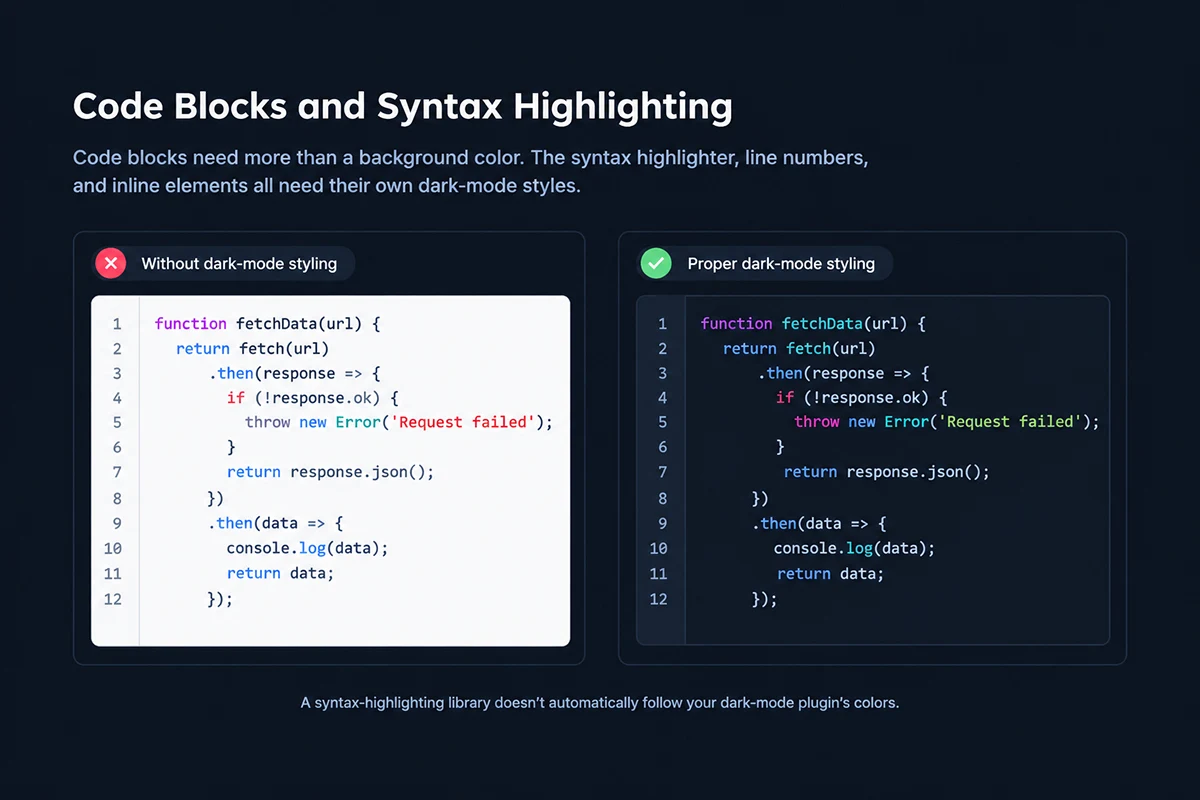
This matters most when you set up dark mode for WordPress blog content that includes documentation or technical tutorials. Check the code block background, normal and inline code text, syntax token colors, the copy button, line numbers, highlighted lines, and the scrollbar — a syntax-highlighting library won’t automatically follow a dark-mode plugin’s color changes. If a syntax theme stays bright or has poor token contrast, options include excluding it from automatic conversion, applying targeted dark-mode CSS, or switching to a syntax theme built for dark backgrounds.
Tables
Test real article tables, not a placeholder. Check the header background, cell backgrounds, zebra striping, borders, text, links inside cells, horizontal scroll behavior, and any sticky header. Dark mode can quietly erase the row and column boundaries that made a light-mode table scannable — use enough separation to keep structure visible without introducing overly bright border lines.
Images and Screenshots
Don’t automatically darken every image — different types need different treatment. Photography usually keeps its natural colors unless brightness genuinely disrupts reading. UI screenshots are trickier: dimming one may feel smoother inside a dark article, but it can misrepresent the interface you’re documenting, so accuracy is often the better call. Transparent logos need a check for dark strokes disappearing against a dark surface; diagrams sometimes need a separate dark-mode asset entirely. Where verified, brightness, grayscale, exclusions, and image replacement live under Pro-tier Media settings, not the free version.
Videos and Embeds
Third-party content doesn’t always behave like native page content. Per current Darkify documentation, same-origin iframes get styled directly, while cross-origin embeds — YouTube, Vimeo, maps, social widgets — can’t be restyled by any plugin due to browser security boundaries, so Darkify’s documented approach is to dim them rather than attempt a full recolor. Don’t expect any dark-mode tool to fully restyle a cross-origin embedded application; test each embed type your articles actually use.
Don’t Forget the Table of Contents
Sticky and floating TOCs, reading-progress indicators, and anchor navigation are easy to miss when you’re only testing body copy. Check the inactive state, active state, hover, focus, nested levels, the sticky background as the reader scrolls, and the mobile drawer version specifically — a TOC that works on desktop can behave completely differently once it collapses into a mobile menu.
Comments, Author Boxes, and Related Posts
A long article often ends with components built by your theme, a plugin, or Gutenberg blocks that were never tested against the article body itself. Check the author avatar and bio, comment fields and reply buttons, dates, related-post cards, category chips, and previous/next navigation. The dark-mode test should extend past the final paragraph, not stop where the article text ends.
Give Readers a Clear Choice
A visible switch gives readers a convenient way to choose the presentation they prefer, and OS-aware behavior can provide a sensible starting state — WCAG doesn’t require a light/dark toggle, but offering one is still good practice for any dark mode for WordPress blog built around reading. For placement, a header or navigation switch is easy to find before starting an article; a floating switch stays persistent but must not cover mobile navigation, cookie controls, share buttons, or a back-to-top control; and a switch placed near an article’s TOC or reading controls works well specifically for content-heavy layouts. Test mobile placement separately from desktop — it’s a common place for overlaps to hide.
Setting This Up With Darkify
Use current Darkify documentation for exact settings when configuring dark mode for WordPress blog content. Labels do change between versions.
- Enable Frontend Dark Mode under the Controls tab.
- Decide the starting behavior — manual, OS-aware, or default dark are free; scheduled switching is Pro.
- Choose a starting preset from the Colors tab — five are free, more in Pro — and treat it as a draft, not a finished palette.
- Tune reading colors: background, text, links, borders, and buttons are free-tier controls worth reviewing against real content.
- Configure Media settings if needed — image and video brightness, grayscale, exclusions, and replacement are Pro-tier.
- Place the switch via the Switcher tab — floating button, menu integration, or a shortcode dropped into a Gutenberg or Elementor Shortcode block. There’s no dedicated Darkify block or widget.
- Fix problem elements using Advanced tab controls — element or page exclusions and dark-mode-specific custom CSS are Pro-tier.
- Test a real long article — this step is mandatory, not optional. The next two sections explain exactly how.
Test the Reading Experience, Not the Homepage
To test dark mode for WordPress blog content properly, pick one real, representative article — ideally 1,500+ words with headings, inline links, a list, a blockquote, an image with a caption, a table, an embed, and a code block if your site uses one. Read that specific article, not the homepage, in four conditions: desktop light, desktop dark, mobile light, and mobile dark. Toggling dark mode on the homepage and calling it done is exactly how a code block stays bright white for months without anyone noticing.
Content-Heavy Dark Mode QA Checklist
| Component | What to Check |
|---|---|
| Body text | Contrast, size, measure, spacing |
| Headings | Hierarchy, spacing |
| Links | Recognition, hover/focus states |
| Metadata | Still readable, not too faint |
| Images | Accuracy vs. brightness tradeoff |
| Captions | Contrast against the surface |
| Blockquotes | Surface, border, and text together |
| Code | Syntax token visibility |
| Tables | Rows, borders, scroll behavior |
| Forms | Labels, inputs, focus states |
| Table of contents | Active state, navigation, mobile drawer |
| Embeds | Brightness and theme mismatch |
| Comments | Fields and buttons |
| Switcher | Easy to find, no overlap |
| Mobile | Reflow and control overlap |
Common Mistakes
- Treating dark mode for WordPress blog content as simple color inversion instead of a designed system.
- Assuming pure black or pure white is automatically wrong, or automatically ideal.
- Reducing contrast too far in the name of “softness.”
- Changing font weight without testing the actual typeface first.
- Testing only body copy and ignoring links, focus states, and interactive elements.
- Leaving code blocks bright white, or automatically dimming screenshots that need color accuracy.
- Forgetting tables, newsletter forms, comment sections, and third-party embeds entirely.
- Placing the switch behind another floating element, or forcing dark mode with no easy way back to light.
- Relying on one desktop screenshot instead of reading a real article start to finish.
A Quick Example
A technical blog enables automatic dark conversion. The homepage looks fine, so it ships. A real tutorial then reveals a white code block, barely visible inline code, low-contrast links, a black diagram that disappears entirely, an invisible TOC active state, and a floating switch overlapping the mobile share button. Fixing it systematically means working through the layers in order — reading surface, then embedded content, then chrome — rather than patching whatever gets reported first.
Frequently Asked Questions
Design Dark Mode for WordPress Blog Readers, Not Just the Theme
A dark theme that survives a real 2,500-word article — code blocks, tables, embeds, comments, and all — is a different achievement than one that only looks good in a homepage screenshot. Work through the layers, test the actual components your articles use, and read a real article on both desktop and mobile before calling it finished.
For the underlying accessibility math, Darkify’s WCAG guide covers contrast criteria in more depth, and the general setup guide covers installation if you haven’t added Darkify yet.