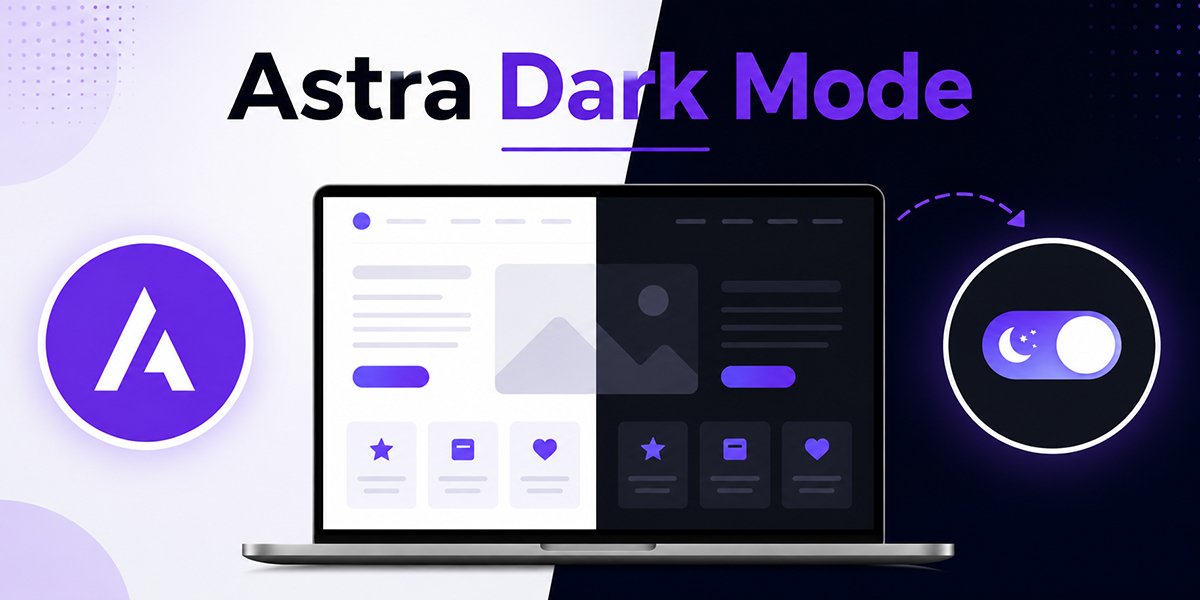
Astra is one of the fastest WordPress themes around, but it ships without a native night mode. If you’ve been searching for a reliable way to set up Astra dark mode, the good news is you don’t need to touch a single line of code. The free Darkify plugin adds a polished dark theme to any Astra site in about ten minutes.
I’ve set up dark mode on several Astra sites, from simple blogs to WooCommerce stores, and Darkify has consistently been the least fiddly option. Dark mode isn’t just a design trend. It reduces eye strain in low-light conditions, saves battery on OLED screens, and respects the system preference that many visitors have already set on their devices.
In this tutorial, I’ll walk through the full setup: installing Darkify, enabling dark mode, adding a toggle, customizing colors, handling images, and fixing the Astra-specific quirks I’ve run into.
Key Takeaways
- Astra has no built-in dark mode, but the free Darkify plugin adds one without any coding.
- Setup takes around ten minutes: install, enable, place a toggle, and adjust colors.
- Visitors can switch modes via a floating button, a menu item, a shortcode, or a Gutenberg block.
- Darkify’s OS-aware mode automatically matches each visitor’s device preference.
- The free version includes color presets, image brightness controls, and time-based scheduling.
- Darkify Pro adds dark logo replacement, per-page controls, and 16+ switch designs.
- Darkify works with Astra’s transparent header, sticky header, menus, and WooCommerce pages.
Table of Contents
Step 1: Install the Darkify Plugin
Darkify is available for free in the WordPress Plugin Repository, so installation works the same as any other plugin.
- In your WordPress dashboard, go to Plugins → Add New Plugin.
- Search for “Darkify”.
- Click Install Now, then Activate.
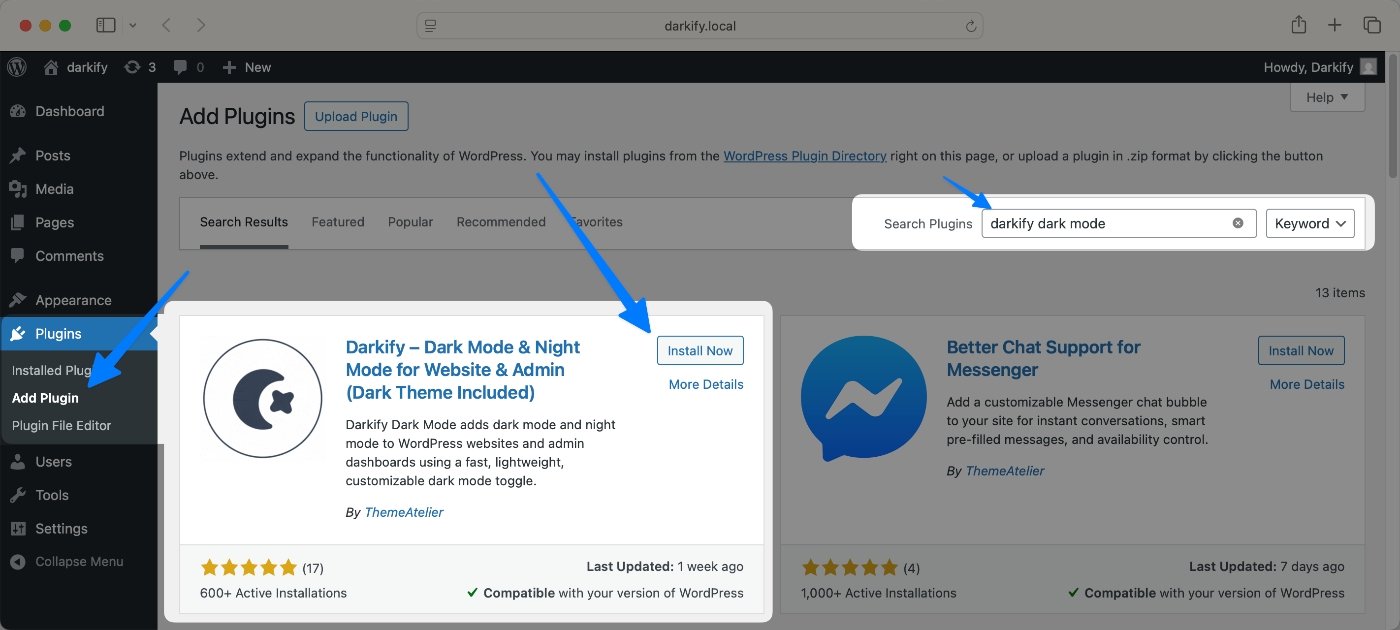
After activation, you’ll find a new Darkify menu in your admin sidebar. That’s where every setting in this guide lives. The plugin requires WordPress 5.0 or later and PHP 7.0 or later, which any maintained Astra site will already meet.
One thing I appreciate here: nothing changes on the front end until you actually enable dark mode. If you get stuck at any point, the official Darkify documentation covers each screen in detail.
Step 2: Enable Dark Mode on Your Astra Site
Open the Darkify settings from your admin menu and switch on the frontend dark mode. That single toggle activates the dark theme across your site. Load your homepage in a new tab, flip the switch, and you’ll see Astra’s white backgrounds replaced with dark equivalents while your text stays readable.
Out of the box, your site still loads in light mode, and visitors opt in through the toggle. You can change that default behavior in three ways:
- Default dark mode — every visitor lands on the dark version first.
- OS-aware mode — Darkify detects whether the visitor’s device (Windows, macOS, iOS, or Android) is set to dark and matches it automatically. This is the setting I recommend for most sites.
- Time-based scheduling — dark mode turns on during hours you define, which is handy for evening-heavy audiences.
Whichever default you pick, each visitor’s manual choice is remembered in their browser, so nobody gets forced back into a mode they switched away from. There’s even a keyboard shortcut (Ctrl + Alt + D) for switching modes.
Step 3: Add a Dark Mode Toggle for Visitors
A dark mode setup is only as good as its switch. If visitors can’t find the toggle, they’ll never use it. Darkify gives you four placement options, and you can see all of the designs on the switches page.
- Floating switch — a button fixed to a corner of the screen. You choose the corner (bottom right, bottom left, top right, top left) and adjust the margins. Free styles include Classic, Inner Moon, and Horizon; Pro unlocks 16+ designs.
- Navigation menu switch — adds the toggle as an item in your Astra menu, which keeps it visible without covering content.
- Shortcode — drop the Darkify shortcode into any widget, footer, or page where you want a switch to appear.
- Gutenberg block — insert the Dark Mode Switcher block directly in the block editor, useful for landing pages built with Astra’s page templates.
Where should it go? On my own projects, the floating switch in the bottom-right corner performs best because visitors expect utility buttons there. If your Astra header is minimal, the menu switch is a cleaner fit. Avoid the top-left on mobile — it tends to collide with Astra’s hamburger menu. Darkify also lets you configure a separate switch position for mobile, which solves that neatly.
Step 4: Customize Your Dark Color Palette
Darkify’s default palette looks good on Astra, but matching your brand takes a few minutes in the color settings. The free version ships with eight predefined presets — Midnight Reverie and Verdant Depths are two I use often — plus manual controls for background, text, link, and button colors.
A few guidelines from sites I’ve styled:
- Backgrounds: avoid pure black (#000000). A dark gray like #121212 feels softer and reduces the harsh contrast that causes halation around text.
- Typography: use off-white text (#E0E0E0 range) rather than pure white for comfortable long-form reading.
- Links and buttons: brand colors often lose contrast on dark backgrounds. Lighten your accent color until it passes the WCAG 4.5:1 contrast ratio against your dark background.
- Forms: check your comment and contact forms after styling. Input fields need visible borders in dark mode, or they disappear into the background.
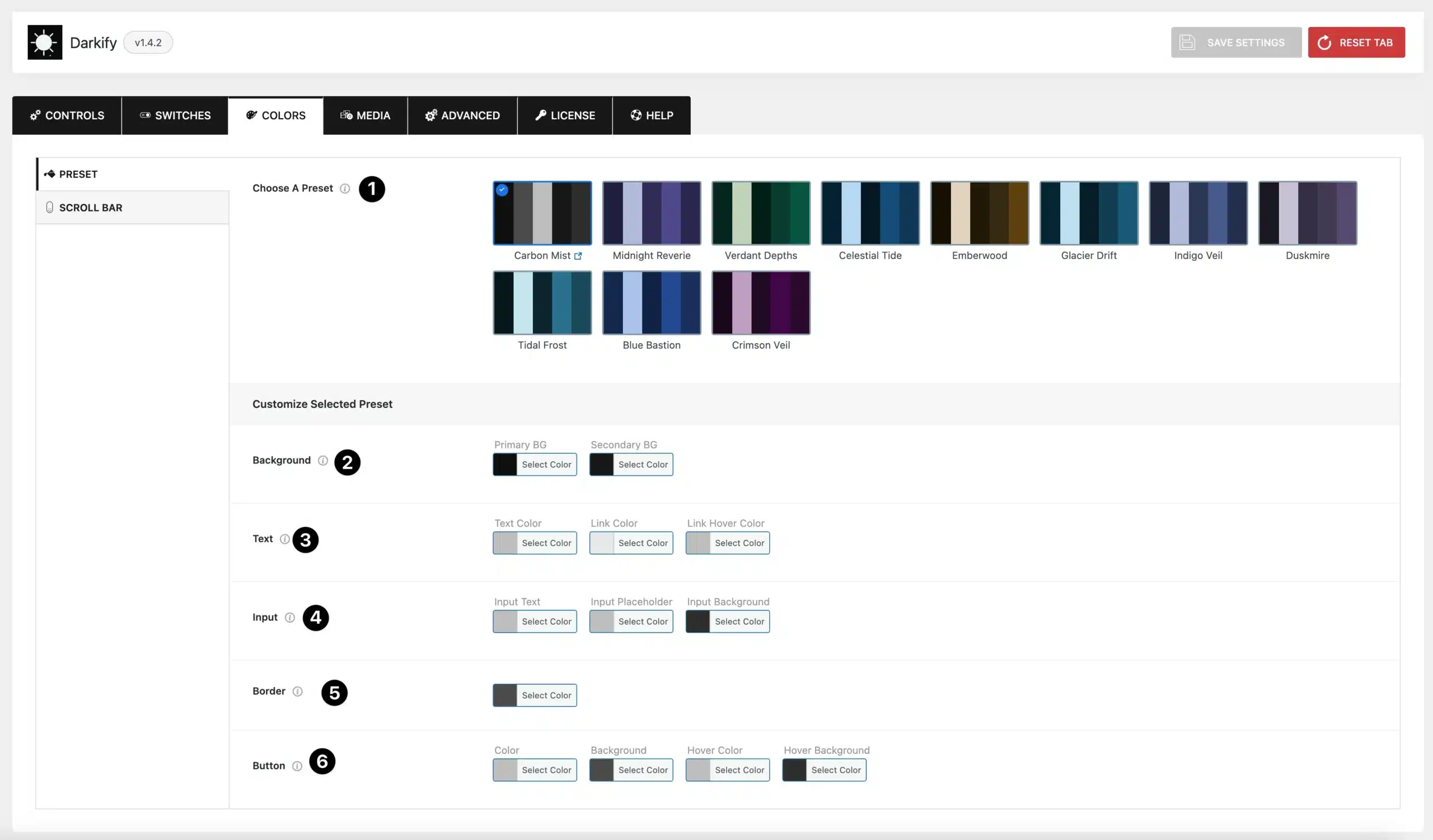
Darkify Pro extends this with finer control over links, borders, forms, and buttons individually. The free controls covered every case on my last blog build, but for a heavily branded business site, the Pro options save you from writing custom CSS.
Step 5: Optimize Images and Logos for Dark Mode
Images are where most dark mode setups fall apart. A bright white product photo on a dark page glows like a flashlight. Darkify’s image controls handle this in two ways.
In the free version, you can lower image brightness and adjust contrast or grayscale globally, which softens bright photos as soon as dark mode activates. Video brightness controls work the same way. I usually set brightness to around 85–90 percent — enough to take the edge off without making photos look muddy.
Logos need more care. If your Astra header uses a dark logo on a transparent background, it can vanish entirely in dark mode. Darkify Pro solves this with image replacement: under Media → Image Control, you can swap specific images — including your logo — for dark-friendly alternatives whenever dark mode is active. Pro can also invert individual images, which works well for simple black line art and signatures.
Two best practices worth following: keep your dark logo the exact same dimensions as the light version so Astra’s header doesn’t shift, and exclude any image that already sits on its own colored card or background, since dimming those looks unnatural.
Step 6: Astra Dark Mode Compatibility, Feature by Feature
Astra is on Darkify’s officially supported theme list, so the core experience works without tweaks. Still, Astra has a lot of header and layout options, and it’s worth knowing how each behaves. Here’s what I’ve verified on live Astra sites:
- Transparent Header: works, but check pages where the header overlays a light hero image. In dark mode, the hero dims, so confirm your menu text is still legible against it.
- Sticky Header: The sticky bar inherits your dark background color. Verify its scrolled state separately, since Astra applies a different background once you scroll.
- Primary Navigation and Mobile Menu: menu links pick up your dark mode text color. Test dropdown submenus, which use their own background in Astra’s Customizer.
- Off-canvas and Mega Menus: these panels are styled by Darkify too. If a mega menu column keeps a light background, add its CSS class to Darkify’s element targeting (more on that below).
- Sidebar Widgets and Footer: widget areas convert cleanly. Footer headings sometimes need a nudge if you’ve set custom colors in Astra’s Customizer.
- Astra Customizer colors: Darkify overrides your light palette only while dark mode is active. Your Customizer settings stay untouched, so you can experiment safely.
- WooCommerce: Darkify supports product, cart, and checkout pages. On my test store, buttons and price text converted correctly, but always place a test order in dark mode before launch.
For anything Darkify’s automatic styling misses, the advanced settings let you include or exclude specific elements by HTML tag, class, or ID, and add custom CSS that applies only in dark mode. That combination has fixed every edge case I’ve hit with Astra so far. You can read more about Astra’s own header and menu options on the official Astra website.
Step 7: Test Everything Before You Call It Done
Ten minutes of testing saves you from support emails later. Run through this checklist with dark mode active:
- Desktop, tablet, and mobile: check the toggle position and menu behavior at each breakpoint, especially Astra’s mobile menu.
- Logged-in and guest views: admin bars and member-only elements can be styled differently, so test both states.
- Cache plugins: Darkify works with WP Rocket, W3 Total Cache, and LiteSpeed Cache, but always clear your cache after changing settings so visitors get the updated styles.
- Cloudflare: if you’re proxying through Cloudflare, purge its cache too — an old cached stylesheet is the most common reason settings “don’t apply.”
- Accessibility: run your key pages through a contrast checker in both modes, and tab through the site to confirm focus states stay visible.
- Performance: Darkify is lightweight, but re-test your Core Web Vitals after setup so you have a before-and-after baseline.
Troubleshooting Common Astra Dark Mode Issues
Most problems come down to caching or a specific element that needs manual targeting. Here are the fixes I reach for first.
Transparent or sticky header looks wrong
Astra applies separate backgrounds to the normal, transparent, and sticky header states. If one state stays light, find its CSS class with your browser inspector and add it to Darkify’s element inclusion list in the advanced settings.
Dark logo doesn’t switch
Logo replacement is a Darkify Pro feature, so confirm Pro is active and the replacement is set under Media → Image Control. If it’s configured but not switching, clear every cache layer — page cache, then Cloudflare — before assuming it’s a bug.
Menu text becomes invisible
This usually means a custom menu color set in Astra’s Customizer is close to your Darkify dark background. Adjust the dark mode text color in Darkify’s color settings, or exclude the menu element and style it with dark-mode-only custom CSS.
Buttons lack contrast, or images glow too brightly
Lighten your button color until text passes 4.5:1 contrast. For bright images, lower Darkify’s global image brightness, or exclude images that shouldn’t be dimmed by adding their class to the exclusion list.
Styles don’t update, or scripts conflict
Stale caches cause ninety percent of “it’s not working” reports — purge LiteSpeed Cache or your caching plugin, then Cloudflare, then hard-refresh. For genuine CSS conflicts, dark-mode-only custom CSS in Darkify’s advanced settings usually wins the specificity battle. If a JavaScript error appears after activation, deactivate other plugins one at a time to identify the conflict, and report it in the plugin’s support forum.
Darkify Free vs Pro: Which Do You Need?
The free version is a complete dark mode solution for most Astra blogs. Pro matters once branding details — like a switching logo — come into play. Full plans are on the pricing page.
| Feature | Darkify Free | Darkify Pro |
|---|---|---|
| Frontend + admin dark mode | Yes | Yes |
| Switch styles | Multiple floating styles | 16+ designs, draggable positioning |
| Color customization | 8 presets + background, text, link, button colors | Adds fine control for links, borders, forms, buttons |
| Image controls | Brightness, contrast, grayscale | Adds per-image inversion and replacement (dark logo) |
| Video controls | Brightness, grayscale | Adds video replacement |
| Scheduling & OS-aware mode | Yes | Yes |
| Page-specific settings | Exclude pages by slug | Allow/disallow specific pages and posts |
| WooCommerce pages | Compatible | Compatible with per-page control |
| Support | WordPress.org forum | Premium support |
Dark Mode Best Practices for Astra Sites
- Accessibility first: dark mode should meet the same WCAG contrast standards as light mode. Test both palettes, not just one.
- Respect the visitor: OS-aware detection plus a visible manual toggle is the friendliest combination. Never lock visitors into one mode.
- Keep branding consistent: your accent color should survive the switch. Adjust its lightness rather than swapping to a different hue.
- Watch performance: one lightweight plugin is fine; stacking multiple styling plugins isn’t. Recheck PageSpeed after setup.
- SEO stays safe: dark mode is a presentation layer. Your content, URLs, and markup don’t change, so rankings aren’t at risk — and better readability tends to improve engagement signals.
Frequently Asked Questions
Does the Astra theme have built-in dark mode?
No. Astra doesn’t include a native dark mode or visitor-facing toggle in the theme or its Customizer. You’d need custom CSS and JavaScript to build one manually, which is why most Astra users add dark mode with a dedicated plugin like Darkify instead.
Is Darkify free to use with Astra?
Yes. Darkify is free in the WordPress Plugin Repository and includes the toggle, color presets, OS-aware detection, scheduling, and image brightness controls. Pro adds extras like dark logo replacement, more switch designs, and per-page controls, but the free version fully covers a standard Astra blog.
Will a dark mode plugin slow down my Astra site?
Not meaningfully. Darkify is built to be lightweight and loads optimized CSS and JavaScript, so it fits Astra’s performance-first approach. It also works with WP Rocket, W3 Total Cache, and LiteSpeed Cache. Just clear your cache after changing settings so updated styles reach visitors.
Can dark mode follow my visitors’ device settings automatically?
Yes. Darkify’s OS-aware mode detects whether a visitor’s device — Windows, macOS, iOS, or Android — is set to dark and matches your Astra site to it on arrival. Visitors can still override it with the toggle, and their choice is remembered in their browser.
Can I show a different logo when dark mode is on?
Yes, with Darkify Pro. The image replacement feature under Media → Image Control lets you swap your standard logo for a dark-friendly version whenever dark mode is active. Keep both logo files the same dimensions so your Astra header layout doesn’t shift between modes.
Final Thoughts: Astra Dark Mode Is a Ten-Minute Upgrade
Adding Astra dark mode used to mean custom CSS, media queries, and a JavaScript toggle you’d maintain forever. With Darkify, it’s a ten-minute job: install, enable, place a switch, tune your colors, and test. Visitors get a more comfortable reading experience, and your Astra Customizer settings stay exactly as they were.
Start with the free version from the WordPress repository and see how your content looks in the dark. If you later want a switching logo or page-level control, upgrading to Pro takes a few clicks. Either way, your Astra site will be easier on the eyes tonight than it was this morning.