
Introduction
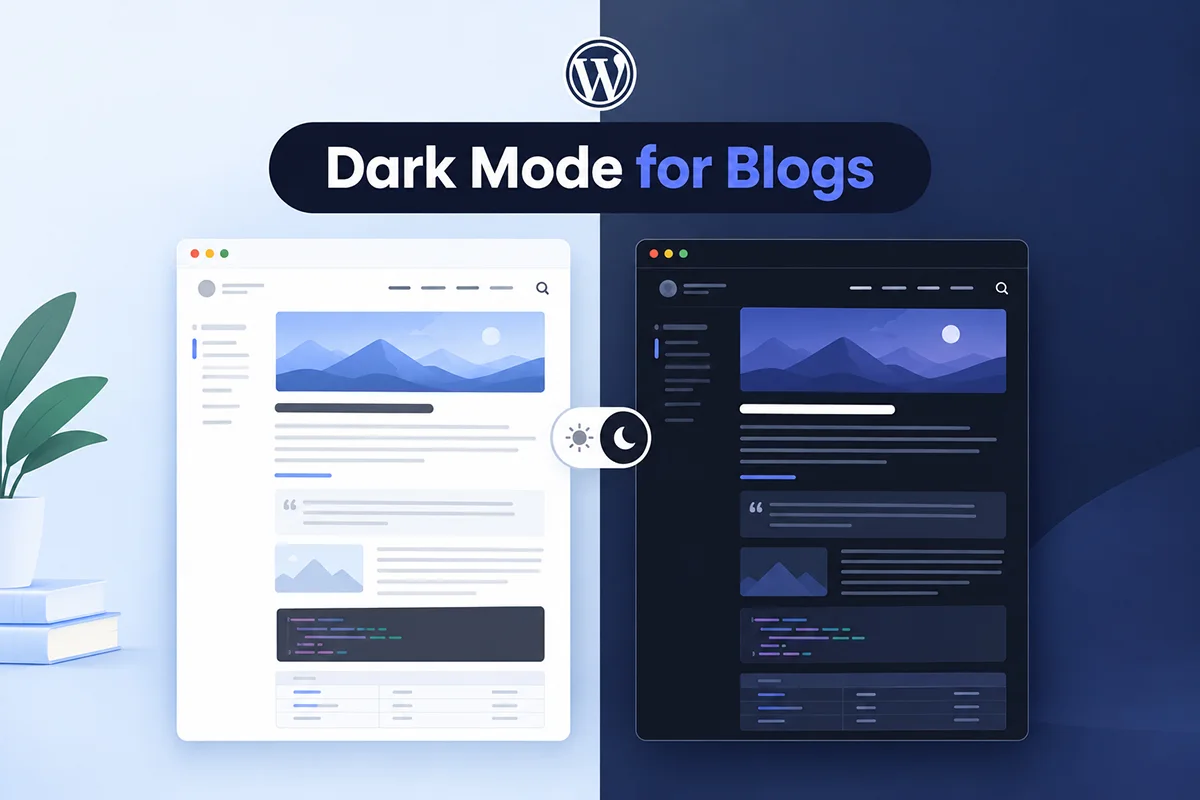
If you’re looking to add dark mode in Hello Elementor, you’re making a smart design decision. In 2026, dark mode isn’t just a trend — it’s a user-experience essential. It reduces eye strain, improves readability in low-light environments, and gives your website a sleek, professional look that visitors love.
The Hello Elementor Theme is one of the most popular lightweight frameworks for WordPress. Built by the Elementor team, it’s the perfect blank canvas for designers and developers who want maximum speed, flexibility, and creative control. But there’s one thing it doesn’t include out of the box: a built-in dark mode option.
That’s where the Darkify plugin comes in. With just a few clicks, you can enable a fully customizable dark mode on your Hello Elementor site — complete with a stylish toggle button, personalized color settings, and full compatibility with Elementor widgets. No code, no hassle — just an instant upgrade to a modern, user-friendly experience.
Key Takeaways
- Hello Elementor is lightweight and flexible, but it doesn’t provide built-in dark mode.
- Darkify adds dark mode to Elementor sites without requiring custom code or rebuilding existing layouts.
- Customize colors, toggle placement, icons, and page exclusions to create a dark mode experience that fits your design.
- Pay attention to contrast, images, logos, and Elementor widgets to maintain a polished and accessible interface.
- Test your site across desktop, tablet, and mobile to ensure dark mode works consistently everywhere.
What Is Dark Mode and Why It Matters in 2026
In simple terms, dark mode is a design setting that replaces bright, white backgrounds with darker shades — usually black, gray, or deep blue — while keeping text and key visuals light for high contrast. It’s more than a style choice; it’s become a standard in modern web design that enhances comfort, focus, and accessibility for users everywhere.
Here’s why dark mode continues to dominate in 2026:
- Eye comfort and accessibility: Reduces glare and strain, making it easier to browse at night or in low-light settings.
- Improved readability and focus: Light text against dark backgrounds helps key content stand out.
- Energy efficiency on OLED screens: Darker pixels use less power, helping mobile users conserve battery life.
- Modern, professional aesthetics: Dark mode gives any website a premium, sophisticated look that feels current.
The numbers prove it — studies show that around 80% of users prefer websites and apps that offer dark mode options. For Elementor users, this feature is especially valuable. Since Hello Elementor serves as a minimalist, performance-focused base for custom designs, adding dark mode gives your pages a professional polish and helps them compete with today’s best UX standards.
Does Hello Elementor Have Built-In Dark Mode?
The short answer is no — the Hello Elementor Theme doesn’t include built-in dark mode support. This isn’t a flaw; it’s actually by design. Hello Elementor was created to be a minimal, high-performance blank canvas for Elementor users who want total control over every design element. Its simplicity keeps your site fast, but it also means features like dark mode aren’t included by default.
Many users try to fill this gap using custom CSS snippets or bits of JavaScript found online. While those hacks can mimic dark mode, they usually come with major downsides:
- Inconsistent results: Custom code rarely covers every widget or Elementor section properly.
- High maintenance: Theme or Elementor updates often break your dark mode setup.
- No toggle option: Visitors can’t easily switch between light and dark versions.
That’s where Darkify stands out. It’s a safe, stable, and flexible solution designed specifically to add dark mode across any WordPress theme — including Hello Elementor. With Darkify, you get a fully functional toggle, customizable colors, and effortless compatibility with your Elementor layouts, all without touching a line of code.
Why Use Darkify with Hello Elementor?
When it comes to enabling dark mode in Hello Elementor, you want a solution that feels native — not an afterthought. That’s exactly what Darkify delivers. Designed to integrate seamlessly with Elementor’s flexible layout system, Darkify brings professional dark mode functionality to your site in minutes.
- Seamless integration with Elementor layouts and widgets: Every section, column, and widget in your Elementor design automatically adapts to dark mode without breaking your layout.
- One-click toggle for visitors: Add a stylish toggle button so users can instantly switch between light and dark modes based on their preference.
- Works on both frontend and Elementor Editor: Darkify doesn’t just enhance the user-facing side — you can also experience dark mode comfort while editing inside the Elementor interface.
- Full customization: Adjust toggle placement (header, footer, or floating), choose from multiple icons and labels, and fine-tune background and text colors. You can even exclude specific pages like checkout or forms where dark mode isn’t needed.
- Lightweight and performance-optimized: Darkify is built with speed in mind. It preserves Hello Theme’s reputation as one of the fastest WordPress foundations available.
With Darkify, you’re not just adding a design feature — you’re upgrading your site’s usability, accessibility, and aesthetic appeal, all while keeping your Hello Elementor setup light and efficient.
Prerequisites Before Adding Dark Mode
Before you start adding dark mode in Hello Elementor, make sure your site is ready. Setting things up properly ensures smooth integration with Darkify and prevents any compatibility issues.
- Install and Activate the Hello Elementor Theme
– Go to Appearance → Themes → Add New, search for Hello Elementor, then install and activate it. - Make Sure the Elementor Plugin Is Installed and Up to Date
– Hello Elementor is designed to work hand-in-hand with the Elementor builder. Update to the latest version to ensure optimal performance. - Update WordPress to the Latest Version
– Running the most recent version of WordPress keeps your site secure and ensures compatibility with both Hello Elementor and Darkify. - Download and Install the Darkify Plugin
– Visit the official Darkify site or search for “Darkify” in your WordPress plugin directory.
– Install and activate the plugin — you’re now ready to enable dark mode!
Once these steps are complete, you’re all set to transform your Hello Elementor website into a modern, dark-mode-ready experience.
Step-by-Step Guide: Add Dark Mode in Hello Elementor Using Darkify
Now that everything’s ready, let’s walk through how to add dark mode in Hello Elementor using the Darkify plugin. Follow these simple steps to enable dark mode on your site in minutes.
Step 1: Install and Activate Darkify
- From your WordPress dashboard, go to Plugins → Add New.
- Search for Darkify, then click Install Now and Activate.
- Alternatively, download the plugin ZIP from DarkifyWP.com and upload it manually.
Step 2: Access Darkify Settings
- Once activated, you’ll see a new Darkify option in your WordPress dashboard.
- Navigate to Darkify → Settings to start configuring your dark mode setup.
Step 3: Enable the Dark Mode Toggle
- In the settings panel, switch on Enable Dark Mode.
- This instantly activates dark mode across your entire Hello Elementor website.
Step 4: Customize the Toggle Button
- Choose where you want the toggle to appear — top-right, bottom-left, or within your site’s header.
- Adjust the design, icons, and colors to match your Hello Elementor layout and brand style.
- You can even personalize the button’s shape and animation for a more polished look.
Step 5: Adjust Dark Mode Colors
- Fine-tune your background, text, and link colors for perfect harmony with your Elementor design.
- Keep accessibility in mind — aim for high contrast between text and background.
- Optional: Exclude specific pages (like checkout or form pages) from dark mode if needed.
Step 6: Save and Test
- Click Save Settings to apply your changes.
- Preview your site in both light and dark modes.
- Test across desktop, tablet, and mobile devices to ensure every section looks great.
🎉 That’s it! You’ve successfully enabled dark mode in Hello Elementor using Darkify. Now your visitors can switch between light and dark modes instantly — enjoying a smoother, more comfortable browsing experience that feels right at home in 2026.
Advanced Customization Tips for Elementor Users
Once you’ve enabled dark mode in Hello Elementor, you can take things a step further with a few creative tweaks. These customization tips help you fine-tune your site’s design and ensure every Elementor widget looks its best in dark mode.
💻 Add Custom CSS for Extra Precision
If you want to style specific Elementor widgets or sections under dark mode, you can use simple CSS rules. For example, to give your buttons a gold accent that pops against dark backgrounds, try this:
body.darkify-dark-mode .elementor-button {
  background-color: #FFD700; /* Gold color */
  color: #000; /* Black text */
}
This method works for any Elementor element — from forms to icon boxes — letting you keep full creative control while using Darkify’s built-in dark mode engine.
🌙 Best Elementor Elements for Dark Mode
Some Elementor design elements look especially stunning in dark mode:
- Hero sections with large headings: Dark backgrounds make text and CTAs stand out dramatically.
- CTA blocks and testimonials: White text over dark gradients adds depth and sophistication.
- Portfolios and image galleries: Photos and visual media gain extra contrast, appearing sharper and more vivid.
🎨 Optimize Logos and Icons
To maintain clarity and balance:
- Upload both light and dark versions of your logo.
- Use transparent PNGs or SVGs for better visibility across modes.
- Make sure icons and illustrations maintain strong contrast on dark backgrounds.
With these advanced tweaks, your Hello Elementor site won’t just have dark mode — it’ll have a refined, professional aesthetic that matches your brand perfectly.
Common Issues & Fixes
Even though enabling dark mode in Hello Elementor with Darkify is simple, you might run into a few small issues. Here’s how to fix them quickly and keep your site looking flawless.
🧩 Toggle Not Showing
Cause: The dark mode toggle may be placed in an area not supported by your layout.
Fix: Go to Darkify → Settings → Toggle Placement and reposition it. Try top-right, bottom-left, or within your Elementor header for best results.
🎨 Contrast Issues
Cause: Some sections or widgets might look too dim or lack color balance in dark mode.
Fix: Adjust the dark mode color palette in Darkify settings. Increase contrast by brightening text or using lighter accent colors for headings and buttons.
⚙️ Plugin Conflicts
Cause: Another UI-related plugin may be overriding CSS or JavaScript functions.
Fix: Temporarily deactivate other design or UI plugins one by one to find the conflict. Once identified, update both plugins or contact support for compatibility help.
🖼️ Images Too Bright
Cause: Images designed for light backgrounds can appear overly harsh in dark mode.
Fix: Apply CSS filters or darker overlays for balance:
body.darkify-dark-mode img {
  filter: brightness(0.85);
}
This reduces brightness slightly while maintaining image clarity.
💡 With these quick fixes, your Hello Elementor site will stay elegant, functional, and user-friendly — no matter which mode visitors prefer.
Final Thoughts
Adding dark mode in Hello Elementor has never been easier. The combination of the lightweight Hello Theme and the powerful Darkify plugin gives you everything you need to create a sleek, accessible, and user-friendly experience in 2026 — all without touching a single line of code.
With Darkify, you maintain full control over your design: customize colors, fine-tune toggle placement, and ensure every Elementor widget looks perfect in both light and dark modes. It’s seamless, fast, and perfectly optimized for performance.
Start with the free version of Darkify to experience how easily it integrates with Hello Elementor. Then, when you’re ready for deeper customization and advanced styling options, upgrade to Darkify Pro and take your site to the next level.