
Introduction: Why Add a Dark Mode Toggle Anywhere?
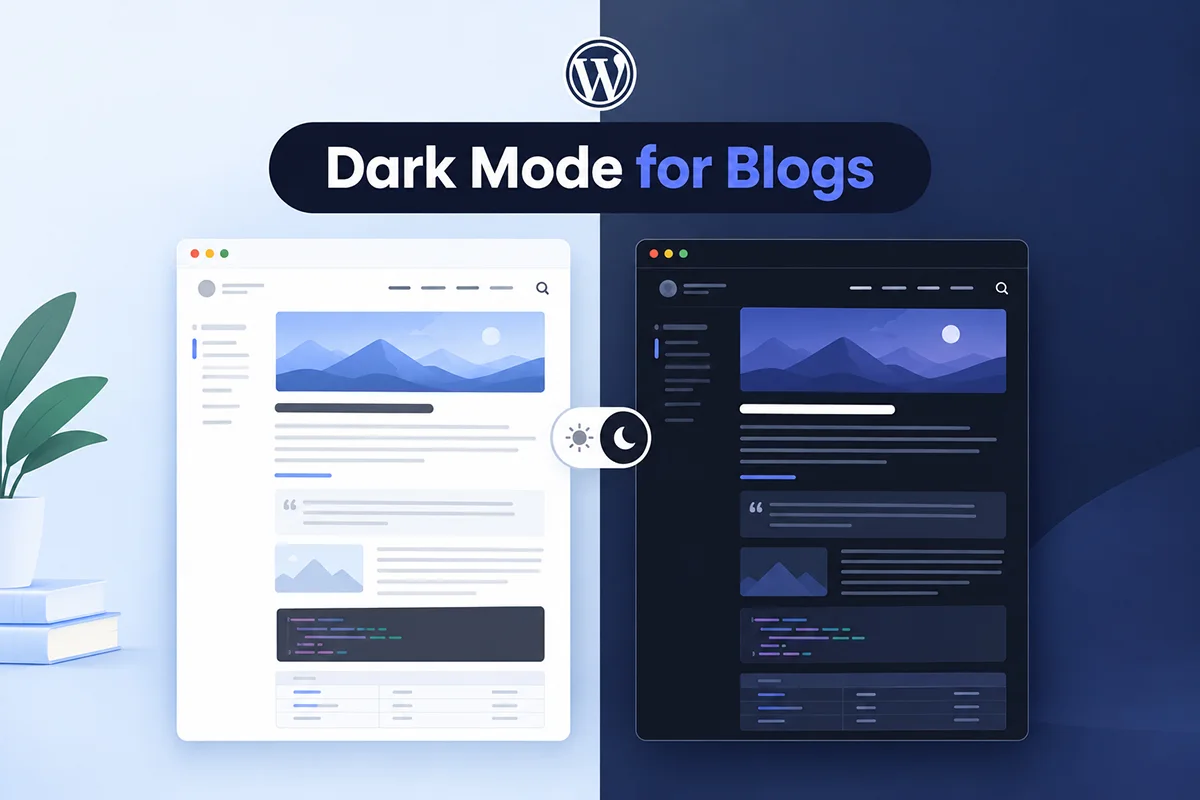
Dark mode toggle shortcode is one of the easiest ways to give your WordPress site visitors full control over their viewing experience.
In 2026, more users are switching to dark mode for better eye comfort, battery savings, and modern aesthetics—especially on mobile devices and laptops. But not every theme or plugin lets you place the toggle exactly where you want it.
That’s where the Darkify plugin shines.
With shortcodes and widgets, you can easily insert a dark mode toggle:
- In your site header or footer
- Inside posts or pages
- In sidebar widgets
- Even in Elementor or Gutenberg blocks
Whether you’re a blogger, a store owner, or a developer, this flexibility improves user experience and gives your visitors full light/dark control—without writing a single line of code.
Let’s explore how you can add a dark mode toggle anywhere using Darkify.
Key Takeaways
- Use the Darkify shortcode to place a dark mode toggle exactly where you want it on your WordPress website.
- Add the switch to pages, posts, templates, menus, widgets, or custom layouts without building a toggle from scratch.
- Customize switch style, size, colors, icons, and appearance to match your website design.
- Shortcode placement gives you more flexibility than relying only on a floating dark mode switch.
- For visual editors, Darkify also supports Gutenberg blocks and Elementor widgets for easier toggle placement.
Method 1: Add Toggle Using Darkify Shortcode
Step-by-Step Guide
Adding a dark mode toggle shortcode is quick and flexible using Darkify. Whether you want to place the toggle inside content, headers, footers, or widgets — you can do it all with a single line of shortcode.
📍 Where to Add It:
- WordPress → Appearance → Widgets
- Inside any post or page
- In Elementor or Gutenberg blocks
- In your footer or sidebar via a text widget
💬 Example Shortcode:
[ darkify switch="1" width="60px" height="60px" icon_size="40px" light_mode_bg="#121116" dark_mode_bg="#ffffff" light_mode_color="#ffffff" dark_mode_color="#121116" border="0px" border_light_color="#121119" border_dark_color="#ffffff" border_radius="7px" ]This shortcode adds a 60x60px toggle with a 40px icon size and custom background/text colors for light and dark mode.
✅ Customize as needed:
widthandheightfor button sizeicon_sizefor toggle iconlight_mode_bganddark_mode_bgfor background colorlight_mode_coloranddark_mode_colorfor text/icon colorborder,border_radius, and color options for design tweaks
You can also:
- Place it within Elementor sections or Gutenberg columns
- Embed it into custom HTML widgets
- Drop it into custom layouts using shortcodes
💡 Bonus Tips
- Wrap the shortcode in a
divorsectionto add margins, alignment, or animations. - Use conditional display plugins or Elementor visibility rules to:
- Show toggle only to logged-in users
- Hide on light backgrounds to avoid contrast issues
- Position it differently for mobile and desktop
The shortcode method gives you the most precise placement control—perfect for developers, designers, and site owners who want flexibility without writing custom JavaScript or CSS.
Method 2: Use Darkify Widget (No Code)
How to Add via Widget Area
If you prefer a no-code method, the Darkify Toggle Widget makes it easy to add a dark mode toggle anywhere — perfect for beginners or non-technical users.
🛠️ Steps:
- Go to your WordPress Dashboard
- Navigate to Appearance → Widgets
- Find the “Darkify Toggle Widget”
- Drag and drop it into your desired widget area:
- 🧭 Sidebar
- 🔻 Footer
- 📰 Blog sidebar
- 📦 WooCommerce shop sidebar
- Save your changes — the dark mode toggle will now appear instantly!
It’s that simple. No shortcodes, no styling tweaks — just drag, drop, and done ✅
💡 Ideal For:
- Blogs that want a toggle in the reading sidebar
- WooCommerce stores where you want it near product filters
- Portfolio websites with elegant footer toggles
- Educational or documentation sites with sidebars
With the widget method, anyone can enable dark mode toggle in the perfect spot — all from the WordPress customizer.
Method 3: Use Elementor or Gutenberg Blocks
If you’re building pages with Elementor or the Gutenberg block editor, Darkify’s shortcode works seamlessly to add a fully functional dark mode toggle anywhere you like — with zero coding required.
🛠️ Elementor Integration
Want to add a toggle right inside your Elementor layout?
- Open any page or post with Elementor.
- Search for the Shortcode widget in the Elementor panel.
- Drag it where you want the toggle to appear (e.g., header, hero section, footer).
- Paste this shortcode:
[ darkify switch="1" width="60px" height="60px" icon_size="40px" light_mode_bg="#121116" dark_mode_bg="#ffffff" light_mode_color="#ffffff" dark_mode_color="#121116" border="0px" border_light_color="#121119" border_dark_color="#ffffff" border_radius="7px" ]- Align and style using Elementor controls as needed.
✅ This method gives you pixel-level placement control — great for homepage banners, nav bars, or sticky headers.
🧱 Gutenberg Integration
Prefer the WordPress block editor?
- Edit the page or post using Gutenberg.
- Click the ➕ icon and insert a Shortcode block.
- Paste the same shortcode:
[ darkify switch="1" width="60px" height="60px" icon_size="40px" light_mode_bg="#121116" dark_mode_bg="#ffffff" light_mode_color="#ffffff" dark_mode_color="#121116" border="0px" border_light_color="#121119" border_dark_color="#ffffff" border_radius="7px" ]- Preview the toggle instantly in the editor or front-end.
💡 Works well in content sections, between paragraphs, or even above/below calls-to-action.
🌟 Pro Tip:
Want a themed look? Pair your toggle with custom icons like 🌞 and 🌙 or match it with your brand’s color palette using the shortcode attributes.
🎯 Whether you’re using Elementor or Gutenberg, Darkify gives you complete control over toggle placement and design — without editing any code.
Customize the Toggle Appearance
Once you’ve added the dark mode toggle shortcode or widget, it’s time to make it match your site’s design perfectly.
⚙️ Basic Customization (Free Version)
In the Darkify settings panel, you can easily adjust:
- Size – Set the toggle’s width, height, and icon size
- Shape – Round corners with
border_radius - Position – Place it in a fixed corner, inline with content, or anywhere via shortcode/widget
- Colors – Define different background and icon colors for light/dark modes
You don’t need to touch any code — just update settings or shortcode attributes.
Example:
[ darkify switch="1" width="50px" height="50px" icon_size="30px" light_mode_bg="#fff" dark_mode_bg="#111" ]Advanced Customization (Pro Version)
Unlock extra styling power with Darkify Pro:
- Change toggle icons (e.g., switch from moon/sun to any icon you like)
- Enable OS-based dark mode – Automatically follows user system settings
- Set time-based triggers – Auto-switches to dark mode at night
- Add custom placement via CSS – Perfect for sticky navbars or floating sections
💡 Pro Tip: You can combine basic shortcode styling with your site’s CSS for ultimate control — great for advanced users or developers.
With Darkify, your dark mode toggle doesn’t just work — it looks good doing it.
Why Use Darkify for Toggle Buttons?
If you’re looking to add a dark mode toggle shortcode or widget anywhere on your site, Darkify is hands-down the best solution. Here’s why:
⚡ Lightweight & Beginner-Friendly
Darkify is built to be fast and easy. You don’t need to be a developer — just install the plugin, drop in a shortcode or widget, and you’re done. No bloat, no complex setup.
🎨 Works with All WordPress Themes
Whether you’re using Astra, Neve, Blocksy, GeneratePress, or a custom theme — Darkify works seamlessly across the board. You won’t run into layout or compatibility issues.
🔧 Multiple Integration Options
- Shortcode Support: Place toggles inside posts, pages, or builders
- Widget Support: Add to sidebars or footers with drag & drop
- Block Support: Use Gutenberg Shortcode block or Elementor widget
This makes it one of the most flexible dark mode plugins for WordPress.
💡 No Coding Required
Everything is done through the UI or shortcodes. You’ll never need to touch PHP, CSS, or JavaScript — unless you want to.
🚀 Pro Version = More Power
Upgrade to Darkify Pro and unlock:
- Logo/image switching
- OS-based or time-based toggle
- More customization options
- Branded admin and login page support
With Darkify, adding a dark mode toggle anywhere on your WordPress site is easy, powerful, and future-ready.
FAQs – Dark Mode Toggle Shortcode
Final Thoughts
Adding a dark mode toggle to your WordPress site doesn’t have to be complicated — and with Darkify, it’s easier than ever.
You have 3 flexible methods to place your toggle exactly where you want:
- ✅ Use a shortcode inside posts, pages, or custom layouts
- ✅ Drag & drop the Darkify Widget into sidebars or footers
- ✅ Add the shortcode inside Elementor or Gutenberg blocks
Whether you’re a beginner or a developer, Darkify Free is a perfect starting point — lightweight, powerful, and code-free.
And if you’re looking for advanced design, icons, time-based toggles, and more — Darkify Pro gives you full creative control.