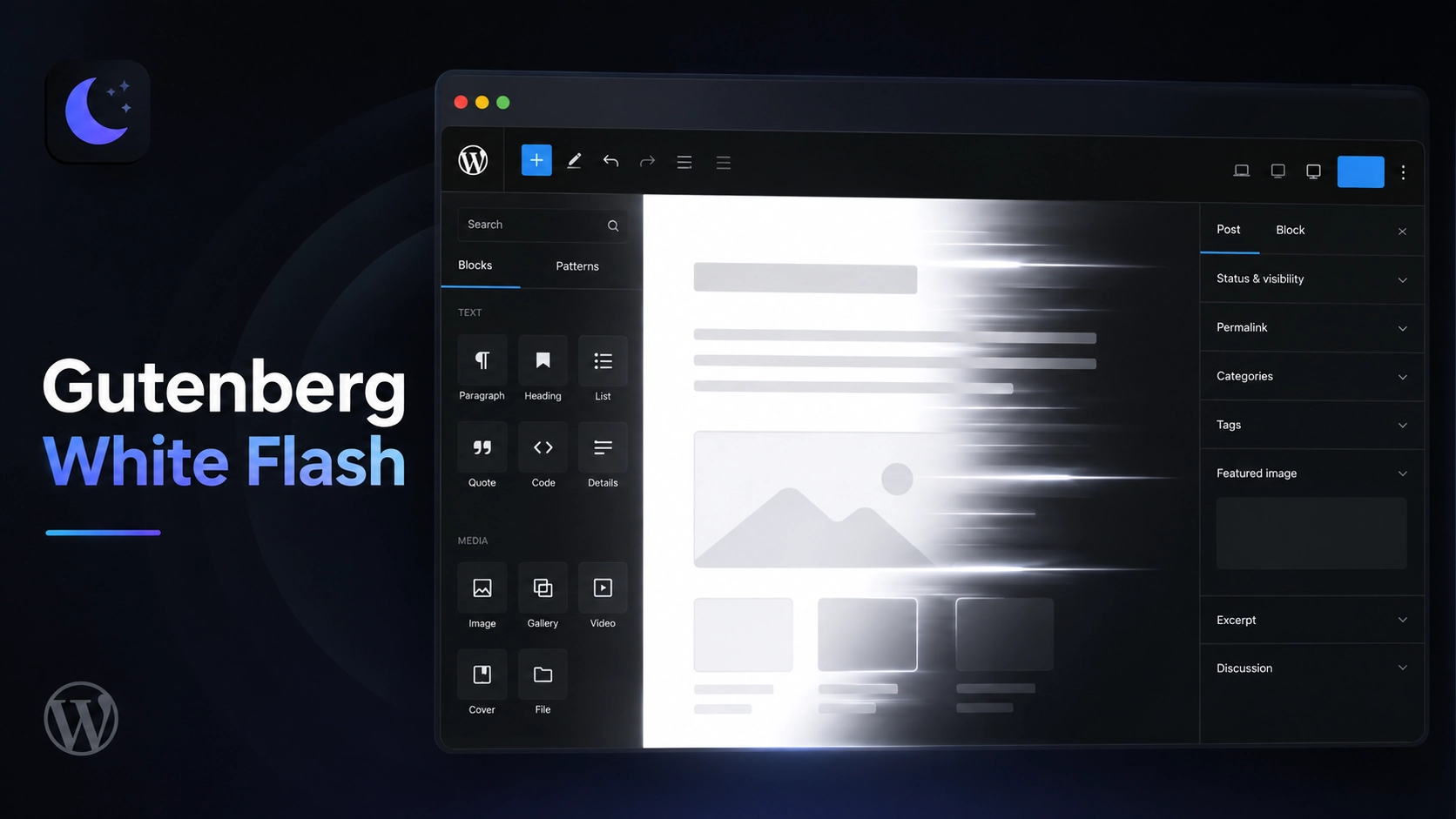
You’re editing a post late at night, admin and editor both set to dark. You reload, or click into another post, and for a moment the screen goes bright white before the dark interface settles back in. That’s the gutenberg editor white flash — and it’s not your imagination or a broken install. This guide explains what’s actually happening during that moment, and what you can realistically do to reduce it.
Key Takeaways
- The white flash is closer to a mismatch between theme states than classic FOUC — the page is styled, just briefly in the wrong theme.
- As of WordPress 7.1, the post editor canvas is always rendered inside an iframe — a separate styling context from the surrounding admin chrome.
- Styles enqueued via
enqueue_block_editor_assetsreach the editor chrome only;enqueue_block_assetsis what reaches the iframed content canvas.prefers-color-schemereflects OS-level preference only — it has no access to a manually saved dark-mode toggle.- A brief flash doesn’t automatically mean a plugin is broken, but implementation choices do affect how noticeable it is.
- Reducing the flash is realistic; guaranteeing zero visible transition in every browser and load condition generally isn’t.
What the White Flash Actually Is
What you’re seeing is closer to a flash of incorrect theme than classic FOUC. FOUC — Flash of Unstyled Content — happens when a browser renders raw markup before its stylesheet has loaded. Here, the page isn’t unstyled. It’s styled, just briefly in a theme state you didn’t want, before the correct one takes over.
A simplified version of what’s happening: the admin page begins rendering, initial styles become available, the editor application initializes, dark-theme state becomes available and gets applied, and the visible appearance settles. That’s a useful mental model, not a universal sequence — the exact order depends on your WordPress version, active plugins, and how dark mode is implemented.
The gutenberg editor white flash appears whenever the browser’s first visible render uses default or light styling before the dark state is available or applicable to that part of the page. It can stem from stylesheet timing, JavaScript timing, CSS specificity, or a separately loading document like an iframe — often more than one at once.
Why the Gutenberg Editor White Flash Happens
Gutenberg is a React application running inside the WordPress admin shell, loading its own editor assets on top of the admin page. That’s more moving parts than a simple settings screen — more scripts, more style sources, more state to initialize before the interface looks “finished.”
None of that makes React itself the cause. A React app can paint correctly on first render if the right state and styles are available when it does. The flash comes from a gap between when something becomes visible and when the correct theme state reaches it — and Gutenberg simply has more places for that gap to open up: the admin chrome, the editor toolbar, and the content canvas can each initialize on a slightly different timeline.
The Iframe Special Case
As of WordPress 7.1, the post editor canvas is always rendered inside an iframe, regardless of theme or block API version — earlier versions applied this conditionally, based on the API version of the blocks involved. The Site Editor and template previews have been iframed unconditionally for longer.
That iframe matters because it’s a separate document from the surrounding wp-admin page — CSS applied to the outer admin interface doesn’t automatically reach inside it. A dark background rule that works perfectly on the admin chrome can still leave the editor canvas flashing light, because it never reached the iframe’s own document at all.
WordPress documents two relevant hooks here. enqueue_block_editor_assets enqueues assets for the editor interface itself — not the content — so it doesn’t reach the iframed canvas. enqueue_block_assets is documented for content-facing assets, loaded into both the front end and the iframed canvas — the hook to reach for if dark styling needs to get inside the canvas.
Why the Flash Is Worse on Some Sites
A few factors make the gutenberg editor white flash more noticeable, though none guarantee it on their own: dark state applied late by JavaScript, additional admin or editor plugins adding their own assets, competing admin themes, multiple stylesheets loading in an unpredictable order, and uncached assets forcing a fresh fetch every load.
Be cautious with “slow hosting causes the flash.” Server response time and client-side rendering timing are related but not identical — a fast server can still serve assets in an order that produces a visible flash. If hosting matters in your case, it’s usually because slow asset delivery widens the gap before the correct theme state arrives, not because the server itself is doing anything wrong.
A brief gutenberg editor white flash doesn’t automatically mean your dark-mode plugin is broken. It’s often a first-paint timing issue rather than a functional bug — but a plugin’s implementation does affect whether the flash appears and how noticeable it is, so timing isn’t a blanket excuse either.
Fixes, From Simplest to Most Involved
Work down this list roughly in order — later steps take more effort and are worth trying only if earlier ones fall short:
- Use a dark-mode plugin with dedicated admin and block-editor support, rather than frontend-only tooling.
- Use CSS-native
prefers-color-schemewhere OS-driven dark mode genuinely fits your need. - Establish a dark base background early enough to affect the first visible render.
- Make the current theme state available before the interface becomes visible, where your implementation allows it.
- Handle the outer admin document and the iframed editor canvas as separate styling problems.
- Add narrowly scoped early admin CSS where it’s technically appropriate.
- Use a small mu-plugin when you need persistent, admin-specific customization.
- Review whether caching or optimization plugins are changing admin asset timing.
- Persist a manual theme preference correctly, understanding that persistence alone doesn’t fix first paint.
A Scoped CSS Rule and a Minimal mu-Plugin
A scoped, OS-aware background rule is one of the simplest things to try against a gutenberg editor white flash. It should never force a dark background on someone who chose light mode — so it belongs inside an prefers-color-scheme query, not applied unconditionally:
/* Applies only when the OS/browser prefers dark mode */
@media (prefers-color-scheme: dark) {
  body.wp-admin {
    background-color: #1e1e1e;
  }
}
This targets the wp-admin body class WordPress core already outputs on every admin page. It only helps visitors whose OS is set to dark — it says nothing about a manually toggled in-app preference, and it only reaches the outer admin document, not the iframed editor canvas.
For a persistent version of that rule, an mu-plugin is the more appropriate home than a parent theme’s functions.php, since it survives theme switches and doesn’t need activating:
<?php
/**
 * Plugin Name: Early Admin Dark Background
 * Description: Outputs an inline style early in wp-admin to reduce a visible light-to-dark flash.
 */
add_action( 'admin_head', function () {
    ?>
    <style>
        @media (prefers-color-scheme: dark) {
            body.wp-admin { background-color: #1e1e1e; }
        }
    </style>
    <?php
} );
Save this as wp-content/mu-plugins/early-admin-dark-background.php. WordPress loads files placed directly in that folder automatically, before regular plugins — no activation step needed. admin_head is the documented hook for inline style output in wp-admin’s <head>, but it only affects the outer admin document — reaching the iframed canvas means enqueueing through enqueue_block_assets instead. To remove the change, delete the file.
Caching, Optimization, and the Editor
Browser caching, CSS/JS combining, and CDN behavior can all change how quickly admin assets arrive, which can widen or narrow the gap that produces a gutenberg editor white flash. That doesn’t mean you should disable everything — many optimization plugins intentionally exclude authenticated admin pages already, so a setting you assume is affecting wp-admin may not touch it at all.
Verify actual behavior before changing configuration: check whether your optimization plugin’s exclusions already cover wp-admin, and test with it briefly disabled rather than assuming. Most “fix the flash” advice treats the visible symptom without first identifying which rendering context — chrome or canvas — is actually flashing, which is why blanket caching changes so often don’t help.
Ways to Reduce the Flash, Compared
Each approach below addresses the gutenberg editor white flash differently, and most only cover part of the problem — pick based on which rendering context you actually need to fix.
| Approach | What It Addresses | Difficulty | Helps Iframed Canvas? | Maintenance |
|---|---|---|---|---|
| Dedicated editor dark-mode plugin | Admin, editor chrome, and canvas together | Low | Depends on implementation | Low — centralized settings |
CSS prefers-color-scheme | OS-driven preference only | Low | Only if enqueued via a canvas-reaching hook | Low |
| Early admin background CSS | Outer admin document only | Low-Medium | No | Low |
| mu-plugin | Persistent, admin-specific rules | Medium | Only if targeting the right hook | Medium — manual updates |
| Manual JS state initialization | Early theme-state availability | High | Depends on implementation | High |
| Caching/optimization review | Asset delivery timing | Low | Indirect | Low |
How Darkify Handles Admin and Editor Dark Mode
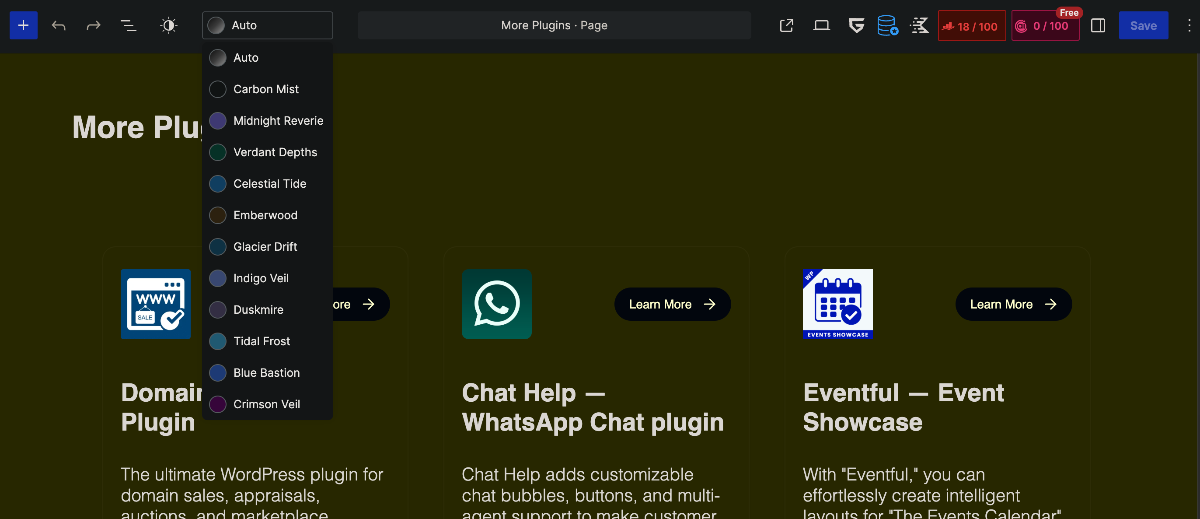
Darkify‘s Controls settings separate three distinct contexts: Admin Panel Dark Mode for the dashboard, Block Editor Dark Mode for the Gutenberg interface, and Classic Editor Dark Mode with its own TinyMCE toggle. Per Darkify’s documentation, Block Editor Dark Mode is built to make “your post and page editing environment match the dark theme style” — all three are part of Darkify’s free version.
Darkify’s changelog for version 2.0.2 notes: “Pages that load straight into dark mode no longer flash their light-mode colours while the page is still being read. A brightness baseline covers the gap and lifts as soon as the real colours are in place.” That entry describes page loads generally, not the block editor specifically — worth confirming directly if the editor canvas is your main concern.
Using a plugin built around distinct admin, editor, and canvas contexts is a reasonable starting point, since those contexts really do initialize separately — solving theme-state timing before something becomes visible is architecturally cleaner than repainting the interface after the fact. Install Darkify’s free version from WordPress.org to try this directly, and see Darkify’s documentation for current settings.
Diagnosing the Flash Step by Step
Diagnosing a gutenberg editor white flash goes faster when you work through these in order rather than changing several things at once:
- Confirm dark mode itself works correctly once it’s finished initializing.
- Note whether the flash affects the whole admin, just the editor chrome, or only the content canvas.
- Test whether behavior differs between OS-based and manually selected dark mode.
- Test with a normal warm cache, then in a private/incognito window.
- Use DevTools network throttling only to observe the flash more clearly, not as a formal diagnosis.
- Check whether the editor content canvas is iframed in your current WordPress version.
- Review other admin or editor dark-mode plugins for conflicts.
- Review caching or optimization settings that actually touch wp-admin.
- Test suspected conflicts one at a time rather than disabling everything at once.
Testing Checklist
Confirm a fix actually reduces the gutenberg editor white flash rather than just seeming to, by testing across these conditions:
- Normal reload and hard reload
- Cold-ish cache and warm cache
- Private/incognito session
- Chrome, Firefox, and Safari where available
- OS set to light and OS set to dark
- Manual dark-mode preference, if your setup supports one
- Post editor, page editor, and a brand-new post screen
- Editor chrome versus the content canvas, checked separately
- Other active plugins, temporarily disabled one at a time
What You Can’t Guarantee
Browser rendering is complex, and a cold load can behave differently from a warm cached one. Other plugins can introduce their own styling timing you don’t control, and iframe content loading can add a separate visible state on top of everything else.
That’s a reason to aim for reducing the gutenberg editor white flash, not a reason to accept it as unfixable. Guaranteeing literally zero visible transition under every browser and network condition isn’t realistic without controlling the entire rendering path — which nothing running on top of WordPress core actually does. Forcing every visitor into a dark background regardless of their own preference isn’t a real fix either, even if it looks like one in a quick test.
Frequently Asked Questions
Fixing the Flash Without Overpromising
The Gutenberg editor white flash is a first-paint timing problem, not proof that something is broken. Diagnose which rendering context is actually flashing — admin chrome, editor toolbar, or content canvas — before reaching for a fix, and solve the earliest incorrect visual state rather than layering on more CSS after the fact.
A dedicated editor dark-mode plugin is a reasonable option when you’d rather manage this through settings than maintain your own timing-sensitive CSS and PHP. Darkify’s free version handles the admin panel, block editor, and Classic Editor as distinct settings, which is the right starting structure for this particular problem even if no plugin can promise a perfectly invisible transition every time.