Why Add Dark Mode to Your WordPress Website?
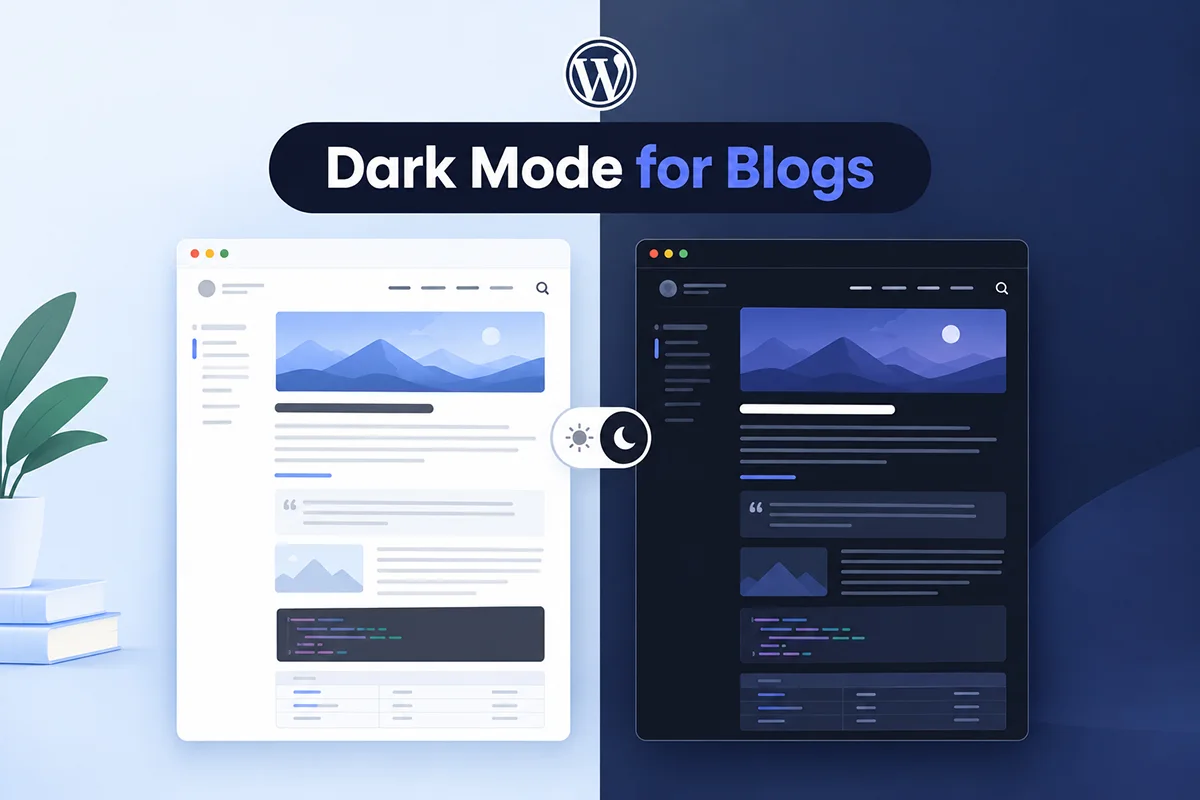
Dark mode has moved far beyond being a trendy design option. Today, it is a practical user experience feature that gives visitors more control over how they browse your website. Whether someone is reading a blog post late at night, browsing products on a WooCommerce store, or exploring your business website from a mobile device, dark mode can make the experience feel smoother, more modern, and more comfortable.
A bright website layout may look clean during the day, but it can feel harsh in low-light environments. Dark mode helps soften the browsing experience by reducing the intensity of bright backgrounds and giving users a darker visual option when they need it. This is especially helpful for content-heavy websites where visitors spend more time reading articles, documentation, tutorials, or product details.
Another major reason to add dark mode to WordPress is user preference. Many people already use dark mode on their phones, laptops, apps, and operating systems. When your website offers the same option, it feels familiar and thoughtful. Instead of forcing every visitor into one visual style, you allow them to choose the mode that works best for them.
Dark mode can also make your website feel more polished. For blogs, it can improve long-form reading comfort. For business websites, it can create a sleek and professional impression. For portfolios, it can help visual content stand out. For WooCommerce stores, it can give shoppers a more flexible browsing experience, especially when they are viewing products in the evening or on mobile.
In short, adding dark mode is not just about changing colors. It is about improving comfort, giving users control, and making your WordPress website feel more modern, flexible, and visitor-friendly.
Can You Add Dark Mode to WordPress Without Coding?
Yes, you can add dark mode to WordPress without writing a single line of code. The easiest way is to use a dedicated WordPress dark mode plugin that handles the technical setup for you. Instead of editing theme files, writing custom CSS, or adding JavaScript manually, you can enable dark mode through a simple plugin dashboard.
Technically, dark mode can be added manually with CSS and JavaScript. But for most WordPress users, that route is not beginner-friendly. Manual setup often means adjusting colors across headers, menus, buttons, forms, blog content, WooCommerce pages, and mobile layouts. One small mistake can make text hard to read, break your design, or create an inconsistent experience across your site.
That is why the plugin method is the better choice for beginners. A dark mode plugin gives you a faster, safer, and more flexible way to add the feature. You can turn dark mode on, choose how the toggle appears, customize the look, and test the result without touching your website’s code.
This is where Darkify makes the process simple. It is designed to help WordPress users add dark mode quickly, even if they have no technical background. With Darkify, you can create a modern dark mode experience, add a user-friendly toggle, and adjust the appearance from the WordPress dashboard instead of digging into theme files.
For most website owners, the smart choice is clear: skip the complicated coding route and use a plugin that makes dark mode easy to manage.
Best Way to Add Dark Mode in WordPress
The best way to add dark mode in WordPress is to use a dedicated dark mode plugin. While it is possible to create dark mode manually with custom CSS and JavaScript, that approach can quickly become complicated, especially if your website has multiple page layouts, forms, menus, buttons, blog posts, or WooCommerce sections.
A plugin gives you a much easier path. Instead of editing theme files or worrying about broken styles, you can manage dark mode from your WordPress dashboard. This makes the process faster, cleaner, and more beginner-friendly.
That is where Darkify fits naturally. Darkify helps you add dark mode to your WordPress website without coding. You can enable dark mode, customize the toggle button, adjust the appearance, and give visitors a simple way to switch between light and dark views.
For beginners, this is the most practical option. You get the benefits of dark mode without the stress of manual setup, and your visitors get a smoother, more flexible browsing experience.
How to Add Dark Mode in WordPress Using Darkify
Adding dark mode to your WordPress website with Darkify is simple. You do not need to edit code, modify theme files, or hire a developer. Once the plugin is installed, you can enable dark mode, customize the toggle, and adjust the appearance directly from your WordPress dashboard.
Step 1: Install and Activate Darkify
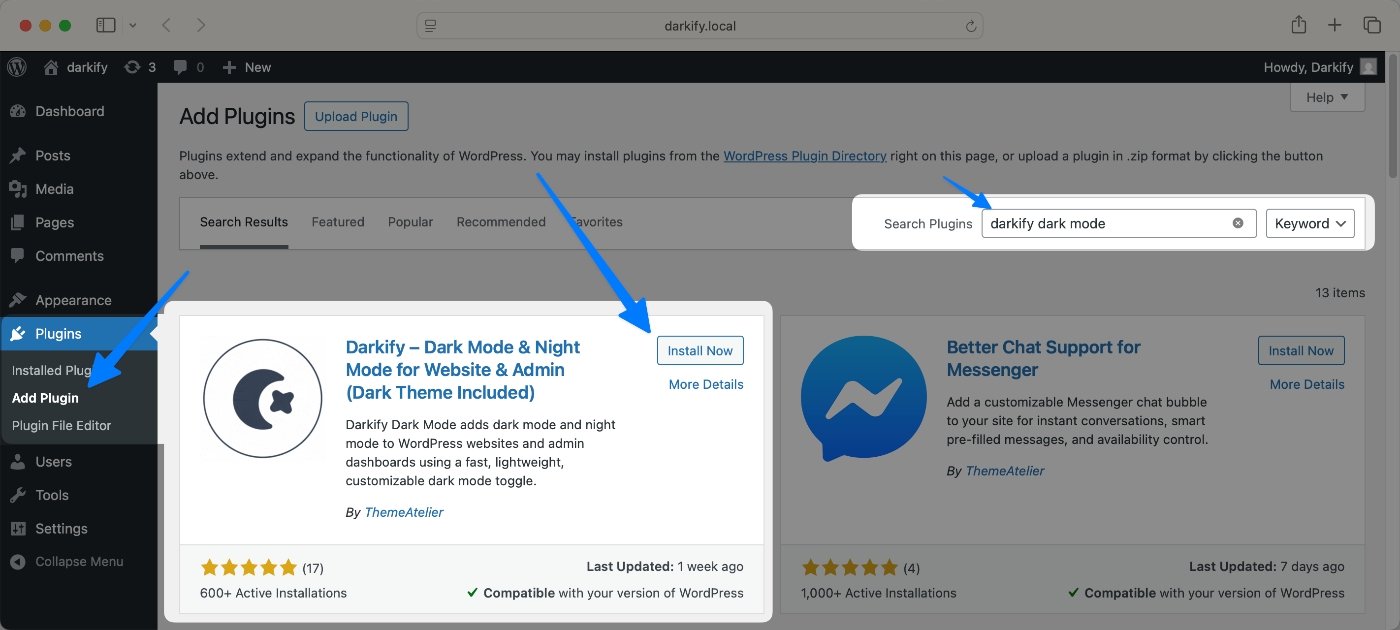
First, install and activate the Darkify plugin on your WordPress website.
Go to your WordPress dashboard, then navigate to Plugins > Add New. Search for Darkify, install the plugin, and click Activate.
Once activated, Darkify will add its settings panel to your dashboard, where you can manage your dark mode options.
Step 2: Enable Dark Mode
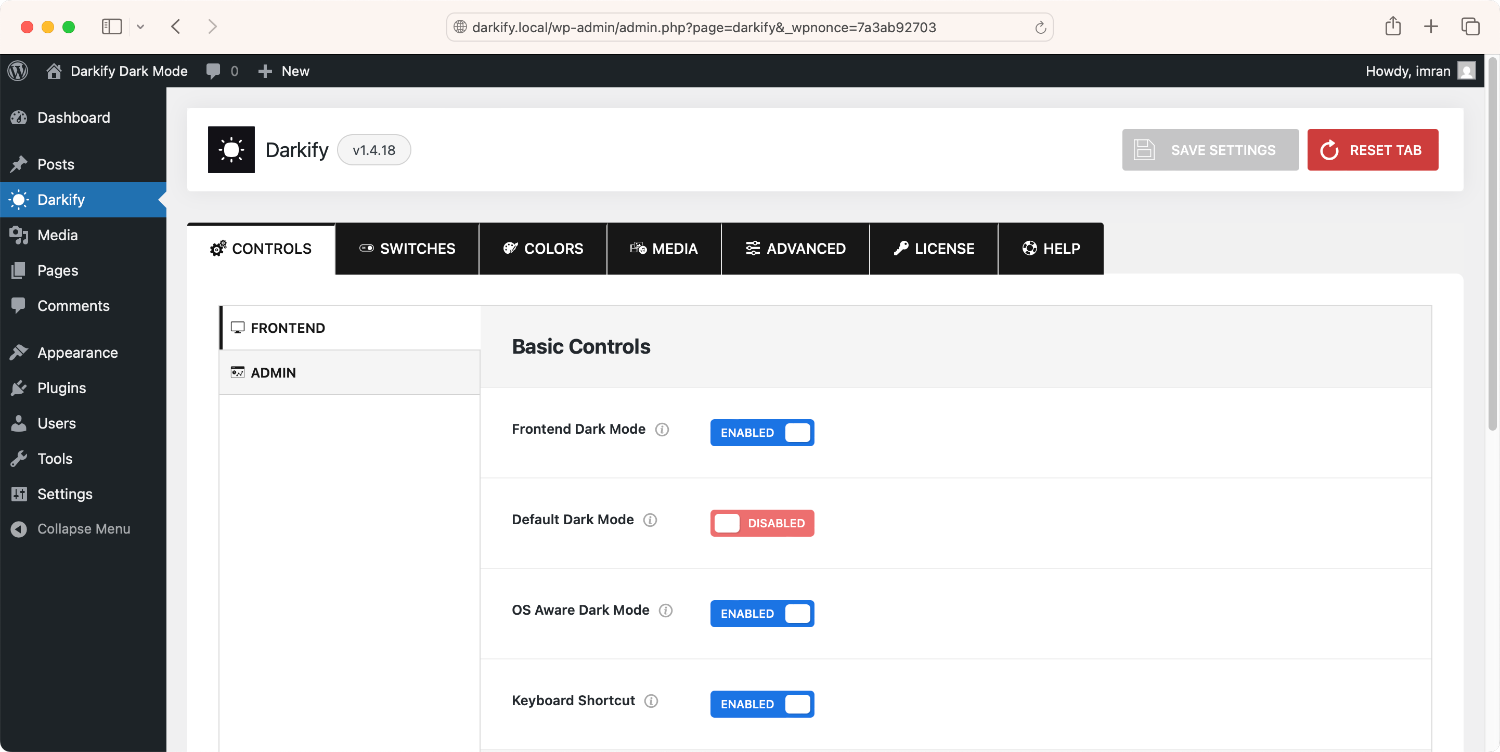
After activating the plugin, open the Darkify settings from your WordPress dashboard.
From there, turn on the dark mode feature. This allows your website to display a darker version of your design and gives visitors the option to switch between light mode and dark mode.
The goal is simple: make your site more comfortable to browse, especially for visitors who prefer a darker interface.
Step 3: Customize the Dark Mode Toggle
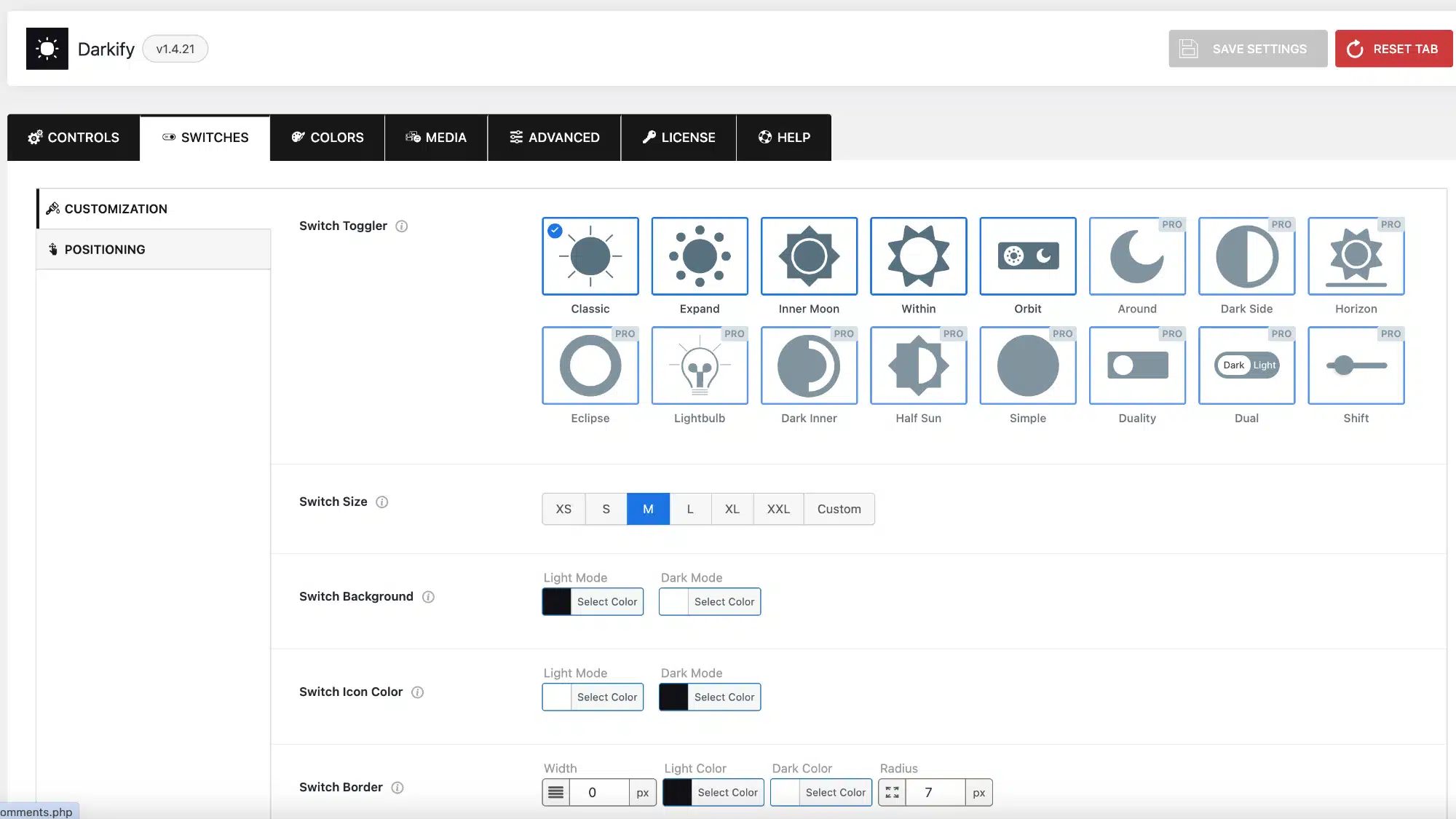
Next, customize how the dark mode toggle appears on your website.
Depending on your settings, you can adjust the toggle style, position, and appearance so it fits naturally with your website design. For example, you may want a floating toggle button, a clean switch-style button, or a placement that is easy to find on both desktop and mobile.
A visible toggle is important because visitors should not have to search for it. Keep it simple, clear, and easy to use.
Step 4: Adjust Dark Mode Colors
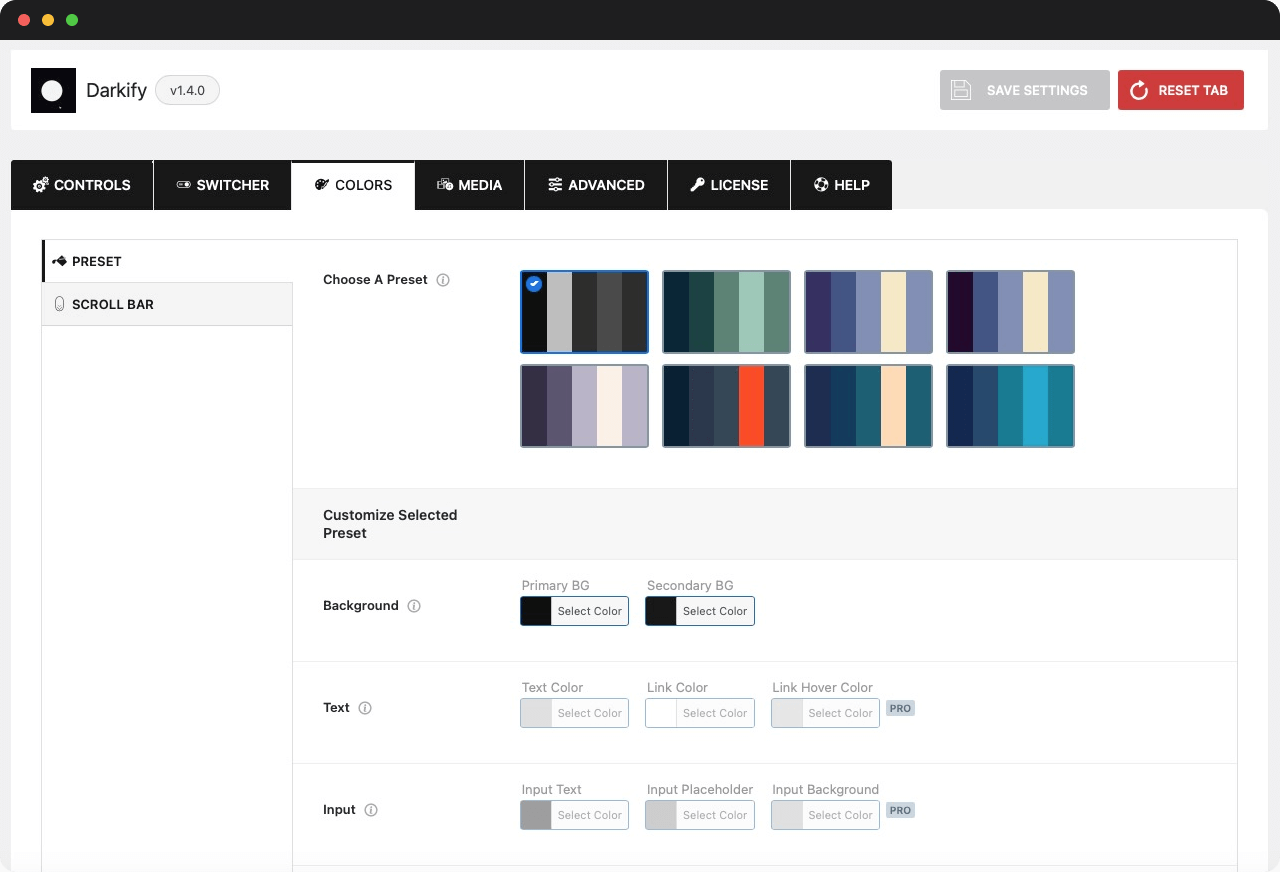
Once dark mode is enabled, adjust the colors to match your brand and layout.
Good dark mode design is not just about turning everything black. You want readable text, comfortable contrast, and colors that still feel connected to your website identity. Check your background colors, text colors, button colors, links, borders, and highlighted sections.
If your brand uses a specific accent color, try to keep that color consistent in dark mode so the experience still feels familiar.
Step 5: Preview and Test Your Website
Before you finish, preview your website carefully in dark mode.
Check your homepage, blog posts, landing pages, contact forms, menus, footer, and any important conversion pages. If you run an online store, also test your WooCommerce product pages, cart page, checkout page, and account pages.
Make sure everything is easy to read on desktop and mobile. Look for text that blends into the background, buttons that are hard to see, or images and logos that do not look right in dark mode.
Once everything looks clean, your WordPress website is ready to offer visitors a smoother, more flexible dark mode experience.
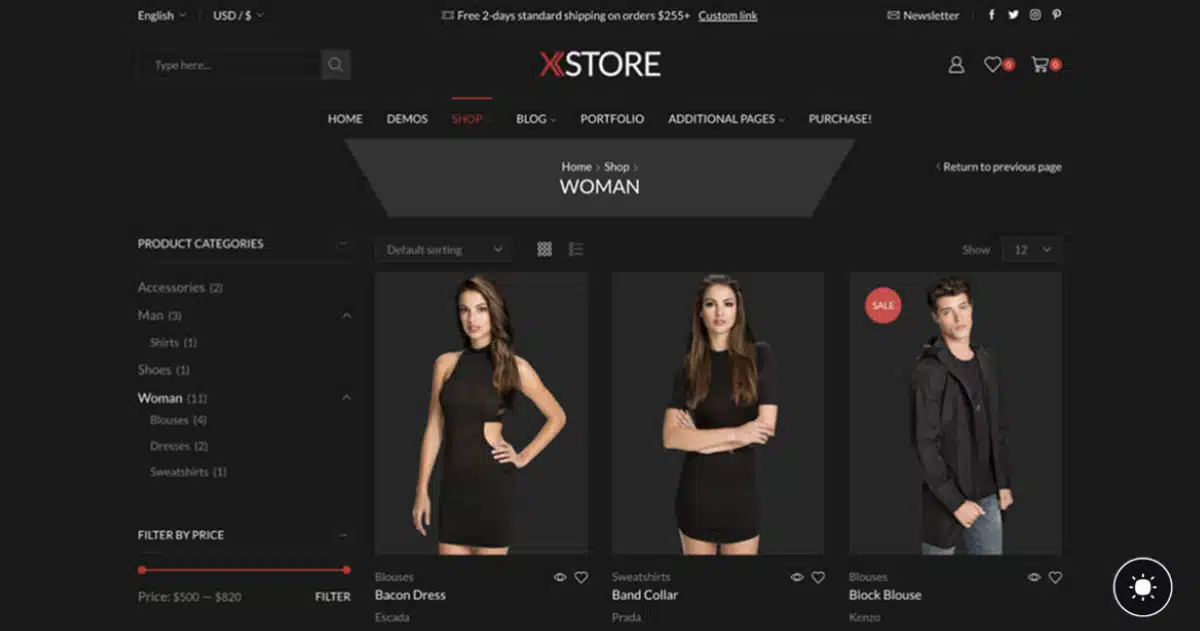
Benefits of Using a WordPress Dark Mode Plugin
Using a WordPress dark mode plugin is the easiest way to add dark mode without turning a simple design upgrade into a technical project. Instead of editing theme files, writing CSS, or testing custom JavaScript, you can manage everything from your WordPress dashboard.
The biggest benefit is that no coding is required. This makes dark mode accessible to beginners, business owners, bloggers, and site managers who want a better user experience without hiring a developer. With a plugin like Darkify, you can enable dark mode and control the main settings without touching your website’s code.
A plugin also gives you a much faster setup. Manual dark mode can take hours or even days if you need to adjust colors across different pages, buttons, forms, menus, and layouts. A dark mode plugin simplifies the process so you can get started quickly and make changes more confidently.
Customization is another major advantage. Instead of being locked into one basic design, you can adjust the appearance of your dark mode experience. You can customize the toggle, refine colors, and make sure the dark version of your website still feels connected to your brand.
A visitor-friendly toggle is especially important. Dark mode works best when users can control it themselves. Some visitors may prefer the standard light design, while others may want a darker layout. A clear toggle button gives them that choice instantly.
A WordPress dark mode plugin can also work across many types of websites, including blogs, business websites, portfolios, educational sites, documentation pages, and WooCommerce stores. Whether your visitors are reading articles, browsing products, or exploring service pages, dark mode can make the experience feel more flexible and comfortable.
Most importantly, using a plugin is easier and safer than manual theme editing. When you edit theme files directly, updates can overwrite changes, design issues can appear unexpectedly, and small mistakes can affect your entire website. A plugin gives you a cleaner, more manageable way to add dark mode while keeping control inside WordPress.
Where Should You Place the Dark Mode Toggle?
The dark mode toggle should be easy to find, easy to use, and visible without distracting visitors from your content. A dark mode feature is only useful if people can actually see it when they want to switch modes.
One of the most common places to add the toggle is the header. This works well because visitors already look at the header for navigation, menus, search icons, and account links. A small dark mode switch in the header feels natural and gives users quick access from almost anywhere on the site.
Another strong option is a floating button. This is especially useful if you want the toggle to stay visible while visitors scroll. A floating dark mode button can sit in the corner of the screen and remain accessible on blog posts, landing pages, product pages, and mobile views.
You can also place the toggle in the footer, although this works better as a secondary option. Since many visitors may not scroll all the way down, the footer is not always the best place for the main dark mode switch. However, it can be useful for websites that want a cleaner header or already have several navigation items at the top.
For websites with a content-heavy layout, a sidebar placement can also work well. Blogs, documentation sites, news websites, and tutorial-based websites often use sidebars for search, categories, author details, or table of contents sections. Adding the dark mode toggle there can feel practical and organized.
The most important rule is to make the toggle mobile-friendly. Many visitors will browse your WordPress website from a phone, so the toggle should be easy to tap, not too close to other buttons, and visible without covering important content. A toggle that looks good on desktop but feels awkward on mobile can hurt the experience.
For most websites, the best choice is either a header toggle or a floating button. Both are easy to notice, simple to use, and flexible enough for different types of WordPress websites.
Best Practices for WordPress Dark Mode Design
Good dark mode design is not just about changing a white background to black. It should feel intentional, readable, and comfortable. The goal is to create a darker version of your website that still looks polished, works properly, and feels connected to your brand.
The first rule is to maintain good contrast. Your text should be easy to read against the background, and important elements like buttons, links, headings, and form fields should stand out clearly. If the contrast is too low, visitors may struggle to read your content. If it is too harsh, the design can feel uncomfortable.
It is also better to avoid using pure black backgrounds everywhere. A full black background with bright white text can sometimes feel too sharp, especially on long blog posts or content-heavy pages. Softer dark shades often create a smoother reading experience while still giving visitors the dark mode look they expect.
You should also check your images and logos in dark mode. Some logos are designed for light backgrounds and may disappear or look awkward on darker layouts. The same can happen with transparent PNG images, icons, badges, and product graphics. Make sure your visual elements still look clean and professional after dark mode is enabled.
Buttons, forms, and menus need extra attention too. These are the parts of your website visitors actually interact with. Test your navigation menu, search box, contact forms, checkout buttons, newsletter forms, and call-to-action sections. Every clickable element should remain visible, readable, and easy to use.
Finally, keep your branding consistent. Dark mode should not feel like a completely different website. Your fonts, accent colors, button styles, and overall visual identity should still feel familiar. A strong dark mode design keeps the same brand personality while giving visitors a more flexible way to experience your WordPress website.
Common Mistakes to Avoid
Adding dark mode to WordPress is simple, but getting it right takes a little care. A dark mode feature should make your website easier to use, not harder to read or navigate. Before publishing it live, watch out for these common mistakes.
The first mistake is poor text contrast. If your text is too dark against a dark background, visitors will struggle to read your content. If the text is too bright, it can feel harsh on the eyes. Aim for a balanced contrast that makes headings, paragraphs, links, and buttons clear without making the design uncomfortable.
Another mistake is not testing the mobile view. Many visitors will use your website from a phone, so dark mode needs to work well on smaller screens. Check spacing, menus, buttons, toggle placement, and readability on mobile before assuming everything is ready.
If you run an online store, do not forget your WooCommerce pages. Product pages, cart pages, checkout pages, account pages, and payment sections all need to look clean in dark mode. A broken checkout design can hurt trust and cost you sales.
Using too many colors is another common issue. Dark mode usually works best when the color palette is simple and controlled. Too many bright accents, backgrounds, and button colors can make the site look messy. Stick to a few brand-friendly colors and keep the experience calm and consistent.
Finally, avoid making the dark mode toggle hard to find. If visitors cannot quickly see how to switch between light and dark mode, the feature loses its value. Place the toggle somewhere visible, such as the header or a floating button, and make sure it is easy to tap on both desktop and mobile.
A good dark mode setup should feel smooth, clear, and intentional. Test the experience like a real visitor, and fix anything that makes the site harder to read, shop, or explore.
FAQ About Adding Dark Mode in WordPress
Conclusion
Adding dark mode to WordPress is one of the simplest ways to make your website feel more modern, flexible, and user-friendly. It gives visitors more control over how they browse, improves comfort in low-light environments, and creates a smoother experience across blogs, business sites, portfolios, and WooCommerce stores.
The best part is that you do not need to write code or edit your theme files to make it happen. With a plugin like Darkify, you can enable dark mode, customize the toggle button, adjust the design, and test everything directly from your WordPress dashboard.
If you want to give your visitors a cleaner, more comfortable browsing experience, dark mode is a smart upgrade. Start with a simple setup, keep the design readable, test it on desktop and mobile, and make sure the toggle is easy to find.
Ready to add dark mode to your website? Try Darkify and give your WordPress visitors a better way to browse.