You’ve already tuned caching, compressed images, and trimmed JavaScript — and now you’re wondering: does dark mode slow down WordPress? It’s a fair question. Dark mode itself isn’t inherently slow; its WordPress dark mode performance cost depends on the implementation and the complexity of the page it runs on. Any plugin can add work. The useful question isn’t whether it adds any — it’s whether that work materially changes load speed, responsiveness, or visual stability on your actual site.
Key Takeaways
- Dark mode itself doesn’t determine performance — the implementation does, and different dark-mode plugins can use very different approaches.
- The current Core Web Vitals are Largest Contentful Paint (LCP), Interaction to Next Paint (INP), and Cumulative Layout Shift (CLS) — First Input Delay was retired in 2024.
- A visible light-to-dark flash is a real UX problem, but it doesn’t automatically mean layout shift increased — color changes alone don’t move layout.
- Darkify’s 2.0.3 changelog documents a genuine frontend scalability fix, not just a description of the plugin as “optimized.”
- Darkify has not published a controlled performance benchmark for its current version, and no independent one exists either.
- The only trustworthy answer for your specific site comes from a controlled before/after test, not a generic claim.
Does Dark Mode Slow Down WordPress? What “Slow Down” Actually Means
“Site speed” isn’t one number — treating it as one is how vague performance claims survive scrutiny. A dark-mode plugin can affect several distinct costs independently, and a plugin that’s cheap on one can still be expensive on another.
- Network cost — extra JavaScript, CSS, images, HTTP requests, and transferred bytes.
- Initial render cost — blocking CSS, JavaScript execution, main-thread work, and style calculation before the page is visible.
- Runtime cost — DOM observation, mutation handling, and recalculation as content changes or the user switches themes.
- Interaction cost — how quickly the interface responds when someone actually clicks the toggle.
- Visual experience — an incorrect-theme flash, delayed theme application, or unexpected layout movement.
The Core Web Vitals That Actually Matter
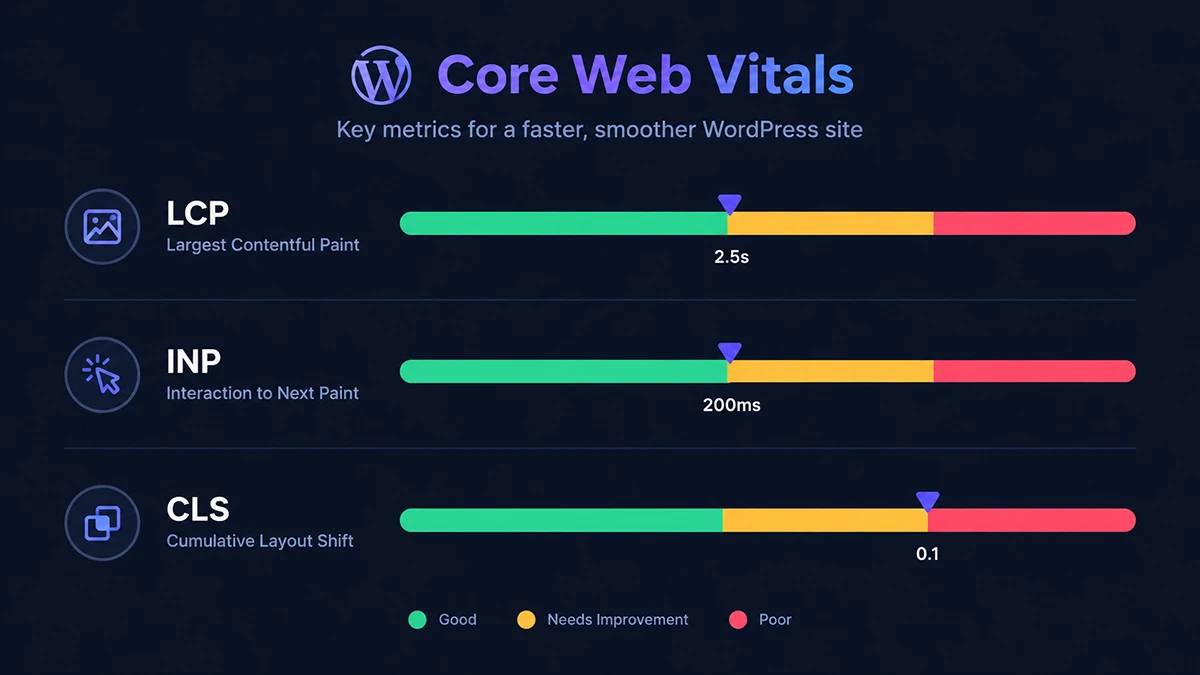
Google’s current Core Web Vitals are Largest Contentful Paint (LCP), Interaction to Next Paint (INP), and Cumulative Layout Shift (CLS) — “good” thresholds of 2.5 seconds, 200 milliseconds, and 0.1 respectively. First Input Delay was retired and replaced by INP in 2024; if you see FID cited as current, that’s outdated.
LCP — Loading Performance
A dark-mode implementation could theoretically affect LCP if it adds render-blocking resources, significant early JavaScript, or main-thread work that delays rendering. Simply adding a dark stylesheet doesn’t necessarily change LCP — whether it does depends on how and when that stylesheet loads relative to your page’s largest content.
INP — Responsiveness
This is the metric most relevant to JavaScript-driven dark-mode systems. Heavy DOM walking, style recalculation, expensive toggle processing, and mutation handling on dynamically updated pages can all show up here — particularly on page-builder layouts or WooCommerce pages that keep changing after load.
CLS — Visual Stability
Changing text, background, or border color doesn’t by itself create layout shift. CLS only moves when dark mode changes geometry — a switch that appears late and pushes content, font metrics that differ between themes, or a logo swap with different dimensions. A light-to-dark flash can look unpleasant while producing zero measured CLS; don’t conflate the two without actually measuring layout movement.
Theme Flash vs. FOUC
FOUC — Flash of Unstyled Content — is a broader, older term for raw markup rendering before its stylesheet loads. A page that briefly shows the wrong color scheme before switching to the correct one is a narrower, related problem better called a theme flash or late theme application, not a formal performance metric in its own right. It typically happens when the browser renders the default presentation first, JavaScript then discovers a stored or system preference, and dark mode gets applied afterward — which can hurt perceived polish even when Core Web Vitals barely move.
How Darkify’s Frontend Engine Currently Works
Darkify hasn’t published a standalone technical-architecture document, so the clearest public description comes from its own changelog language. As of version 2.1.0, the frontend explicitly “still uses the original engine” — Darkify’s own changelog calls it the per-element engine, distinct from the newer engine used for wp-admin (more on that below). It isn’t a simple CSS-variable swap; it watches elements for class changes and processes them individually, which is a meaningfully different cost profile from a single stylesheet toggle.
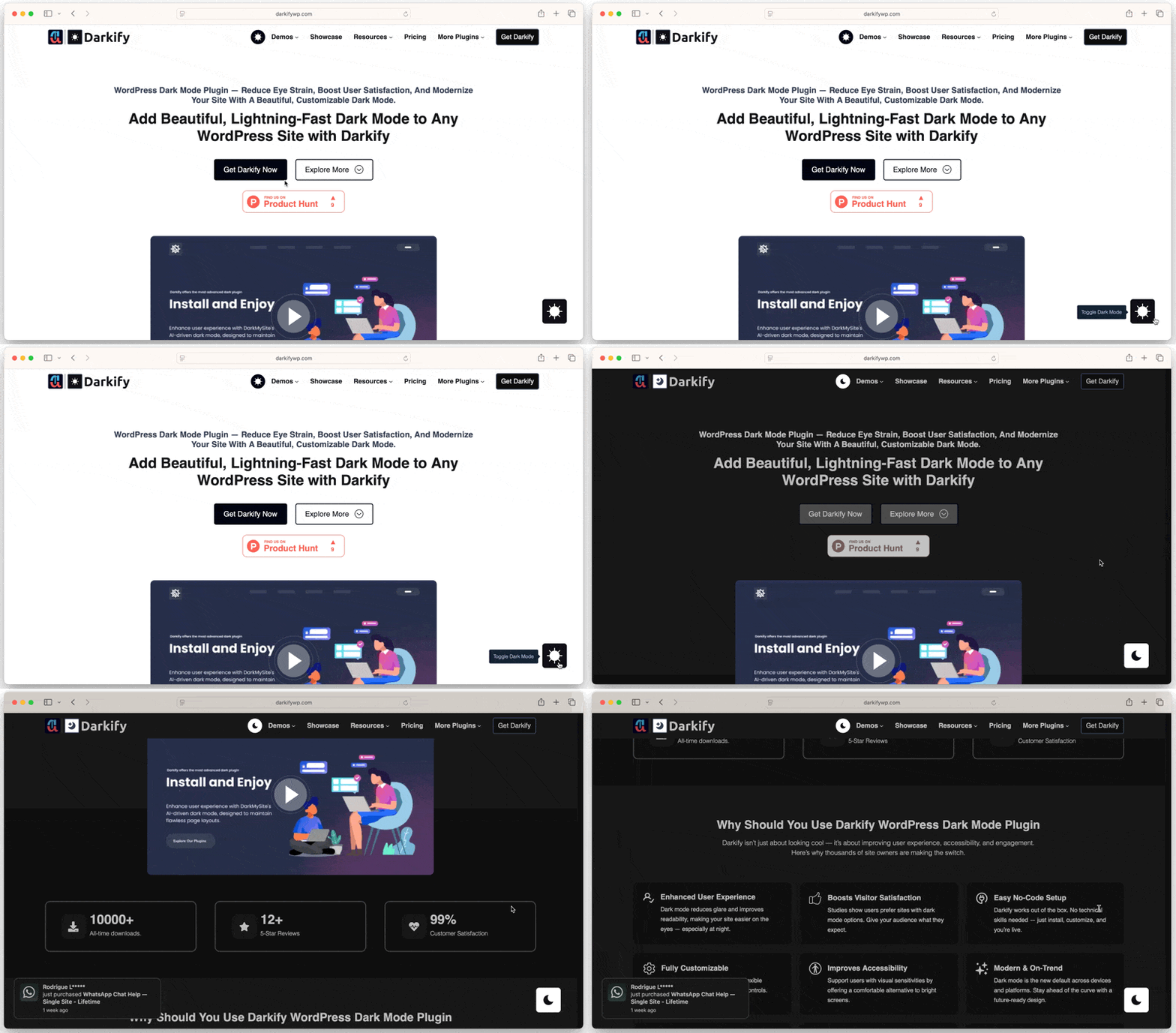
That processing model is exactly what made an earlier version expensive on large pages, and exactly what version 2.0.3 rewrote — covered next. If you want to inspect actual behavior on your own installation rather than take a changelog’s word for it, current Darkify (since 2.0.3) includes a developer diagnostics mode: add ?darkify_debug=1 to a URL, then run the following in your browser console.
darkifyDebug.report()Per the changelog, this reports pass counts, timings, and the number of elements Darkify processed — genuinely useful for confirming what’s happening on your specific page, though it’s a plugin-level diagnostic, not a substitute for Lighthouse or Core Web Vitals field data.
The Performance Bug Darkify Fixed in 2.0.3
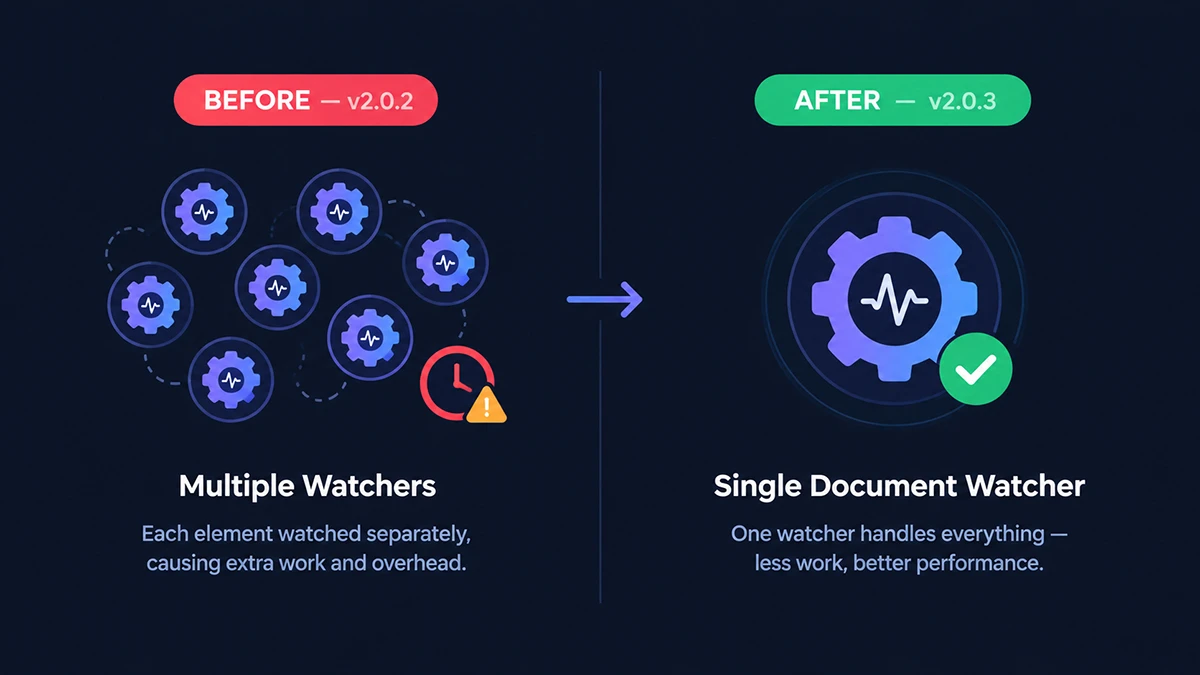
Earlier Darkify 2.0.x builds had a real, documented scaling problem. Per Darkify’s own changelog: “every element was watched for class changes individually, and each watcher had to be re-registered across the whole document whenever anything changed — on a 2,929-element page that came to 1.23 million registrations during load and 6.31 million on a single toggle, growing with the square of the page size.” That’s a changelog illustration, not a formal benchmark — no test methodology, device, or caching state is disclosed alongside it — but it’s a candid admission of a genuine problem, not marketing copy.
Version 2.0.3 replaced the per-element watchers with a single document-level watcher, limited processing of dynamic changes to newly inserted content, made mode-switching revisit only elements Darkify had actually styled, and reduced repeated color reads and transition-related recalculation. The same release also changed how the page looks on first load: instead of an earlier dimming/baseline approach, the background now paints dark from the first frame, and a related safety timeout dropped from 2 seconds to 0.8 seconds. This is exactly why performance claims about any plugin should be tied to a specific version — a fix that shipped in 2.0.3 doesn’t retroactively describe what 2.0.1 did.
Admin Performance Is a Different Implementation
Version 2.1.0 moved WordPress-admin dark mode to a different rendering approach — Dark Reader — while Darkify’s own changelog confirms “the front end is untouched and still uses the original engine.” The same release fixed the Block Editor becoming unresponsive with Admin Panel Dark Mode enabled, which suggests the old admin-side approach carried its own cost in that specific screen. Whatever the admin engine’s performance profile is, it isn’t evidence about frontend performance — they’re separate implementations, and this article is about frontend site speed.
What Happens When Frontend Dark Mode Is Disabled?
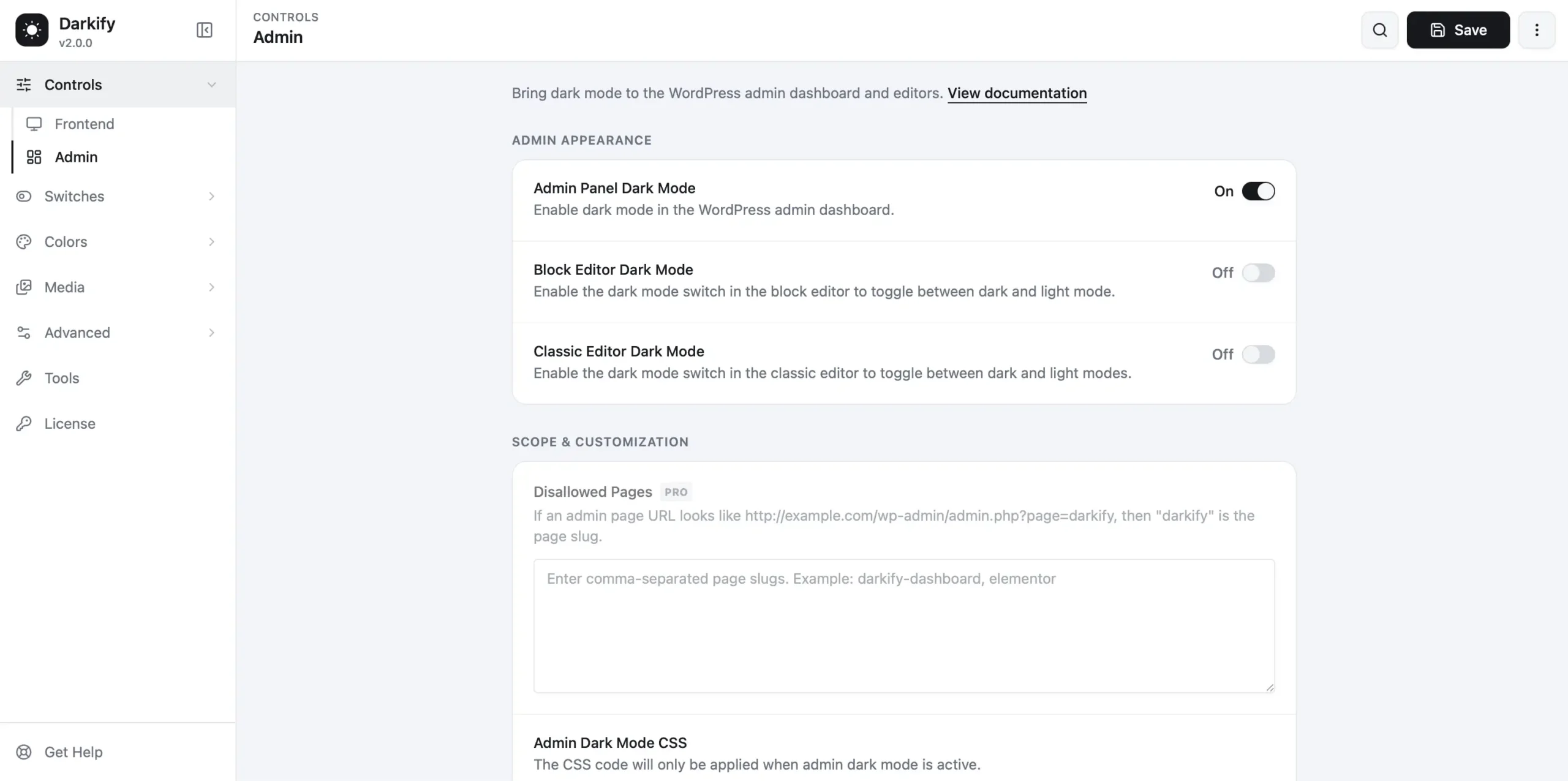
Darkify’s 2.0.0 release notes state that with Frontend Dark Mode turned off, the plugin loads no frontend CSS, JavaScript, or inline output at all — a genuinely useful fact if you’re only using Darkify for admin or editor dark mode and want zero frontend footprint. That claim dates to 2.0.0 and hasn’t been contradicted by any later changelog entry, though it also hasn’t been explicitly re-confirmed in current documentation — worth a quick check with diagnostics mode on your own install if it matters to your decision.
What to Test on Your Own Site
No generic benchmark can answer this for your specific stack. Run a controlled before/after comparison instead, keeping theme, plugins, cache, CDN, test URL, server, device profile, and network conditions constant across every run.
- Baseline — the site before installing or enabling frontend Darkify functionality.
- Darkify available, light state — the feature enabled but the page still loading in its normal light presentation, to isolate the cost of simply having it available.
- Dark mode active — the page loading dark from the start, testing manual, default, and OS-aware paths where your setup supports them.
- Toggle interaction — measured separately, in both directions. A plugin can have little effect on initial load and still do expensive work when the user actually switches modes, especially on large pages, page builders, and WooCommerce.
Use PageSpeed Insights for Lighthouse lab diagnostics and CrUX field data where available — but field data reflects weeks of real-user history across many site variables, so don’t compare today’s 28-day field data against a plugin installed five minutes ago. Chrome DevTools’ Network panel shows added requests and transfer size; its Performance panel shows long tasks, scripting, and style recalculation during the toggle specifically. Run Lighthouse several times and use the median, not your best result — one run is an anecdote, not evidence. Record request count, transferred JS/CSS, LCP, INP or interaction diagnostics, CLS, Total Blocking Time as a lab-only supplementary metric, and whether a theme flash is visible.
Large and Dynamic Pages Deserve Extra Testing
Sites built with Elementor, Divi, or Bricks, or using WooCommerce cart fragments, carousels, infinite scroll, AJAX filters, or React-rendered interfaces can expose performance behavior a simple blog post never will — Darkify’s 2.0.3 fix specifically targeted mutation handling on pages that keep changing after load, which is exactly the pattern these builders create. Don’t assume universal compatibility across page types; test the actual pages your visitors use most.
Lightweight vs. Heavy Dark-Mode Implementation
No single architecture is automatically “good” — CSS variables aren’t inherently superior to JavaScript processing, and either can be implemented well or badly. These are the patterns worth checking regardless of which plugin you use.
| Factor | Lower-Risk Pattern | Higher-Risk Pattern |
|---|---|---|
| Resource loading | Small, needed assets only | Large, unnecessary bundles |
| Theme application | Early, before visible render | Late, after full page render |
| DOM processing | Targeted, incremental | Full-document repeated scans |
| Mutations | Process only changed nodes | Rescan everything on any change |
| Toggle | Limited, scoped work | Expensive main-thread work |
| Layout | Colors only where possible | Geometry changes between modes |
| Dependencies | Only necessary libraries | Unnecessary runtime libraries |
Common Performance Mistakes
- Assuming every dark-mode plugin uses the same architecture, or judging speed from ZIP file size.
- Assuming fewer HTTP requests automatically means a faster experience.
- Running one Lighthouse test and treating it as conclusive, or confusing a Lighthouse score with Core Web Vitals field data.
- Testing only initial load and never testing the toggle interaction itself.
- Calling a visible theme flash “CLS” without measuring actual layout movement.
- Skipping dynamic WooCommerce or page-builder pages and testing only a simple post.
- Relying on performance impressions from before a plugin’s 2.0.3-equivalent fix shipped.
Does Darkify Slow Down WordPress?
Current Darkify versions include specific, documented fixes aimed at reducing frontend DOM-processing cost — that’s verifiable in the changelog, not a marketing claim. But no plugin should be assumed to have literally zero overhead, and Darkify hasn’t published a controlled benchmark to quantify its current impact; by its own admission on a plugin-comparison page, it hasn’t published speed tests because it “would rather say less than invent numbers.” Its actual impact on your site depends on page complexity, which settings you enable, and the rest of your WordPress stack. The practical answer is the one at the top of this article: compare your own representative pages before and after enabling it.
Frequently Asked Questions
Test Your Own Site, Not a Marketing Claim
Dark mode’s performance cost is a property of implementation and page complexity, not the feature itself. Darkify’s documented history — a real scaling problem in early 2.0.x builds, fixed transparently in 2.0.3 — is a more useful signal than any “zero impact” claim would be, precisely because it’s specific and version-tied. Run the before/after test above on your own representative pages before deciding either way.
If you’re evaluating whether to add dark mode at all, Darkify’s general setup guide covers installation, and the full changelog is the most current source for exactly which version fixed what.
Disclosure: darkifywp.com is operated by ThemeAtelier, Darkify’s developer. That gives us access to the changelog and implementation details cited here, but it’s also an obvious commercial interest — which is why this article separates documented engineering changes from independently measured results and doesn’t claim zero overhead without evidence.