


Yes — you can add dark mode to GeneratePress in under five minutes, and you won’t write a single line of CSS to do it. The fastest GeneratePress dark mode setup uses a lightweight plugin called Darkify: install it, pick a toggle style, choose a color scheme, and publish. That’s the whole job. This guide walks through every step, plus the customization options worth turning on once the basics work.
Dark mode stopped being a novelty years ago. When Android Authority polled its readers, 81.9% said they run their phones in dark mode. Your visitors reading at 11 p.m. expect the same courtesy from your website. Hit them with a pure white screen and some of them will simply leave.
I use GeneratePress myself, so I get the hesitation: you picked this theme because it’s fast, and the last thing you want is a bloated plugin dragging it down. We’ll deal with that concern directly — including real talk about what Darkify actually loads. And yes, I’ll also cover the manual CSS route, so you can see exactly what you’d be signing up to maintain.
Table of Contents
Key Takeaways
- You can add dark mode to GeneratePress in under five minutes with the free Darkify plugin — no coding required.
- GeneratePress doesn’t include a built-in dark mode. That’s deliberate: the theme stays lean by leaving optional features to plugins.
- A manual CSS dark mode is possible but fragile — every theme update, new plugin, or color tweak adds more custom code to maintain, and visitors get no toggle without extra JavaScript.
- Darkify’s free version includes a visitor toggle, OS-preference auto-detection, time-based scheduling, image dimming, and eight color presets.
- Dark mode can cut OLED screen battery drain by up to 47% at full brightness, according to a Purdue University study.
- A well-built dark mode plugin adds only a few kilobytes of optimized CSS and JavaScript, so a lightweight theme like GeneratePress stays fast.
Why GeneratePress Doesn’t Include Dark Mode by Default
GeneratePress is famous for shipping almost nothing you don’t need. The core theme weighs in at well under 100 KB, and that discipline is exactly why your site scores so well on PageSpeed. A built-in dark mode — with its toggle scripts, color overrides, and image filters — would add weight for every site owner, including the majority who’d never switch it on.
So the theme leaves it out, the same way it leaves out sliders, mega menus, and contact forms. Features you opt into live in plugins. That’s not a gap in GeneratePress; it’s the philosophy that made you choose it.
The practical upshot: if you want a GeneratePress dark mode toggle, you either write it yourself or install a plugin built for the job. Let’s compare those two routes honestly.
Manual CSS vs. a Plugin: Which Route Should You Take?
The DIY route works like this: you write a prefers-color-scheme: dark media query, then override GeneratePress’s background, text, link, and border colors with dark equivalents. It’s a legitimate approach, and if you enjoy CSS, it’s a fun afternoon.
The problems show up later. Visitors get no toggle — the site just follows their operating system, whether they like it or not. Every plugin you add ships its own styles you’ll need to override too. Images stay at full brightness. And when you redesign a section six months from now, you’ll be maintaining two color systems instead of one. Here’s the side-by-side:
| Manual CSS | Darkify Plugin | |
|---|---|---|
| Setup time | 2–4 hours (plus testing) | About 5 minutes |
| Coding required | Yes — CSS, plus JS for a toggle | None |
| Visitor toggle | Not without custom JavaScript | Built in, multiple styles |
| OS preference detection | Yes (media query) | Yes, one checkbox |
| Scheduling by time of day | No | Yes, free |
| Image handling | Manual filters per image | Global brightness/contrast controls |
| Maintenance after updates | Ongoing — you own every override | Handled by plugin updates |
If you’re building a client site or you bill for your time, the math isn’t close. The plugin route wins on everything except bragging rights.
How to Add Dark Mode to GeneratePress with Darkify
Here’s the full setup, start to finish. I’ve done this on live GeneratePress sites more times than I can count, and the whole thing genuinely takes about five minutes.
Step 1: Install and Activate Darkify
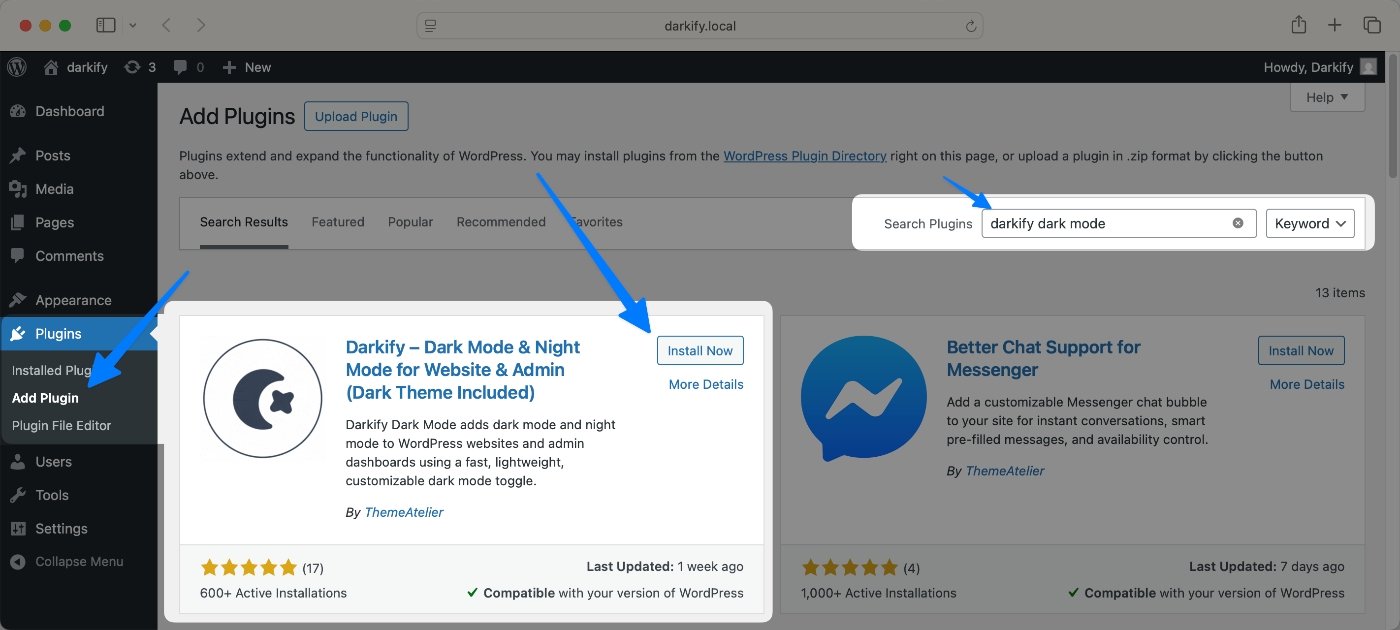
In your WordPress dashboard, go to Plugins → Add New Plugin and search for “Darkify.” Click Install Now, then Activate. If you prefer, grab the ZIP directly from the WordPress.org plugin page and upload it manually.
Step 2: Open the Darkify Settings Panel
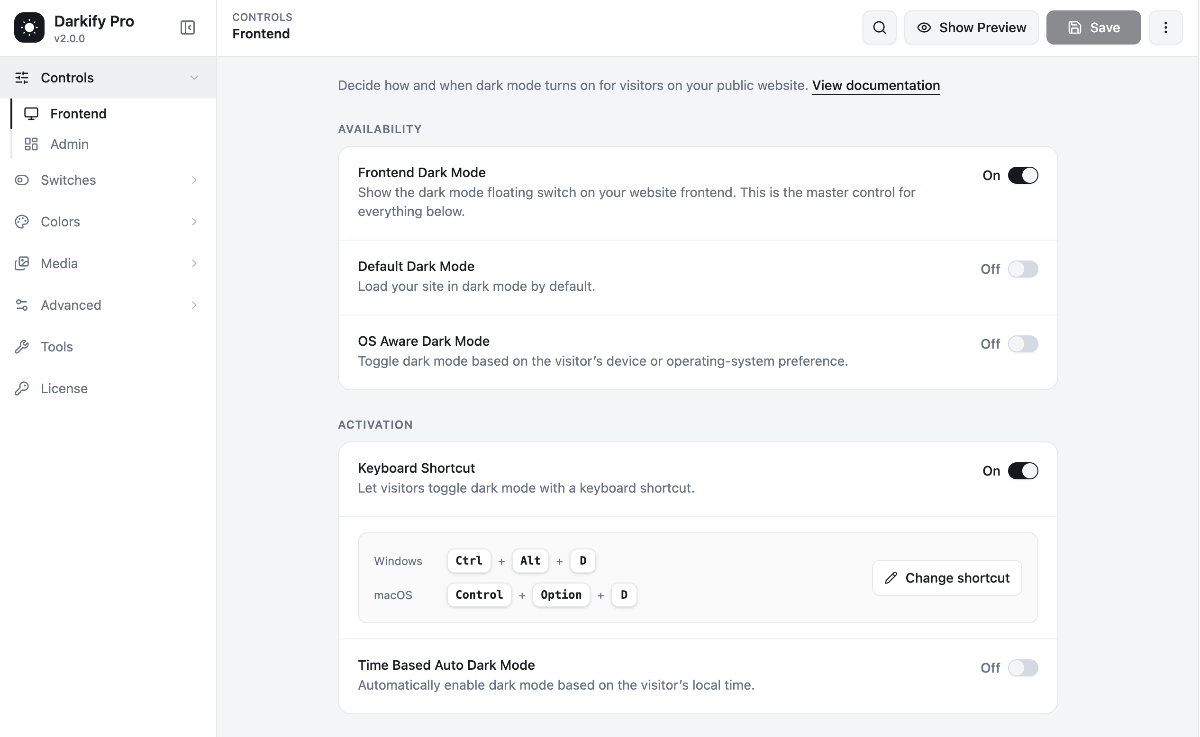
After activation, a Darkify menu appears in your dashboard. Open it and you’ll land on a settings panel that’s organized into tabs — switch design, colors, behavior, and media. Nothing here requires documentation to understand, which is refreshing.
Step 3: Choose Your Toggle Style and Position
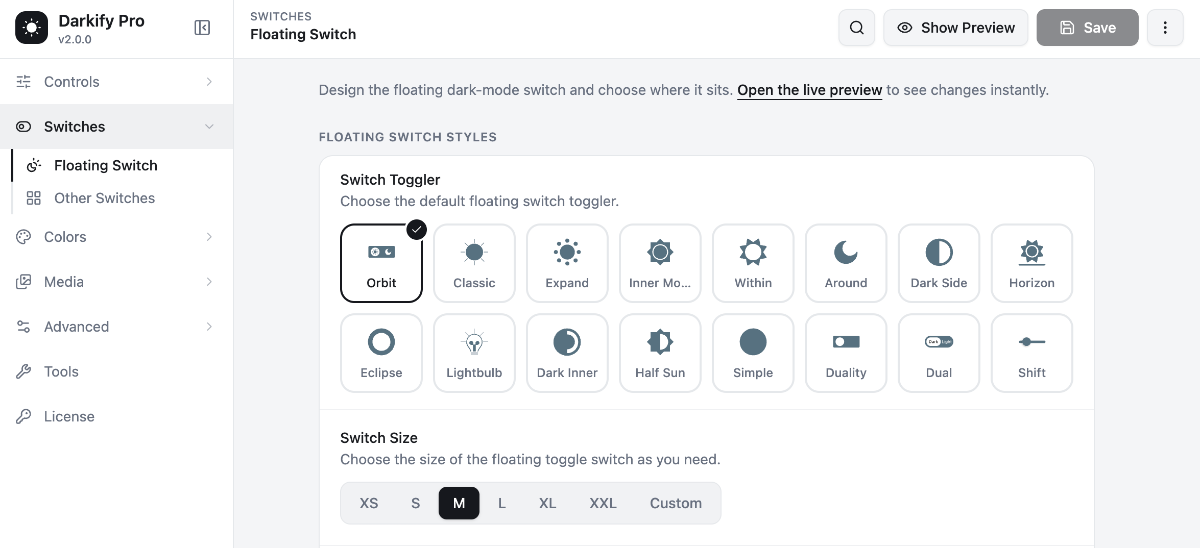
This is the fun part. Pick a floating switch design, then set its size, colors, and icon. The floating button sits in a corner of the screen where visitors expect it. Want it elsewhere? You’ve got options:
- Floating switch — the default, visible on every page
- Navigation menu item — adds the toggle to your GeneratePress menu
- Shortcode — drop it anywhere in your content
- Gutenberg block — place it visually inside any post or page
There’s also a subtle pulse animation if you want the switch to catch attention on first visit, and separate controls for how the switch behaves on mobile.
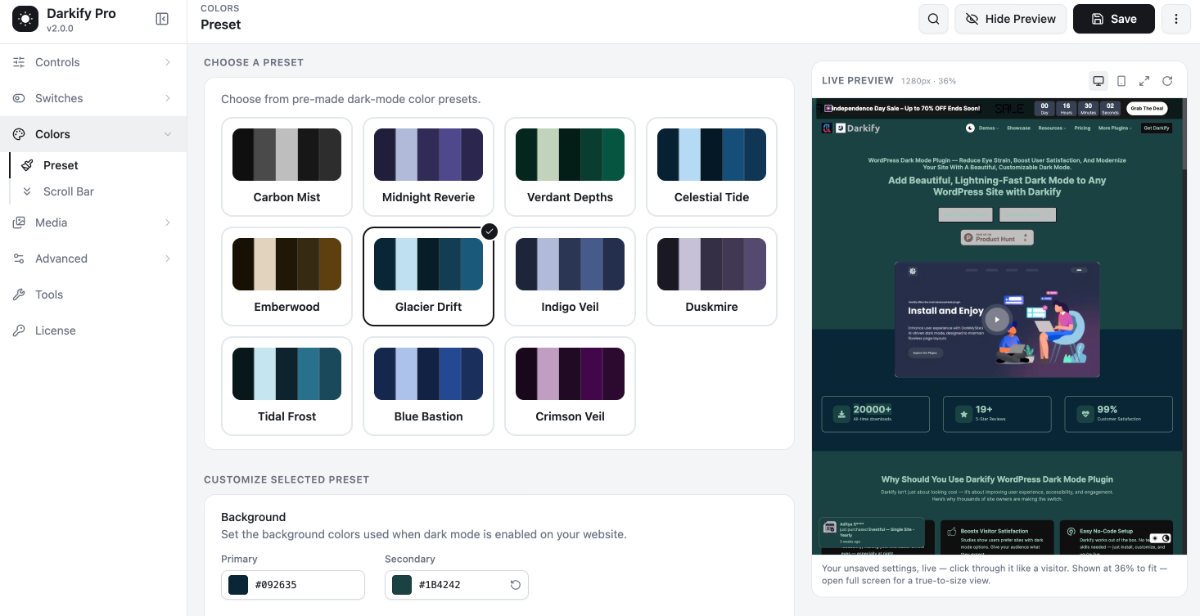
Step 4: Pick a Color Scheme
Darkify ships with eight predefined color presets. Pick one that complements your brand — a near-black background with soft gray text is the safe default, and it pairs well with GeneratePress’s typography settings. If your site uses a strong accent color, check that it still has enough contrast against the dark background.
Step 5: Set Smart Defaults — OS Detection and Scheduling
Two settings in the behavior tab are worth enabling right away. OS-aware detection reads each visitor’s system preference, so someone whose phone is already in dark mode sees your site dark from the first paint. Time-based scheduling lets you switch the whole site to dark mode between, say, 8 p.m. and 6 a.m. Both are free features.
There’s even a keyboard shortcut — Ctrl + Alt + D — for toggling dark mode, which your power users will quietly appreciate.
Step 6: Save and Test
Save your settings and open your site in a fresh tab. Click the toggle. Check your homepage, a blog post, and any page with forms or tables. If you run a caching plugin, purge the cache first — more on that in troubleshooting. That’s it: your GeneratePress dark mode toggle is live.
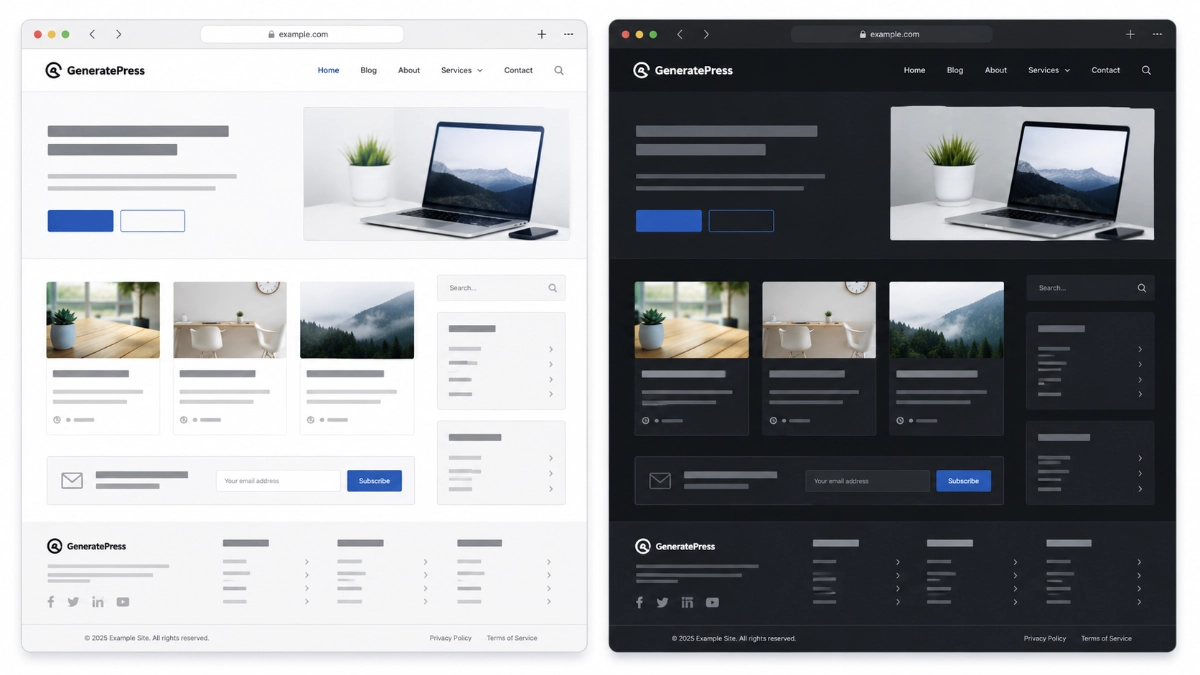
Customizing Your Dark Mode: Free vs. Pro Options
The free version covers more ground than you’d expect. Beyond the toggle and color presets, you get image brightness, contrast, and grayscale controls (so photos don’t glare in dark mode), video dimming, dark scrollbar styling, and element-level include/exclude rules by class, ID, or tag. For most blogs and business sites, free is genuinely enough.
Darkify Pro makes sense when you need finer control:
- 16+ floating switch designs plus draggable positioning — place the toggle anywhere on screen
- Image replacement — swap specific images (like a dark logo for a light one) instead of just dimming them
- Video replacement for embeds that don’t dim well
- Per-page and per-post controls — disable dark mode on landing pages where brand colors must stay exact
- Custom CSS that applies only in dark mode
My honest advice? Start free. Upgrade when you hit a specific wall — usually it’s the logo swap that gets people, since a dark logo on a dark background is invisible.
Will a Dark Mode Plugin Slow Down GeneratePress?
This is the question every GeneratePress user asks, and it’s the right one to ask. Short answer: not measurably, if the plugin is built well. Darkify loads a small amount of optimized CSS and JavaScript — a few kilobytes, not the hundreds that page builders add — and it plays nicely with caching plugins like WP Rocket and W3 Total Cache.
Don’t take my word for it, though. Run PageSpeed Insights before and after activating the plugin and compare the numbers. On a typical GeneratePress site, the score difference is zero to one point. There’s a side benefit too: the Purdue University study mentioned earlier found dark mode can reduce OLED battery drain by up to 47% at full screen brightness. Your night-time readers’ phones will thank you.
Troubleshooting Common Issues
Images look too bright or washed out
Head to Darkify’s media settings and lower the image brightness slider — somewhere around 80–90% usually looks natural. Photos with white backgrounds are the worst offenders. If a specific image still fights the dark theme, Pro’s image replacement lets you serve a dark-optimized version instead.
Some elements won’t switch colors
Usually this means another plugin is styling that element with high-specificity CSS or inline styles. Use Darkify’s element controls to target the stubborn element by its class or ID. The reverse works too: if dark mode is restyling something it shouldn’t (a brand-critical button, say), exclude that element the same way.
Changes don’t show up on the live site
Nine times out of ten this is caching. Purge your caching plugin, your host’s server cache, and any CDN cache, then hard-refresh the page (Ctrl + Shift + R). Darkify is compatible with the major caching plugins, but no plugin can update a page your cache served from yesterday.
The toggle overlaps something on mobile
Use Darkify’s mobile-specific switch controls to resize or reposition the toggle on small screens — or hide the floating switch on mobile entirely and rely on the menu toggle instead. A floating button that covers your “Add to Cart” button is worse than no dark mode at all.
Frequently Asked Questions
Does GeneratePress have a built-in dark mode?
No. GeneratePress keeps its core deliberately minimal for performance, so dark mode isn’t included in the theme or in GP Premium. You add it either with custom CSS using the prefers-color-scheme media query or with a dedicated plugin like Darkify, which also gives visitors a toggle.
How do I add a dark mode toggle to WordPress without coding?
Install a dark mode plugin from the WordPress repository. With Darkify, you install and activate the plugin, pick a switch design, choose a color preset, and save — about five minutes total. The toggle appears as a floating button, a menu item, a shortcode, or a Gutenberg block.
Does dark mode slow down my site?
A well-optimized dark mode plugin adds only a few kilobytes of CSS and JavaScript, which has no meaningful effect on load time — typically zero to one point on PageSpeed Insights. Test your own site before and after activation to confirm; that beats any general claim, including this one.
Can dark mode switch on automatically for visitors?
Yes. Darkify’s free OS-aware detection reads each visitor’s system preference and matches it on first load — no click required. You can also schedule dark mode by time of day, for example 8 p.m. to 6 a.m., so evening visitors always get the dark theme automatically.
Is Darkify free?
Yes — the free version on WordPress.org includes the visitor toggle, eight color presets, OS detection, scheduling, and image dimming. Darkify Pro adds 16+ switch designs, draggable positioning, image and video replacement, per-page controls, and dark-mode-only custom CSS.
Wrapping Up: Dark Mode Without the Bloat
Setting up GeneratePress dark mode doesn’t require a developer, a child theme, or a weekend of CSS debugging. Install Darkify, style the toggle, pick your colors, enable OS detection, and you’re done — with a site that stays every bit as fast as the day you chose GeneratePress.
Give the free version a spin on your site today. If you later need a dark logo swap, per-page control, or more switch designs, Darkify Pro is there when you’re ready. And if you run other themes alongside GeneratePress, we’ve got matching walkthroughs:
Suggested Post: