
The Frontend screen decides how and when dark mode turns on for visitors on your public website. Everything here affects what people see — the admin dashboard is configured separately under Controls → Admin.
Find it at Darkify → Controls → Frontend.
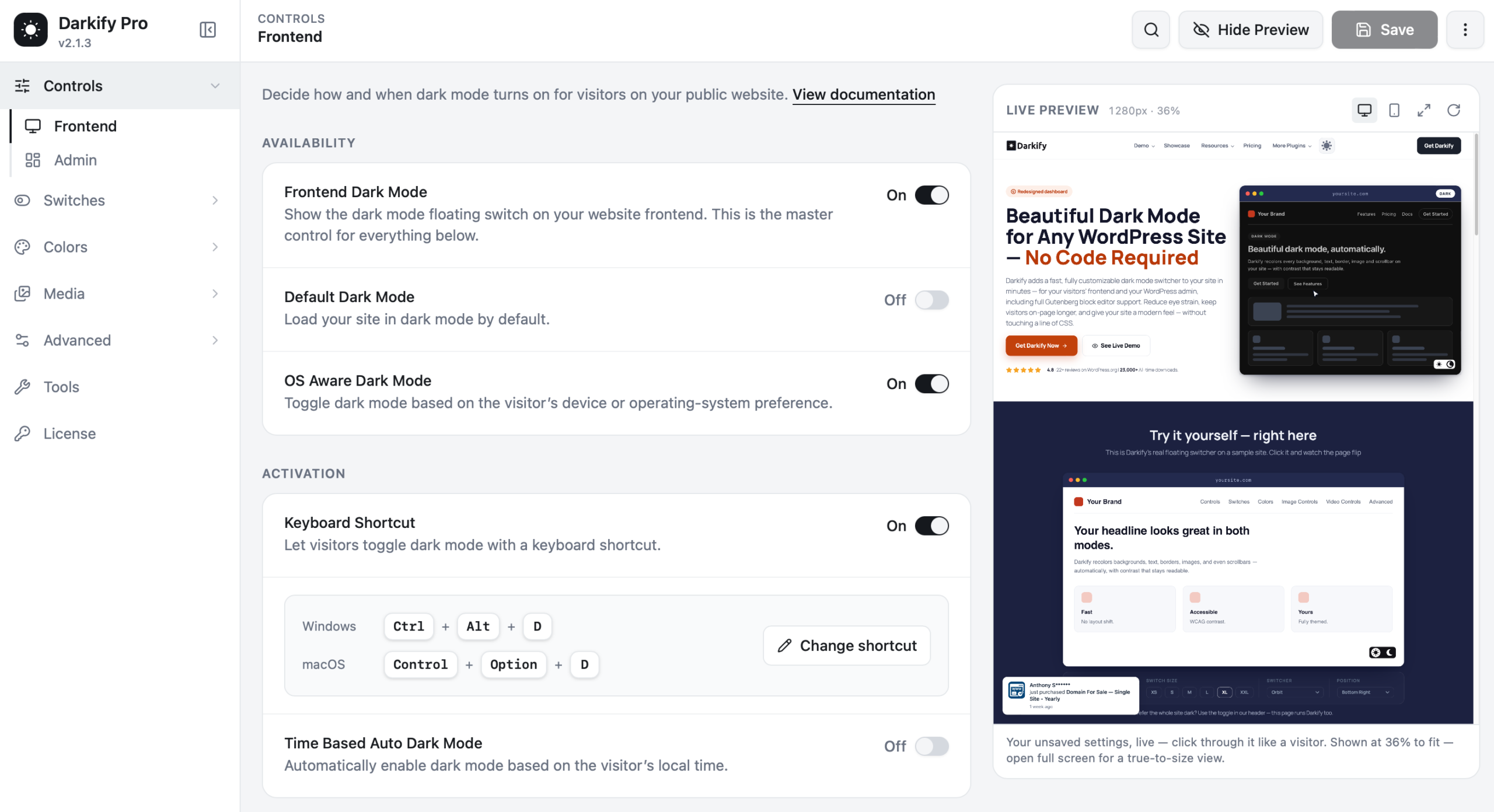
Availability #
Frontend Dark Mode #
The master switch. Turn it on and dark mode becomes available across your website, along with the floating switch. Turn it off and every other setting on this page stops applying — useful if you want to pause dark mode temporarily without losing your configuration.
Default Dark Mode #
Loads your site in dark mode for first-time visitors, instead of starting light. Visitors can still switch to light mode, and their choice is remembered on their next visit.
Turn this on if dark is your brand’s natural look. Leave it off if most of your audience expects a light site.
OS Aware Dark Mode #
Matches the visitor’s device. If their phone or computer is set to dark appearance, your site opens dark; if they use light appearance, your site opens light. Nobody has to click anything.
This is the setting most sites should keep on. It respects a preference people have already expressed, and it is the behaviour visitors now expect from a modern website.
How the three interact: a visitor’s own click always wins. If they have never clicked, OS-aware detection decides. If OS-aware is off, Default Dark Mode decides. If both are off, the site starts light.
Activation #
Keyboard Shortcut #
Lets visitors toggle dark mode from the keyboard. The default is Ctrl + Alt + D on Windows and Control + Option + D on macOS.
Click Change shortcut to record a different combination. Pick something that does not clash with a browser or screen-reader shortcut — combinations using Ctrl/Control plus Alt/Option are usually safe.
Time Based Auto Dark Mode #
Switches modes automatically based on the visitor’s own local time, not your server time. Turn it on and set a start and end time — for example dark from 19:00 to 07:00.
This pairs nicely with OS-aware detection: people who have set a system preference get that, and everyone else gets a sensible day/night default.
A recommended starting point #
| Setting | Suggested | Why |
|---|---|---|
| Frontend Dark Mode | On | Nothing works without it |
| Default Dark Mode | Off | Let the visitor’s device decide instead |
| OS Aware Dark Mode | On | Respects a preference they already set |
| Keyboard Shortcut | On | Costs nothing, power users appreciate it |
| Time Based Auto Dark Mode | Off | Turn on only if your audience is clearly evening-heavy |
Next #
Once dark mode is switching the way you want, move on to designing the floating switch or choosing your colours.


