
Darkify’s admin panel was rebuilt from the ground up in React. Settings are grouped into seven sections, every screen explains itself in plain language, and a live preview of your real website sits beside the controls so you can see each change as you make it.
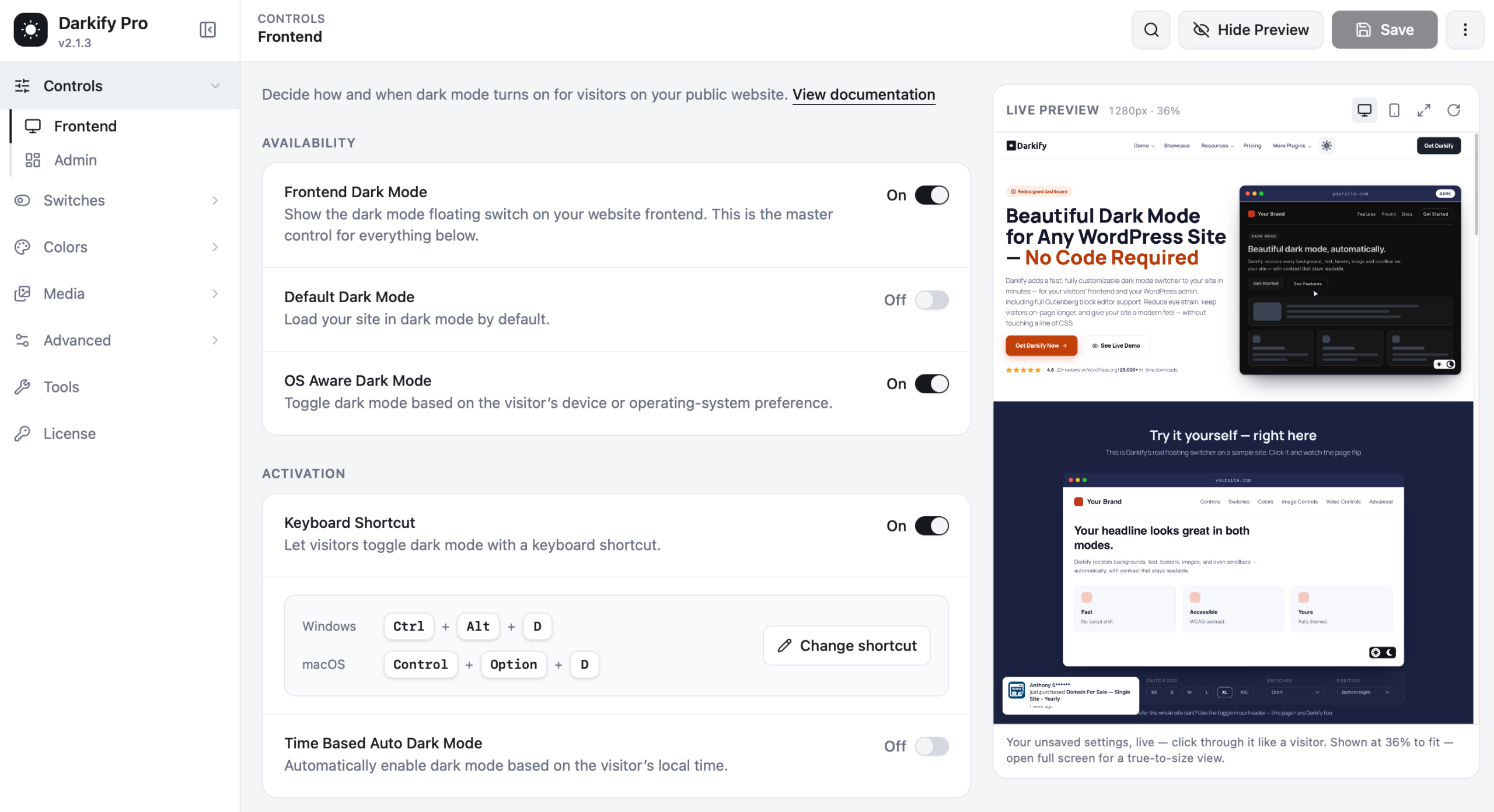
The sidebar #
| Section | What lives there |
|---|---|
| Controls | Frontend and Admin — when and where dark mode turns on |
| Switches | Floating Switch, plus menu switches, shortcodes and custom toggles |
| Colors | Presets, individual colour overrides and the scrollbar |
| Media | Image Controls and Video Controls |
| Advanced | HTML/CSS restriction, page & post rules, custom CSS, extras |
| Tools | Backup, restore and data clean-up |
| License | Activate or deactivate your Pro key |
Click a parent item to expand its sub-pages. The panel remembers where you were, so returning to Darkify drops you back on the last screen you used.
The live preview #
The right-hand panel loads your actual website inside the settings screen. It reflects your unsaved settings, which means you can experiment freely before committing anything.
- Desktop / mobile icons — check both breakpoints without leaving the page.
- Expand — open the preview full screen for a true-to-size view.
- Reload — refresh the preview if you changed something outside Darkify.
- Hide Preview / Show Preview — collapse it when you want more room for settings.
The preview is interactive. Click links, scroll, and use the floating switch inside it exactly as a visitor would.
Search #
The magnifying glass in the header searches every setting by name. If you know you want “grayscale” but cannot remember whether it lives under Media or Colors, type it and jump straight there.
Saving #
Changes are not applied to your live site until you press Save. The button highlights when you have unsaved work. Leaving the page with unsaved changes prompts you first.
Tip: Once you have a configuration you like, go to Tools → Download Backup and keep the JSON file. Restoring it takes one drag and drop, and it is the fastest way to apply the same Darkify setup to another site.
The three-dot menu #
The overflow menu in the top-right holds quick links: documentation, video tutorials, support, and a reset option to return a section to its defaults.
Get Help #
At the bottom of the sidebar, Get Help opens a dedicated screen with video walkthroughs, links to this documentation, and a direct line to our support team. See Getting support.


