
Video gets the same treatment as images: dim it, desaturate it, or swap it for a different file when dark mode is on.
Find it at Darkify → Media → Video Controls.
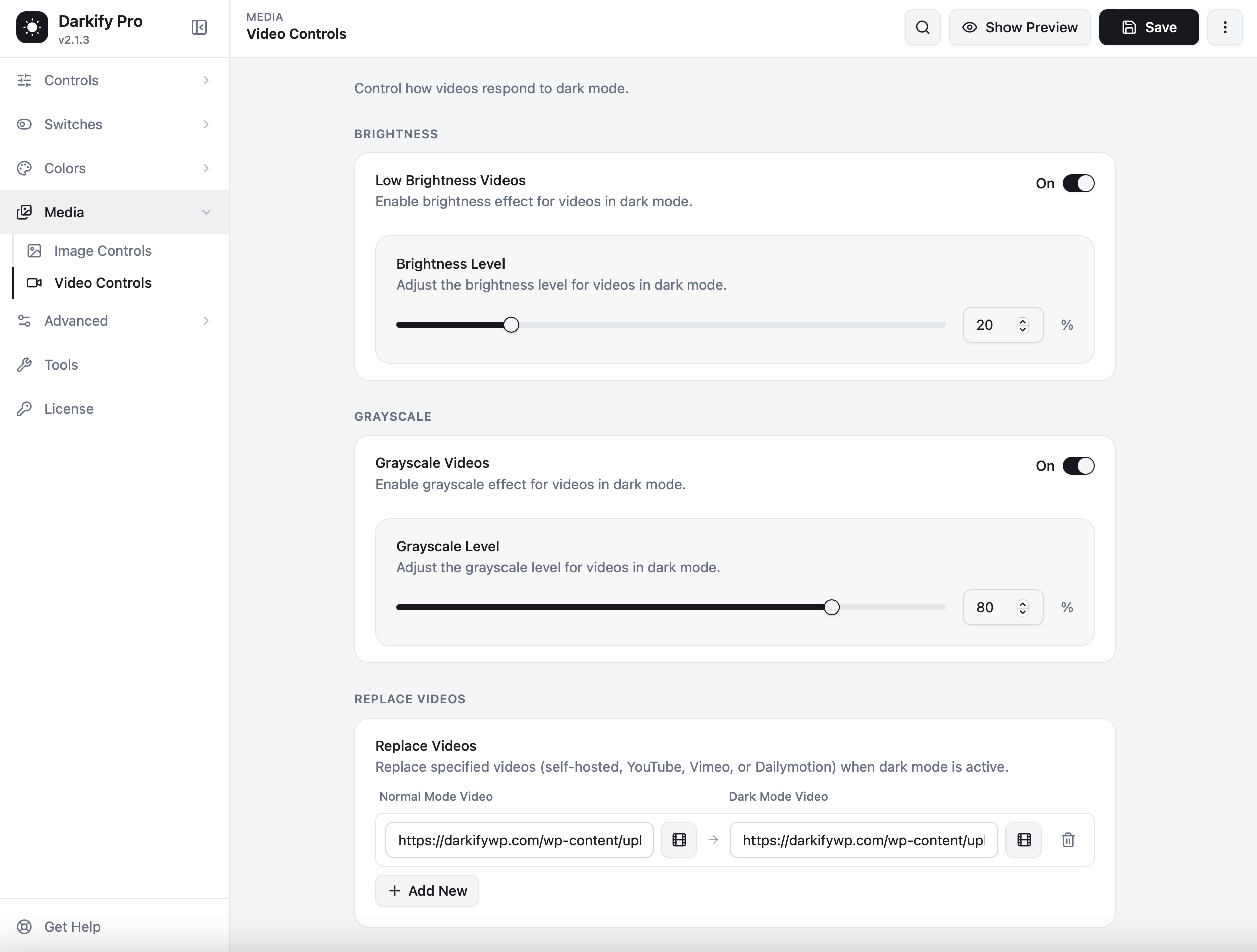
Brightness #
Low Brightness Videos #
Dims video playback in dark mode. A full-width autoplaying hero video is usually the brightest thing on a page, and dimming it makes the difference between atmospheric and glaring.
Brightness Level #
Around 20% works for most background video. Go lighter on videos people actually sit and watch — a tutorial or product demo should stay clear.
Greyscale #
Greyscale Videos #
Desaturates video in dark mode. It works beautifully on decorative background footage and rarely on content video, where colour carries information.
Greyscale Level #
Defaults to 80%, which reads as near-monochrome while keeping a trace of warmth.
Rule of thumb: apply effects to decorative video, leave content video alone. If a visitor pressed play on purpose, they want to see it as filmed.
Replace Videos #
Serve a different video when dark mode is active. This works with self-hosted files as well as YouTube, Vimeo and Dailymotion embeds.
- Click Add New.
- Enter the Normal Mode Video URL.
- Enter the Dark Mode Video URL.
- Use the media icon beside each field to pick a self-hosted file from your library.
Typical use: a product demo recorded against a white interface for light mode, and the same demo recorded in the app’s dark theme for dark mode.
Third-party embeds #
Because a YouTube or Vimeo player lives inside an iframe, Darkify cannot restyle the player’s own controls. What it can do is dim the frame and swap the video. If you want the surrounding iframe handled too, see Frontend Iframe Dark Mode in Extras.
Performance #
Brightness and greyscale are CSS filters — no re-encoding, no extra download. Replacement loads the alternate file only when dark mode is on.


