
Dark mode does not have to be all or nothing. This screen limits where dark mode and the floating switch run, page by page and post by post — chosen from a dropdown, with no selectors to write.
Find it at Darkify → Advanced → Page/Posts Restriction.
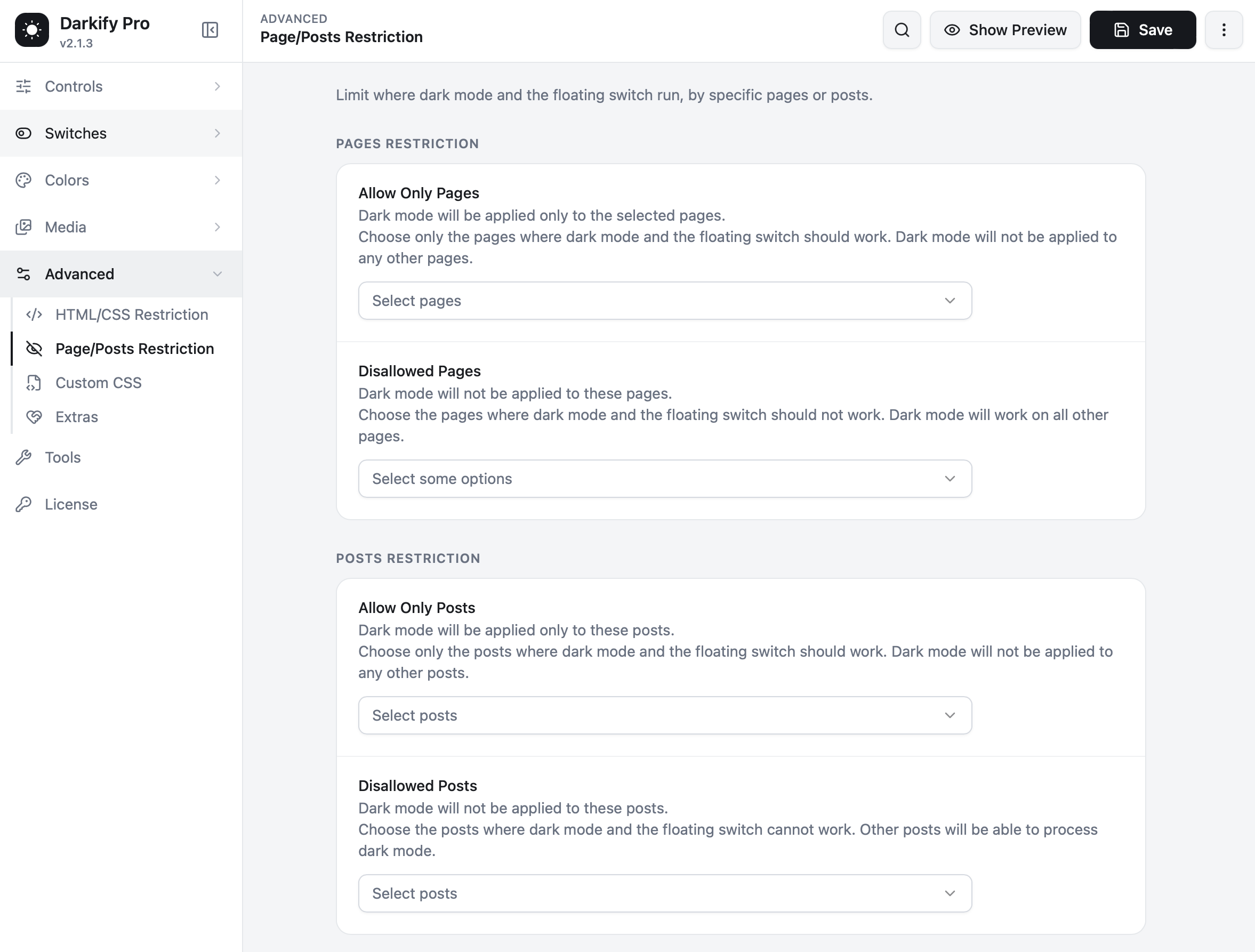
Pages restriction #
Allow Only Pages #
Select pages here and dark mode runs on those pages only. Every other page stays in light mode, and the floating switch does not appear on them.
Useful when you want to pilot dark mode on your blog or documentation before rolling it out site-wide.
Disallowed Pages #
The opposite. Dark mode works everywhere except the pages you choose.
Common exclusions: checkout, pricing pages with carefully designed comparison tables, landing pages built for a paid campaign, and any page containing a third-party widget you cannot restyle.
Posts restriction #
Allow Only Posts #
Dark mode applies only to the posts you select.
Disallowed Posts #
Dark mode applies to all posts except the ones you select. Handy for image-heavy photo essays or posts with custom-designed layouts.
Use one list or the other, not both. An allow-list already excludes everything you did not pick, so adding a block-list on top only makes your configuration harder to reason about later.
How it interacts with other settings #
- The switch follows the rule. On a restricted page, the floating switch is hidden too — visitors never see a control that does nothing.
- Preferences survive. A visitor who chose dark mode keeps it. They pass through a restricted page in light mode, and dark mode resumes on the next page.
- Element-level rules still apply. HTML/CSS Restriction works within pages where dark mode is allowed.
Typical setups #
| Site | Configuration |
|---|---|
| WooCommerce store | Disallow cart, checkout and account pages |
| Content site testing dark mode | Allow only the blog archive and a few posts |
| Agency site | Disallow campaign landing pages |
| Documentation site | No restriction — dark mode everywhere |
Custom post types #
Products, events, courses and other registered post types appear in the post selectors alongside standard posts, so the same rules apply to them.


