
Darkify can put your entire WordPress dashboard, the block editor, and the classic editor into dark mode — each with its own colour palette. If you spend hours a day inside wp-admin, this is the screen to visit first.
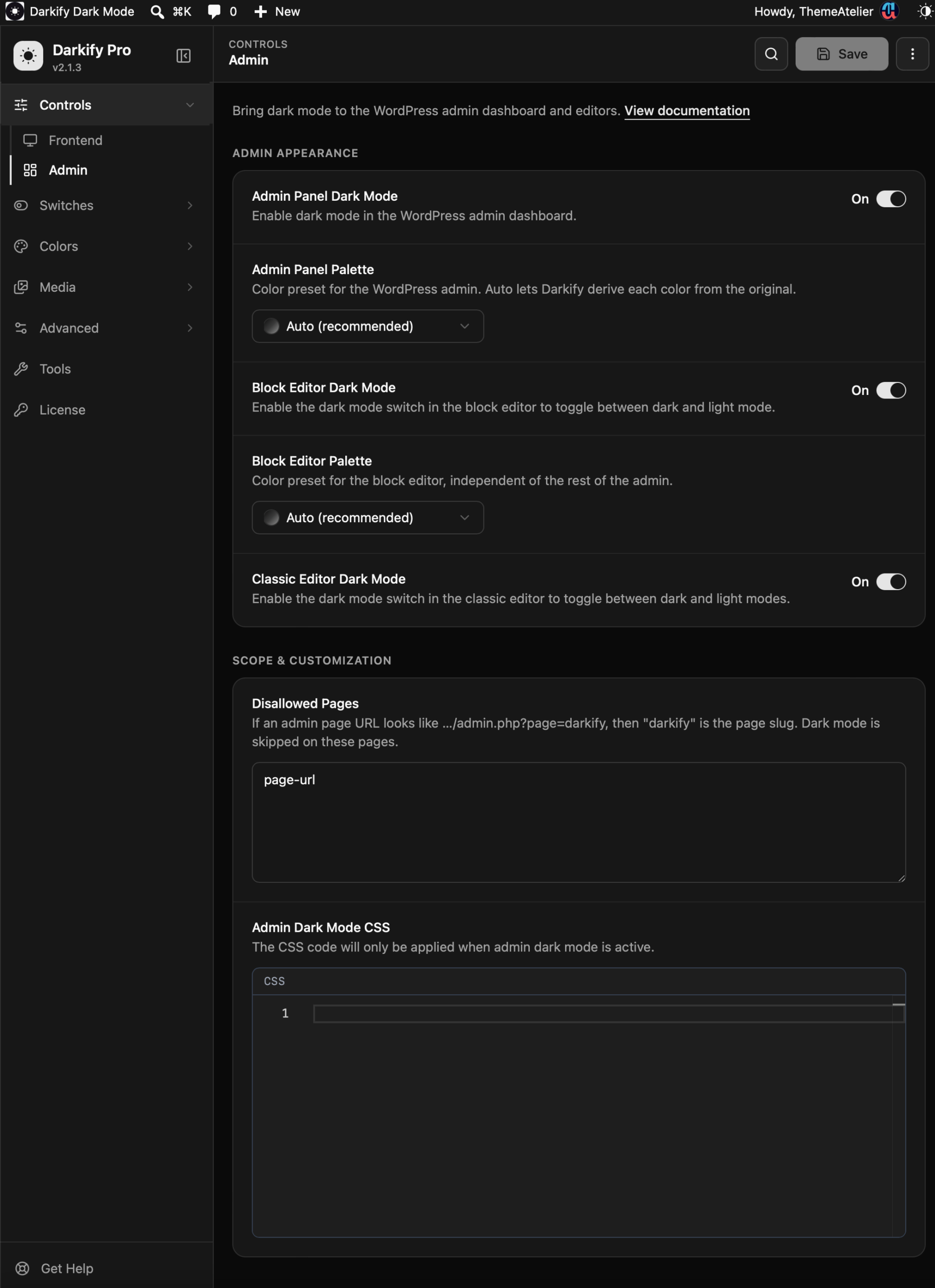
Find it at Darkify → Controls → Admin.
Admin appearance #
Admin Panel Dark Mode #
Turns dark mode on across the WordPress dashboard: posts, pages, media, settings screens, and third-party plugin pages. A sun/moon toggle appears in your admin bar so you can flip between light and dark whenever you like.
This applies per user. Your team members each choose their own preference — turning it on does not force dark mode on everybody.
Admin Panel Palette #
Choose the colour preset used for the dashboard. Auto (recommended) lets Darkify derive each dark colour from the original one, which keeps plugin screens looking the way their developers intended. Pick a named preset instead if you want a specific mood.
Block Editor Dark Mode #
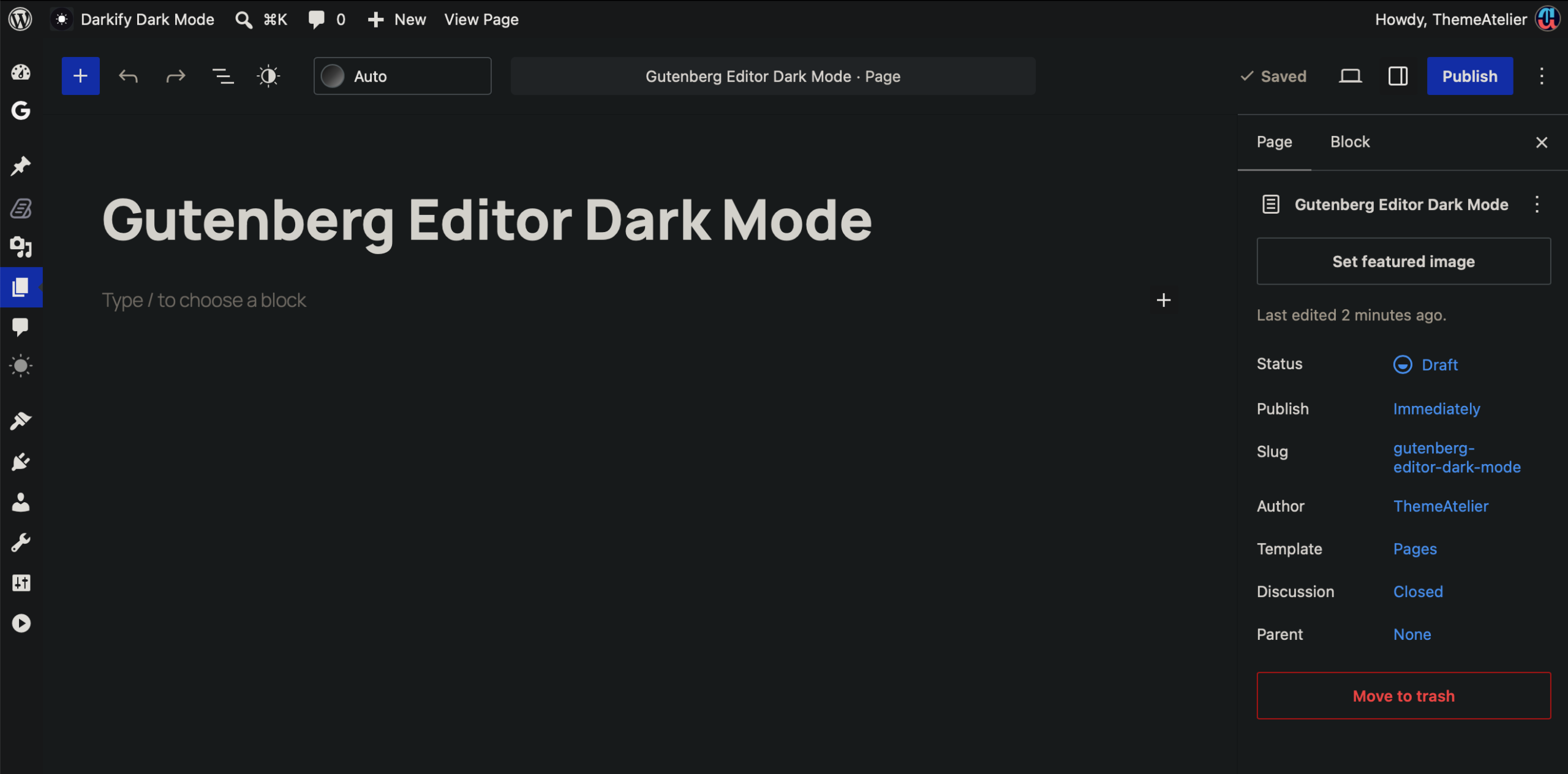
Adds a dark mode switch inside the block editor, so you can write in dark while keeping the rest of the dashboard light — or the other way round.
Block Editor Palette #
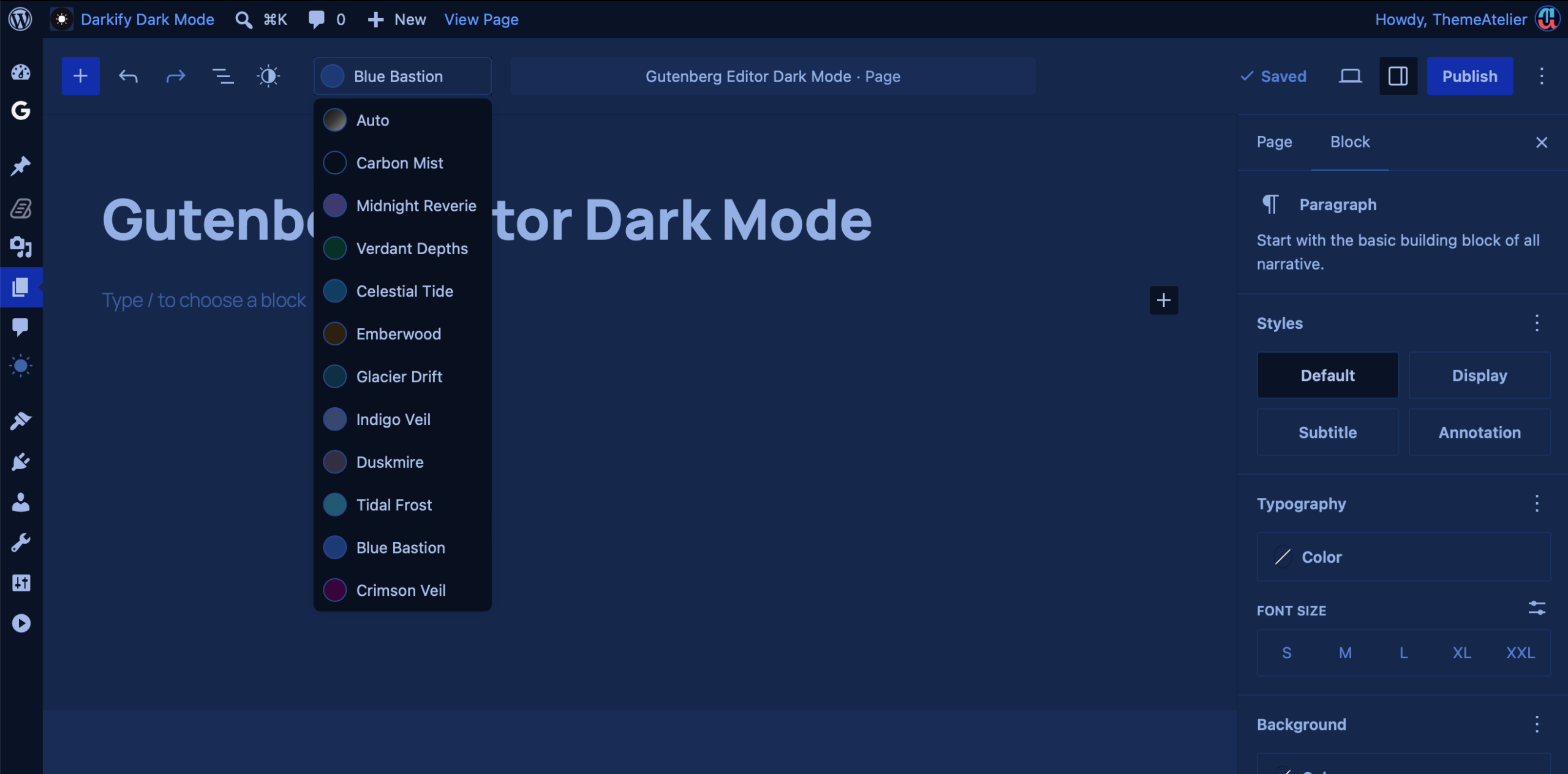
The editor gets its own preset, independent of the rest of the admin. Pick it from the Admin screen, or change it on the fly from the dropdown in the editor toolbar.
Classic Editor Dark Mode #
If your workflow still runs on the classic editor, this adds the same dark mode toggle to that screen.
Scope & customization #
Disallowed Pages #
Some plugin screens have their own strong styling, and dark mode can get in the way. List those admin pages here, and Darkify will skip them.
Use the page slug, not the full URL. If the admin URL looks like…/admin.php?page=darkify, the slug is darkify. Add one slug per line.
Admin Dark Mode CSS #
A CSS box that applies only while admin dark mode is active. Use it for the occasional stubborn element — a plugin badge that stays white, a chart legend that disappears against a dark background.
/* Example: fix a plugin notice that stays white */
.my-plugin-notice {
    background-color: #1a1a1a;
    color: #e7e7e7;
}
Good to know: since version 2.1.0, dark mode in wp-admin is rendered by the Dark Reader engine rather than Darkify’s per-element engine. That change made plugin screens far more reliable, including form builders like Fluent Forms.
Frequently asked #
Does admin dark mode affect what visitors see? No. It is entirely separate from frontend dark mode.
Will it slow down my dashboard? No noticeable difference. Styling is applied in the browser, with no extra server work.
Can I give every editor on my team dark mode by default? Turn Admin Panel Dark Mode on, and each user still keeps their own toggle in the admin bar.


