
The Tools screen holds three utilities: export your settings, import them back, and decide what happens to your data if you ever delete the plugin.
Find it at Darkify → Tools.
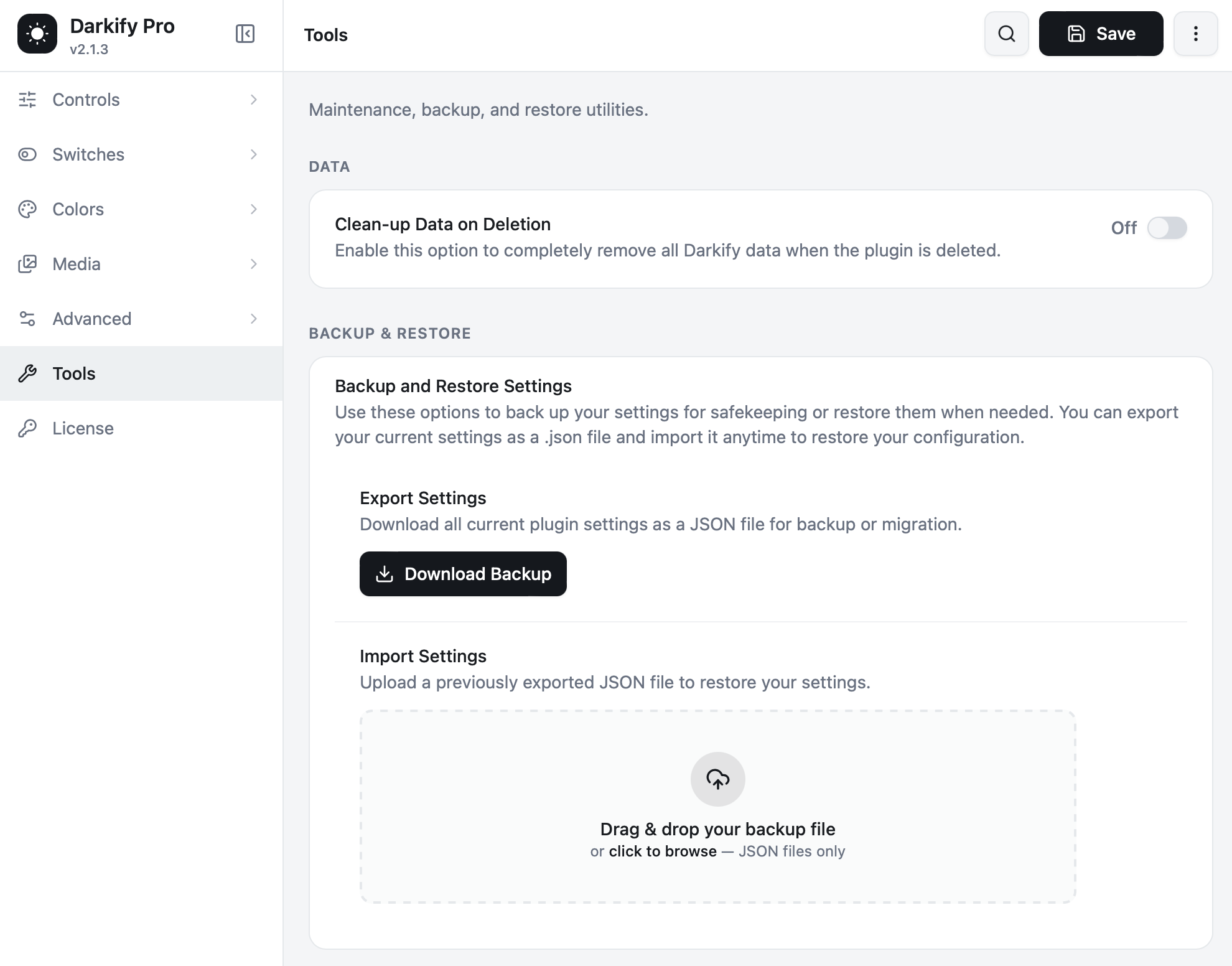
Export Settings #
Click Download Backup and Darkify saves every current setting to a single JSON file: your presets and colour edits, switch design and placement, media rules, restrictions and custom CSS.
Worth doing:
- As soon as you finish configuring a site.
- Before a major plugin or WordPress update.
- Before experimenting with something you might want to undo.
- Whenever you want to reuse a configuration elsewhere.
Import Settings #
Drag your JSON file onto the drop zone, or click to browse. Darkify validates the file and applies the settings.
Importing replaces your current settings. If there is anything on the current site you want to keep, download a backup first — that way you can always return to where you were.
Reusing a configuration across sites #
This is the fastest way to standardise dark mode across a group of sites, and it is how most agencies use Darkify:
- Configure Darkify carefully on one site.
- Download the backup.
- Install and activate Darkify on the next site.
- Import the JSON file.
- Adjust anything site-specific — logo replacements and page restrictions are the usual ones — and save.
Staging to live #
Build your configuration on staging, export, then import on the live site. No database copying, and nothing else on the live site is touched.
Clean-up Data on Deletion #
Off by default, which is the safe choice. With it off, deleting the Darkify plugin leaves your settings in the database — reinstall later and everything comes back exactly as you left it.
Turn it on only when you are deliberately removing Darkify for good and want no trace left behind. With it on, deleting the plugin removes all Darkify data permanently.
Note: deactivating is not deleting. Clean-up only runs when the plugin is deleted from the Plugins screen.
What is inside the backup file #
It is plain JSON — readable in any text editor. It contains plugin settings only: no posts, no users, no visitor data, no license key. Sharing it with our support team is a safe and often very fast way to get a configuration issue diagnosed.


