
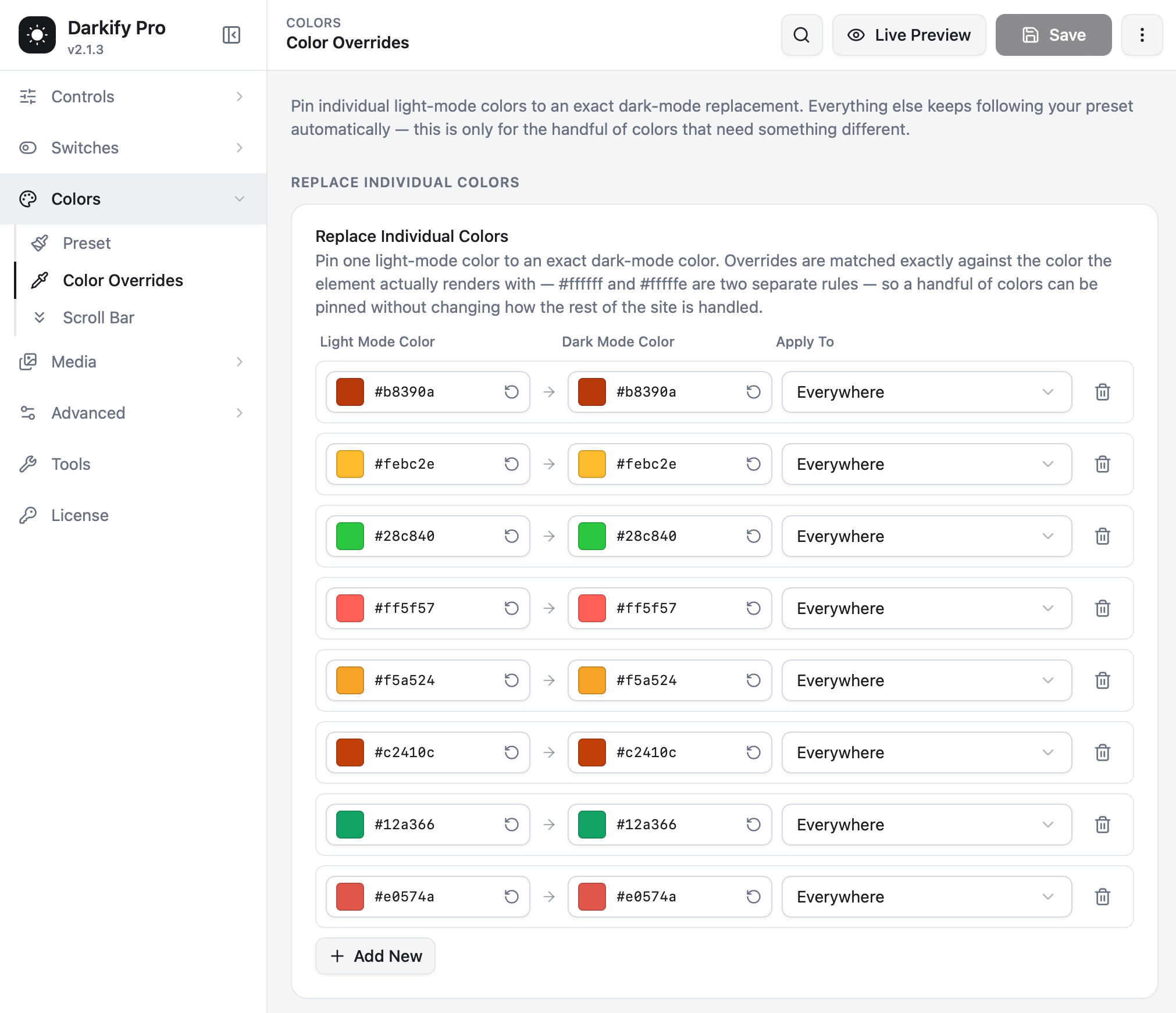
Color Overrides let you pin one light-mode colour to an exact dark-mode replacement. Everything else on your site keeps following the preset automatically. It is the precision tool for the handful of colours that need something specific.
Find it at Darkify → Colors → Color Overrides.
When to use an override #
- Brand colours. Your logo red or corporate blue should stay recognisable, not get darkened along with everything else.
- Status colours. Success green, warning amber and error red carry meaning. They need to survive the switch.
- Charts and data. Series colours must stay distinguishable from each other.
- Anything that looks wrong. If one colour comes out muddy in dark mode, pin it instead of adjusting the preset and affecting everything else.
Adding an override #
- Click Add New.
- Enter the Light Mode Color — the hex value your site already renders in normal mode.
- Enter the Dark Mode Color — what it should become when dark mode is on.
- Choose where it applies under Apply To.
- Save.
To keep a colour completely untouched — a brand colour, typically — set both fields to the same hex value.
Matching is exact #
Overrides are matched against the colour the element actually renders with, character for character. #ffffff and #fffffe are two separate rules. That precision is deliberate: it means you can pin a handful of colours without changing how the rest of your site is handled.
How to find the exact hex value: right-click the element on your site, choose Inspect, and read the computed color or background-color. Copy that value into the Light Mode Color field. If the browser shows rgb(184, 57, 10), its hex equivalent is #b8390a — most inspectors will toggle the format when you click the swatch.
The Apply To dropdown #
Each row can be scoped, so an override does not spill into places you did not intend:
- Everywhere — text, backgrounds, borders and icons alike. The usual choice.
- Text — only where the colour is used for text.
- Backgrounds — only where it is a background.
- Borders — only where it is a border.
Managing the list #
Each row has a reset arrow beside each colour field, which restores the value Darkify would have used, and a trash icon that removes the rule entirely. Order does not matter — every rule matches its own specific colour.
Overrides vs Custom CSS #
| Use… | When… |
|---|---|
| Color Overrides | A specific colour needs a specific replacement, wherever it appears |
| Custom CSS | A specific element or component needs different styling in dark mode |
| Disallowed Elements | A whole section should be left in its original colours |


