
Images are the reason most dark modes feel unfinished. A bright photo on a dark page glares; a black logo on a dark background disappears. The Image Controls screen fixes both, plus everything in between.
Find it at Darkify → Media → Image Controls.
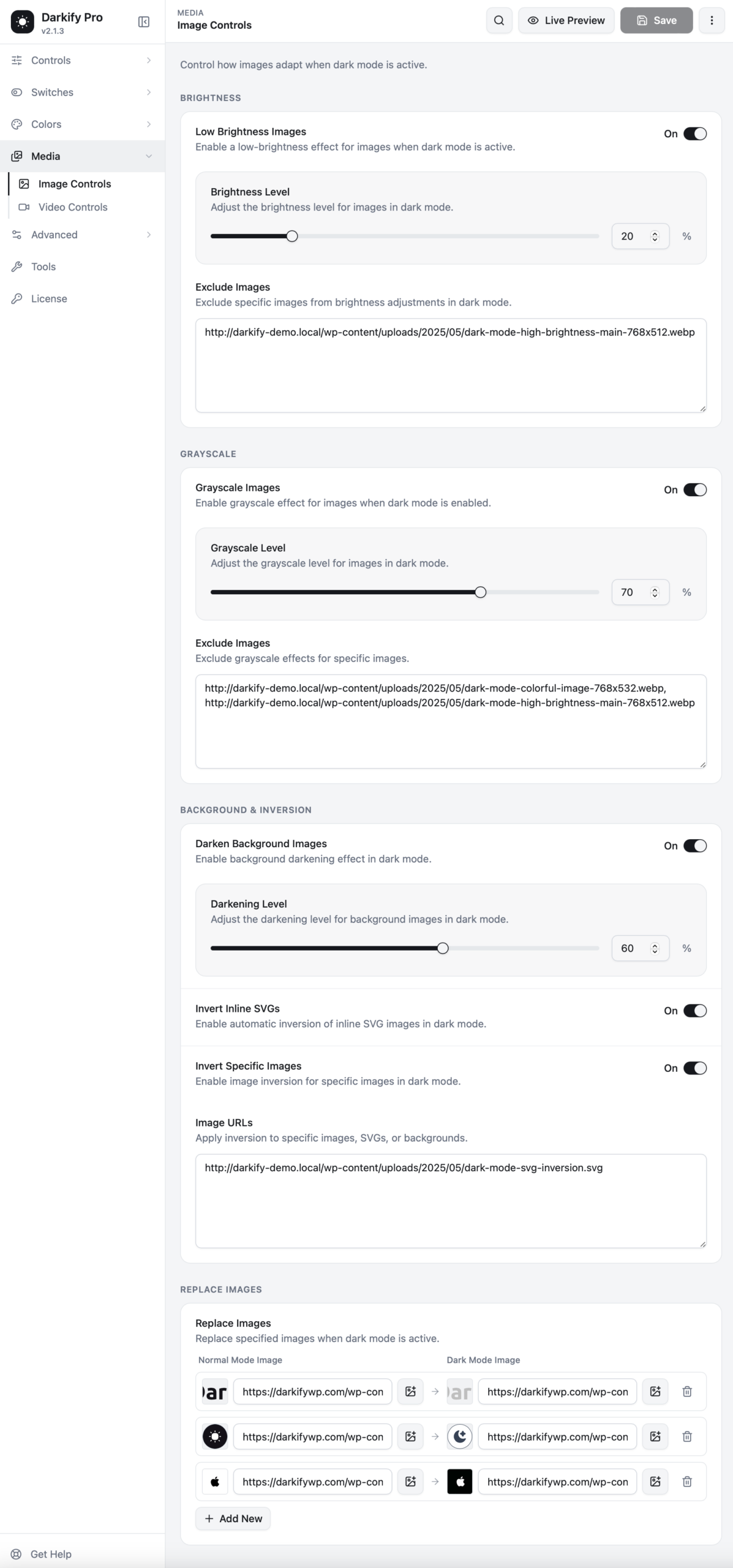
Brightness #
Low Brightness Images #
Dims images while dark mode is active, so a bright photograph does not blow out against a dark page.
Brightness Level #
How much to dim, as a percentage. 20% is a good starting point — noticeable relief without making photos look murky. Push it higher only if your imagery is unusually bright.
Exclude Images #
Paste the full URL of any image that should keep its original brightness. Product photos, portraits and anything where accurate colour matters belong here. One URL per line, or comma-separated.
Greyscale #
Greyscale Images #
Desaturates images in dark mode. It suits editorial and portfolio sites, where muted imagery reads as deliberate.
Greyscale Level #
0% leaves colour untouched; 100% is fully monochrome. Around 70% keeps a hint of colour while calming the page.
Exclude Images #
Same idea as above. If you run a shop, exclude your product images. Customers need to see the real colour of what they are buying.
Background & inversion #
Darken Background Images #
Applies to CSS background images — hero sections, banners, section backdrops. These are often the brightest elements on a page, so they get their own Darkening Level, defaulting to 60%.
Invert Inline SVGs #
Flips inline SVG icons automatically. Black icons become light and stay visible against a dark background. Most sites should leave this on.
Invert Specific Images #
For individual files that need inverting rather than dimming. The classic case is a black PNG logo or a line-art diagram that vanishes in dark mode.
Turn it on and list the file URLs under Image URLs. It works on regular images, SVGs, and background images.
Replace Images #
The most precise option: serve a different file entirely when dark mode is on.
- Click Add New.
- Set the Normal Mode Image — the file shown in light mode.
- Set the Dark Mode Image — the file that replaces it.
- Use the media-library icon beside each field to pick from your uploads instead of typing URLs.
This is how a proper dark-mode logo is done. Export a light version of your logo, upload it, and map it to the original. The swap is instant, and visitors never see a flash of the wrong file.
Which tool for which problem?
Photo too bright → Low Brightness Images
Photos too colourful for the mood → Greyscale Images
Black icon disappears → Invert Inline SVGs or Invert Specific Images
Logo needs a real light version → Replace Images
Getting an image URL #
Open Media → Library, click the image, and copy the value in the File URL field. Use the full URL, including https://.
Performance note #
Brightness, greyscale, darkening, and inversion are CSS filters applied in the browser. No second copy of the image is generated, and nothing extra is downloaded. Only Replace Images loads a different file, and only when dark mode is active.


