
HTML/CSS Restriction controls which parts of your page dark mode is allowed to touch, by HTML tag, CSS class, or CSS ID. It is how you protect a section that must keep its original design.
Find it at Darkify → Advanced → HTML/CSS Restriction.
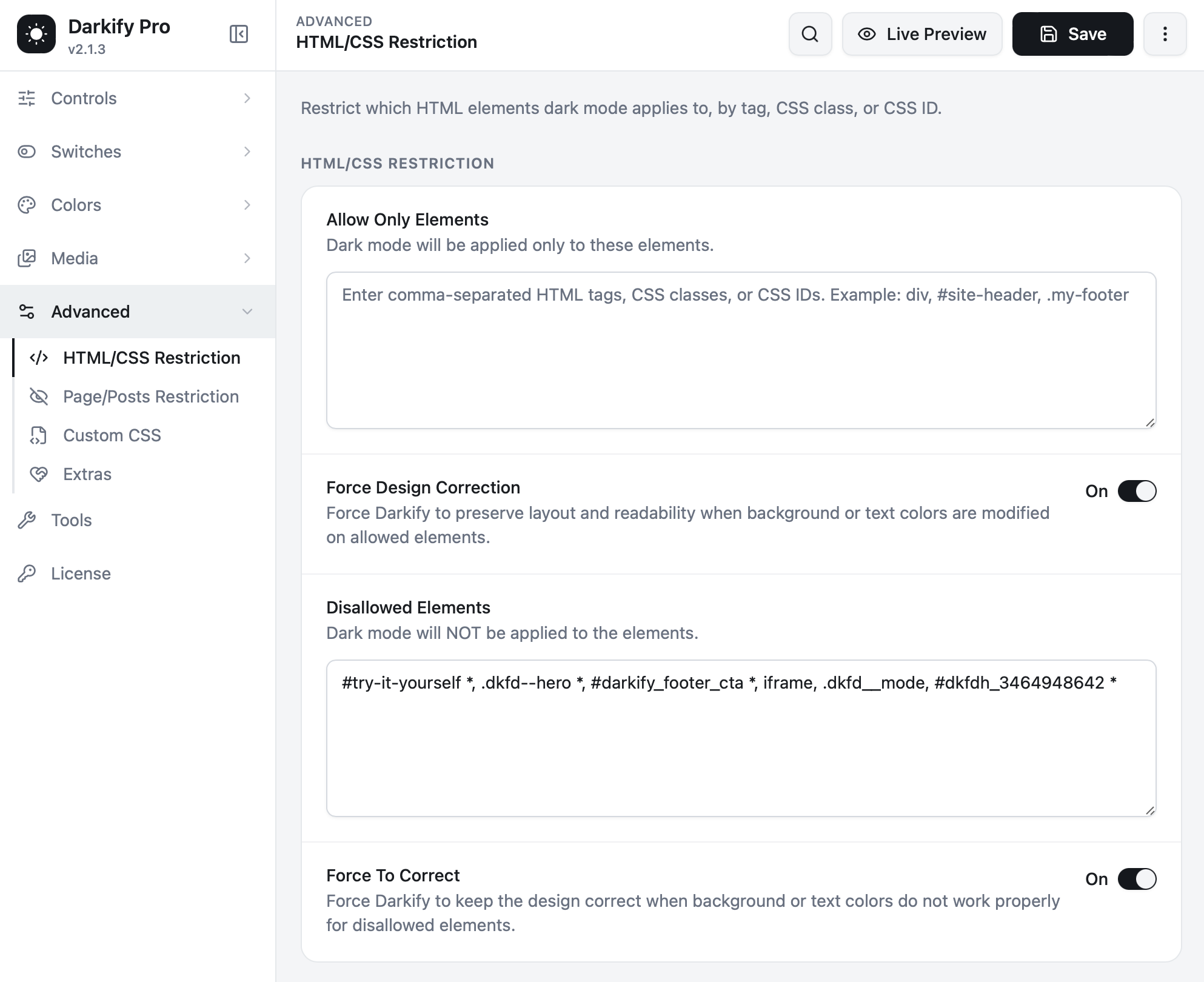
Allow Only Elements #
An allow-list. Enter selectors here and dark mode applies to those elements only — everything else on the page stays exactly as it is.
div, #site-header, .my-footerSeparate entries with commas. Use plain tag names for tags, # for IDs and . for classes.
Most sites should leave this empty. Reach for it when you want dark mode on one specific area of a page and nowhere else — a documentation column, say, while the marketing chrome around it stays light.
Force Design Correction #
When a background or text colour on an allowed element changes, this keeps the surrounding layout and readability intact — catching cases where a recoloured element would otherwise leave text sitting on a background it no longer contrasts with. Leave it on unless you have a specific reason not to.
Disallowed Elements #
The block-list, and the setting you will use far more often. Dark mode is not applied to anything matching these selectors.
#pricing-table *, .brand-banner, iframe, .payment-widget *Add * after a selector to exclude that element and all of its children — which is usually what you want for a whole section.
Good candidates for the block-list #
- Sections that are already dark by design.
- Brand banners and hero areas with fixed artwork.
- Third-party widgets: payment forms, maps, booking calendars, review badges.
- Charts, graphs and infographics with their own colour language.
- Any embed you do not control.
Force To Correct #
A companion to the block-list. If a disallowed element ends up with a background or text colour that does not work, this lets Darkify step in just enough to keep the design correct, rather than leaving it broken.
Finding the right selector #
- Right-click the element on your site and choose Inspect.
- Look at the highlighted HTML for a
classoridattribute. - Prefix a class with
.and an ID with#. - Pick the outermost element of the section, then add
*to include everything inside it.
Prefer a specific class over a generic tag. Excluding div would remove dark mode from nearly your entire page. Excluding .checkout-widget * removes it from exactly the part you meant.
Restriction vs Custom CSS #
| Goal | Use |
|---|---|
| Leave a section completely untouched | Disallowed Elements |
| Apply dark mode to one area only | Allow Only Elements |
| Style a section differently in dark mode | Custom CSS |
| Change one specific colour everywhere | Color Overrides |
| Turn dark mode off on a whole page | Page/Posts Restriction |


